EducationSoftwareStrategy.com
StrategyCommunity

Knowledge Base

Product

Community

Knowledge Base

TopicsBrowse ArticlesDeveloper Zone

Product

Download SoftwareProduct DocumentationSecurity Hub

Education

Tutorial VideosSolution GalleryEducation courses

Community

GuidelinesGrandmastersEvents
x_social-icon_white.svglinkedin_social-icon_white.svg
Strategy logoCommunity

© Strategy Inc. All Rights Reserved.

LegalTerms of UsePrivacy Policy
  1. Home
  2. Topics

KB46818: How to retrieve the list of multisource reports that depend on an MDX cube.


Community Admin

• Strategy


When right clicking on an MDX cube under Data Explorer and selecting "Search for Dependents...", we will get the list of dependent MDX reports. However, multisource reports will not be part of that list. The steps below describe how to obtain the list of dependent Multisource reports:
When right clicking on an MDX cube under Data Explorer and selecting "Search for Dependents...", we will get the list of dependent MDX reports. However, multisource reports will not be part of that list. The steps below describe how to obtain the list of dependent Multisource reports:
  • Right-click the project name and select “Search for objects…”
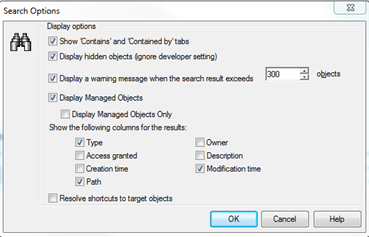
  • In the New Search window, go to Tools menu > Options and enable the following options:
     
    a. Show ‘Contains’ and ‘Contained by’ tabs
     
    b. Display Managed Objects
     
ka04W000000OdVmQAK_0EM440000002CO5.png
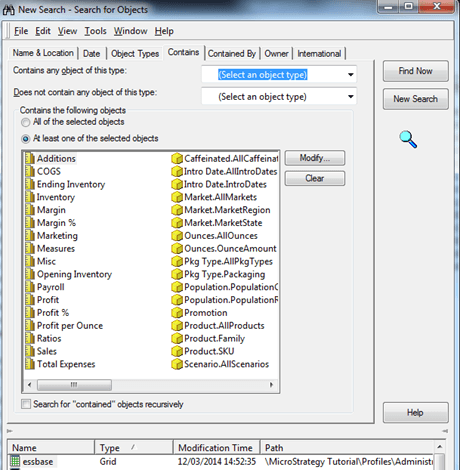
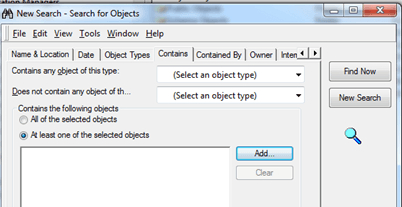
  • Go to the Contains tab. Select “At least one of the selected objects” and press “Add…”
     
ka04W000000OdVmQAK_0EM440000002CNt.png
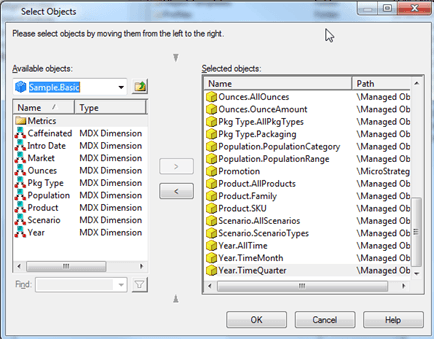
  • Search for the cube under the relevant Data Explorer.
  • Double click on the cube name: the metrics folder and the cube hierarchies will appear. In order to find the cube dependent reports, we will need to add all the metrics and attributes contained in each hierarchy.
     
ka04W000000OdVmQAK_0EM440000002CNu.png
  • Once every metric and attribute within the cube is added, click OK and “Find Now”, the dependent objects will appear below:
     
     
ka04W000000OdVmQAK_0EM440000002CO8.png


Comment

0 comments

Details

Knowledge Article

Published:

April 13, 2017

Last Updated:

April 13, 2017