EducationSoftwareStrategy.com
StrategyCommunity

Knowledge Base

Product

Community

Knowledge Base

TopicsBrowse ArticlesDeveloper Zone

Product

Download SoftwareProduct DocumentationSecurity Hub

Education

Tutorial VideosSolution GalleryEducation courses

Community

GuidelinesGrandmastersEvents
x_social-icon_white.svglinkedin_social-icon_white.svg
Strategy logoCommunity

© Strategy Inc. All Rights Reserved.

LegalTerms of UsePrivacy Policy
  1. Home
  2. Topics

KB46833: How to configure Health Center in UNIX/Linux when a graphical user interface (GUI) is unavailable in MicroStrategy 9.3.x-9.5.x?


Community Admin

• Strategy


This knowledge base article explains how to configure Health Center in UNIX/Linux when a graphical user interface (GUI) is unavailable in MicroStrategy 9.3.x-9.5.x.

Health Center configuration is done using the Strategy Configuration Wizard. In UNIX/Linux environments where a graphical user interface (GUI) is not available, the Configuration Wizard console mode tool (mstrcfgwiz-editor) with a pre-defined Response.ini file must be used.
 
Steps to configure Health Center

  • Copy ConfigWiz.xml (and JavaConfig.xml for Health Agents), and the repository folder from the Strategy home directory to the target machine to the following default location:
     
    
    <Home_Directory>/HealthCenter/

    If this path does not exist, create the directory.
  • Update:
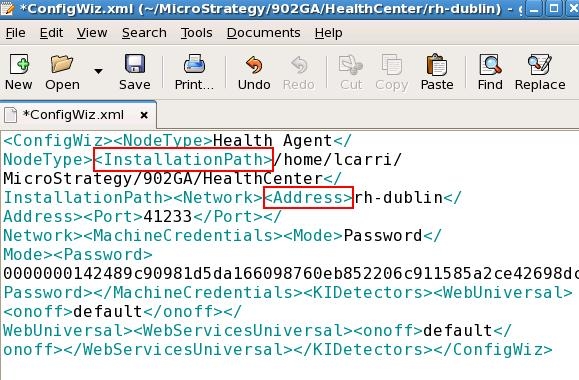
    • ConfigWiz.xml with the <InstallationPath> and <Address> values (example shown below). <Address> corresponds to the hostname of the machine.
       
ka04W000000OfmjQAC_0EM4400000029Q6.jpeg
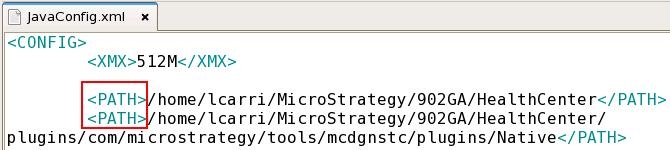
    • JavaConfig.xml with the <PATH> of the ???
       
ka04W000000OfmjQAC_0EM4400000029Q1.jpeg
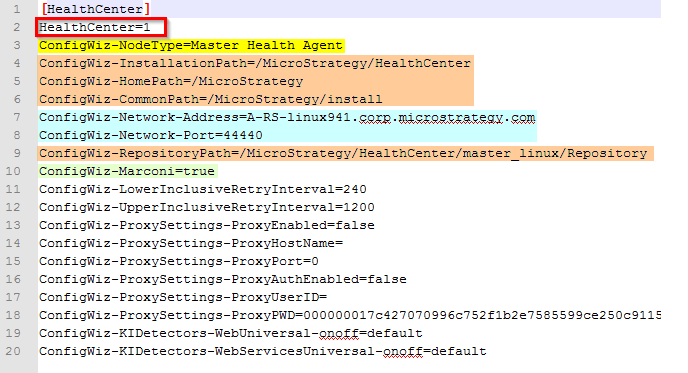
  • Create a new Response.ini file with the necessary parameters under the  section for either a Master Health Agent or a Health Agent. Refer to the Strategy System Administration Guide for a full description of response file options (available in Chapter 18 - Maintaining your Strategy System with Health Center). For example:
     
     
ka04W000000OfmjQAC_0EM4400000029Pq.png
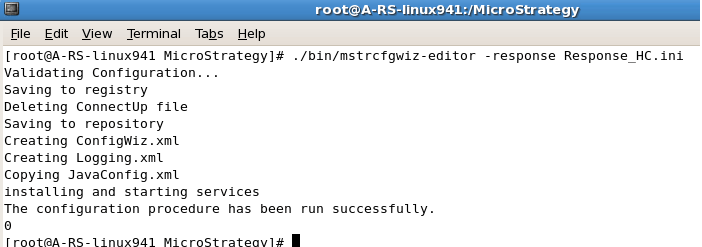
  • Execute the new Response.ini file using the Configuration Wizard console mode tool (mstrcfgwiz-editor). For example:
     

    > ./mstrcfgwiz-editor -response /Path/response.ini


ka04W000000OfmjQAC_0EM4400000029Pw.png
  • Restart the Intelligence Server.
  • Verify the Health Center configuration.
     
    • Check that the "mstrsuppappsn" process is running.
       
      
      ps -ef | grep mstrsuppappsn

       
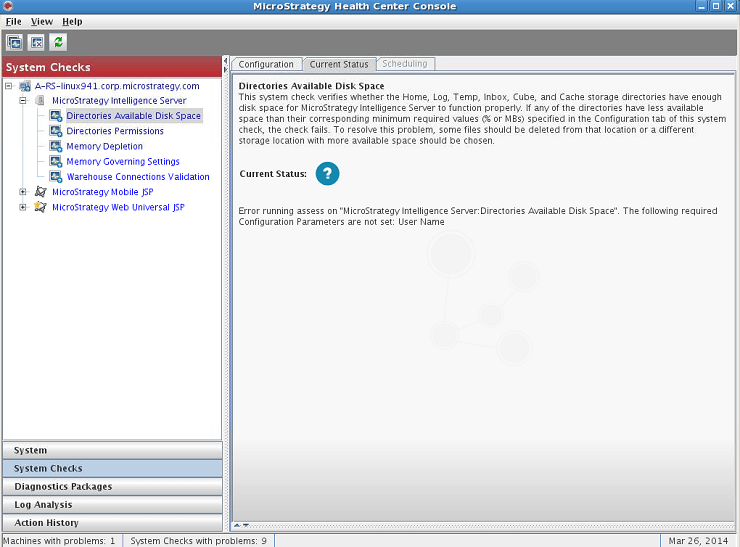
    •  Launch the Health Center Console and verify connectivity.
       
ka04W000000OfmjQAC_0EM4400000029Pz.png

Comment

0 comments

Details

Knowledge Article

Published:

May 11, 2017

Last Updated:

July 24, 2017