EducationSoftwareStrategy.com
StrategyCommunity

Knowledge Base

Product

Community

Knowledge Base

TopicsBrowse ArticlesDeveloper Zone

Product

Download SoftwareProduct DocumentationSecurity Hub

Education

Tutorial VideosSolution GalleryEducation courses

Community

GuidelinesGrandmastersEvents
x_social-icon_white.svglinkedin_social-icon_white.svg
Strategy logoCommunity

© Strategy Inc. All Rights Reserved.

LegalTerms of UsePrivacy Policy
  1. Home
  2. Topics

KB46879: How to configure connectivity to a secured CDH cluster with MicroStrategy 10.x for the Intelligence Server on a Windows operating system


Community Admin

• Strategy


The MicroStrategy ODBC drivers for Hive and Impala allow users to create connections to secured CDH clusters using MIT Kerberos.

The Strategy ODBC drivers for Hive and Impala allow users to create connections to secured CDH clusters using MIT Kerberos. This is a fixed credential authentication option (not to be confused with the delegated Kerberos credentials through and through authentication available for some databases with Strategy).
 
NOTE:

  1. In Strategy Intelligence Server 10.x, users should use the Strategy ODBC driver for Hive or Impala to the connect to the secure Cloudera cluster. 
  2. As a pre-requisite, the MIT Kerberos libraries should be installed on the Windows Intelligence Server machine. These can be obtained from the following link: http://web.mit.edu/Kerberos/dist/
  3. In the documentation below it is assumed that the user has already setup the secure CDH cluster and created a Kerberos user principal account to create the ODBC connection with.

 
STEPS 

  • Edit the hosts file of the Strategy Intelligence Server 10.x Windows machine to include the KDC server's information and include the client machine (Intelligence Server machine) information in the KDC server's host file, so that they are both reachable over the network.
  • Obtain the krb5.conf file from the Hadoop system and place it on the Strategy Intelligence Server machine. Rename the file to krb5.ini and place it under the MIT Kerberos default folder. Then, set the environment variables for KRB5_CONFIG and KRB5CCNAME as shown below.
     
    
    KRB5_CONFIG=C:\Program Files (x86)\MIT\Kerberos\bin\krb5.ini
    KRB5CCNAME=C:\krbtemp\krb5cache 
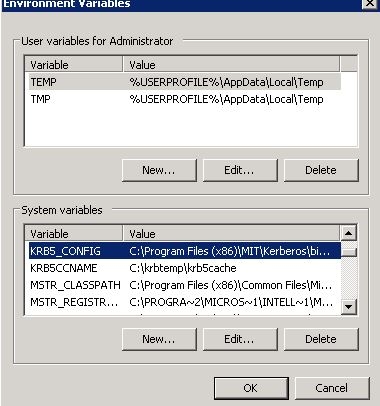


    Note: In the above example, a folder called krbtemp was created on the C drive for the creation of the credentials cache file.
     
ka04W000000OhKVQA0_0EM440000002JCM.jpeg
  • From the command line, run the kinit command (located under the MIT folder, which is by default located at: C:\Program Files (x86)\MIT\Kerberos\bin). Run the kinit command with the syntax: kinit user@REALM. After running the command, the command klist should now list the Kerberos tickets. The MIT Kerberos manager should automatically get updated with the new credentials.
  • The ODBC DSN should be created using the Strategy Hive or Impala driver. 
     
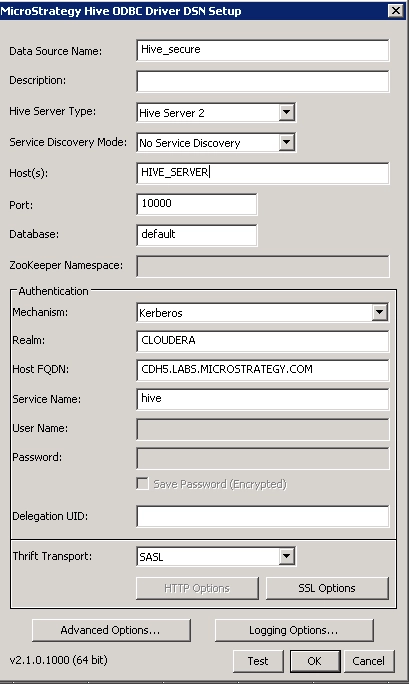
    To setup the DSN using the Strategy driver, provide the correct server IP address or hostname, port number, Realm, and the host Fully Qualified Domain Name (FQDN) and set the mechanism as Kerberos. When connecting to Hive, the service name should be set to hive. When connecting to Impala, the service name should be set to impala. With the example configuration shown below (for the Strategy Hive driver), the driver would try to authenticate as the user hive/cdh5.labs.microstrategy.com@CLOUDERA, which should have been added as one of the valid Principals on the KDC host.
ka04W000000OhKVQA0_0EM440000002MkQ.png


Comment

0 comments

Details

Knowledge Article

Published:

May 25, 2017

Last Updated:

May 25, 2017