EducationSoftwareStrategy.com
StrategyCommunity

Knowledge Base

Product

Community

Knowledge Base

TopicsBrowse ArticlesDeveloper Zone

Product

Download SoftwareProduct DocumentationSecurity Hub

Education

Tutorial VideosSolution GalleryEducation courses

Community

GuidelinesGrandmastersEvents
x_social-icon_white.svglinkedin_social-icon_white.svg
Strategy logoCommunity

© Strategy Inc. All Rights Reserved.

LegalTerms of UsePrivacy Policy
  1. Home
  2. Topics

KB46912: A report set to run by default to a view mode other than View will fail to open in the specified run mode in MicroStrategy Web 9.4.1.


Community Admin

• Strategy


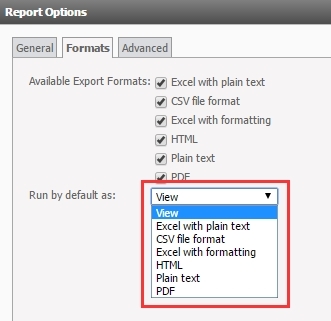
In MicroStrategy Web 9.4.1, users can set the default run mode of a report by choosing an option from the dropdown.

SYMPTOM:
In Strategy Web 9.4.1, users can set the default run mode of a report by choosing an option from the dropdown like shown below:
 

ka04W000000OhDvQAK_0EM44000000267z.jpeg

However, users may notice that if they configure Edit Links on a document to open a target report that has a default run mode other than View, the report will still execute in Strategy Web as View instead of the intended run mode.
 
STEPS TO REPRODUCE:

  1. Create Report A and set the default run mode to something other than View, for example Export to Excel.
  2. Create Document B and insert a text box.
  3. Configure Edit Links on the text box to open Report A.
  4. Run Document B in Interactive mode.
  5. Click on the link in the text box.
  6. Notice that Report A opens in Web and is not exported to Excel. 

CAUSE: 
This is a known issue in Strategy Web 9.4.1.
 
ACTION:
Contact Strategy Technical Support for an update on this issue.
 
WORKAROUND:
The issue does not occur if the link goes from one document to another document. Convert the report into a document and point to the document set to run as Excel instead.
Alternatively, users can also use the URL API instead of Edit Links to execute the report. A URL API can be generated by right clicking the target report through folder browsing and selecting "Share", then pressing the "Show Link" button, like shown below:
 

ka04W000000OhDvQAK_0EM440000002681.jpeg

Comment

0 comments

Details

Knowledge Article

Published:

May 30, 2017

Last Updated:

May 30, 2017