EducationSoftwareStrategy.com
StrategyCommunity

Knowledge Base

Product

Community

Knowledge Base

TopicsBrowse ArticlesDeveloper Zone

Product

Download SoftwareProduct DocumentationSecurity Hub

Education

Tutorial VideosSolution GalleryEducation courses

Community

GuidelinesGrandmastersEvents
x_social-icon_white.svglinkedin_social-icon_white.svg
Strategy logoCommunity

© Strategy Inc. All Rights Reserved.

LegalTerms of UsePrivacy Policy
  1. Home
  2. Topics

KB4696: How to configure Report Cost in MicroStrategy Developer 9.4.x -10.x


Stefan Zepeda

Salesforce Solutions Architect • Strategy


This article explains how to create a Report Cost in MicroStrategy Developer 9.4.x - 10.x.

What is Report Cost?
Report Cost is an arbitrary value that users can assign to a particular report to help determine priority.
If using Report Cost as a priority variable, a set of priority groups based on Report Cost must be defined.
EXAMPLE:

  • Report Cost between '0' and '400'.
  • Report Cost between '401' and '800'.
  • Report Cost between '801' and '1000'.

 
The set of Cost Groupings must cover all values from '0' to '1000'. Once the Cost Groupings are determined, users can set the report cost value on individual reports.
 
For example, if Cost Groupings have been created, as shown above, the first group should be given High Priority, the middle group Medium and the last group Low.
 
If a particular report requires significantly more processing time than most other reports, it should be assigned a Report Cost of '900'. Thus, the report will have a Low Priority based on Report Cost and will be executed later when the system is not as busy.
 
How is Report Cost configured in Strategy Desktop?
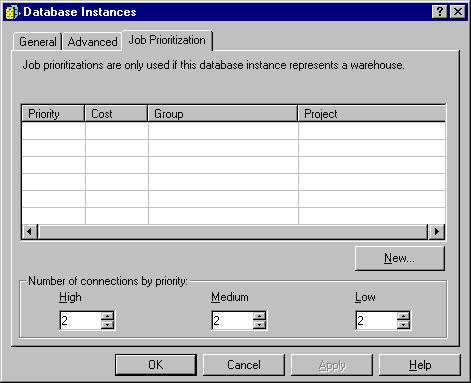
  • Right-click on the project within the 'Project Source', choose 'Prioritization' and click on the Prioritization tab, as seen below:
     
ka02R000000kXE4QAM_0EM440000002GHo.gif
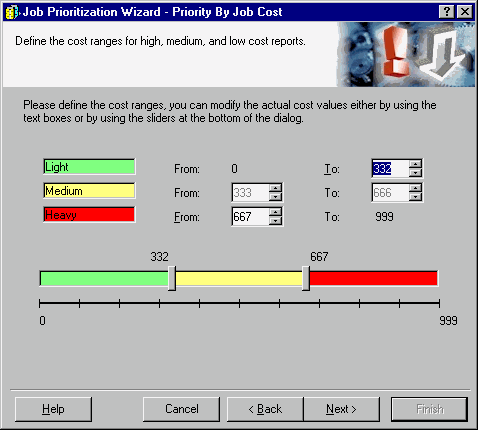
  • Click on 'New' and select 'Cost'. A window, as displayed below, appears:
     
ka02R000000kXE4QAM_0EM440000002GHl.gif
  • Assign a Cost Range for reports by either using the horizontal scroll bars or the text boxes.
    The Green area on the scroll bar corresponds to reports that are considered to have a Light Cost and the Red area corresponds to those that are considered to have a Heavy Cost.
     
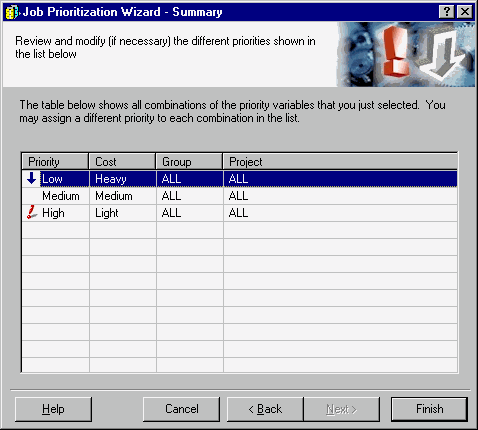
  • Click on 'Next'.
    It is in this window that the cost of a report is assigned an inverse priority. Reports defined as having a Heavy Cost will be given a Low Priority (as they require a larger amount of configured resources). Those with a Light Cost will be given High Priority (as they do not use a large amount of configured resources).
     
ka02R000000kXE4QAM_0EM440000002GHh.gif
  • Right-click on the Priority (e.g., Low) to change the priority for each Cost Value.
  • Click on 'Finish' to save changes.
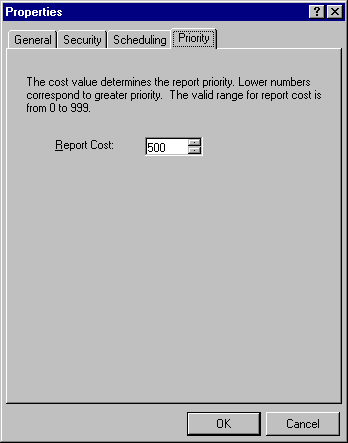
  • Right-click on a report, choose 'Properties' and select the 'Priority' tab. The following window appears:
     
ka02R000000kXE4QAM_0EM440000002GHq.gif

 
Assign priorities to a report based on the knowledge of the costliness of it (as configured in Steps 1 - 4).
 
Priority assignments are a number between '1' and '999'. For this example, the report has a cost of '500', thus giving it Medium Priority. A cost of '1' would assign it High Priority (Low Cost) and '999' would determine a Low Priority (High Cost).
 
Cost Value can also be configured on a Project or User Group Level.


Comment

0 comments

Details

Knowledge Article

Published:

April 5, 2017

Last Updated:

April 5, 2017