SYMPTOM:
Consider the below scenario in the Strategy Tutorial project:
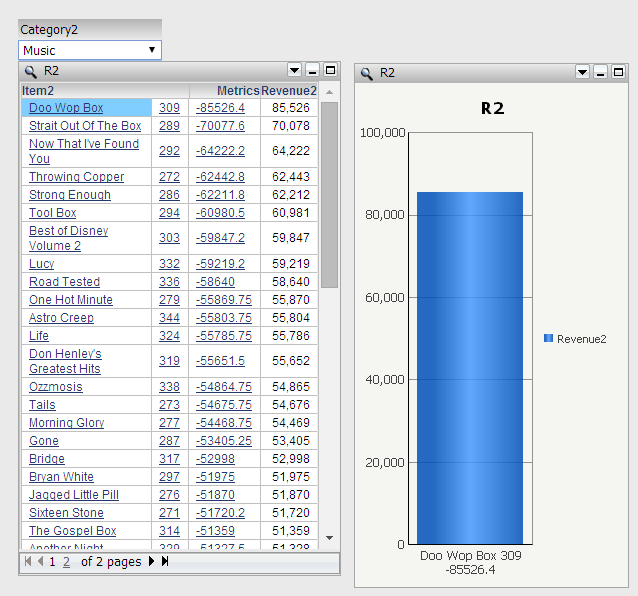
A selector for Category targets a grid containing Item and Revenue. In addition, elements of Item in the grid targets a graph. The grid is sorted by Revenue descending. When the selection in Category changes, the elements of Item in the grid will change. If the Item selector is not set to Apply selections as a filter and has Automatically update when there is no data for the current selection enabled, an element will be selected and the targeted graph will update as well.
In some cases, users may expect the first item in the grid, namely the item with the highest revenue, gets selected automatically to update the graph. But instead, the item with the smallest Item ID gets selected by default.
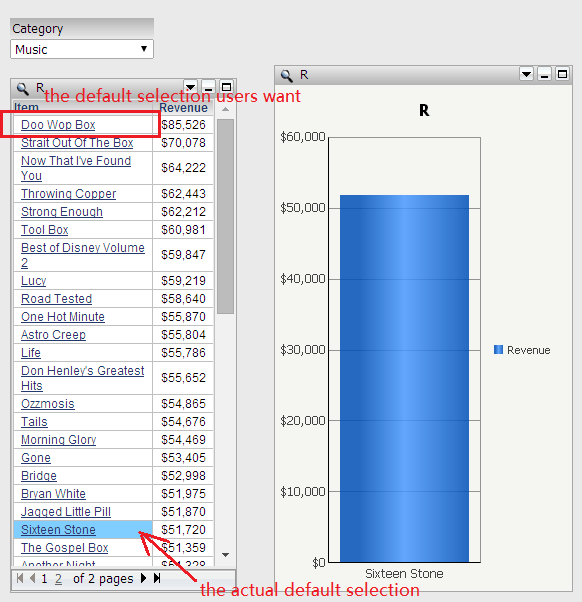
CAUSE:
This is a known issue in Strategy Web 9.4.1 and above.
ACTION:
Strategy will continue to investigate and post updates as soon as they are available.
WORKAROUND:
A workaround is to use Freeform SQL report to map Revenue as ID of Item. Then, the default selection will be chosen depending on Revenue.
Follow the steps below to create the Freefrom SQL report
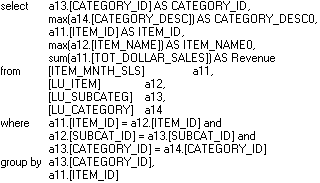
1. Get the SQL of the original dataset which contains Category, Item and Revenue:
2. Create a new Freeform SQL report on Tutorial DBI, paste the modified SQL based on above SQL and create the objects as below:
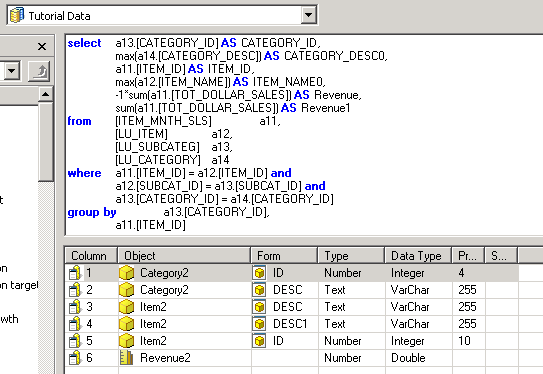
The modification on SQL is as below:
a. This line will be mapped to ID of new Item “Item2”. The selection will be based on this column and if it is descending sorted, “-1*” should be added. (If the requirement is to sort Sales ascending, just keep the original SQL.)
b. Duplicate the previous line for Revenue. Give a new name like Revenue1 or anything else. This is because the previous line has been mapped to Item2, the metric Revenue is still needed in the report.
Note:
Here when creating the objects, use a different name, e.g. Category2, Item2, Revenue2. Using the same names might cause problem to project schema. And later if users want to display Category2 as Category, it can be renamed in report.
3. Run the FF SQL report:
The item with largest Revenue has the smallest ID:
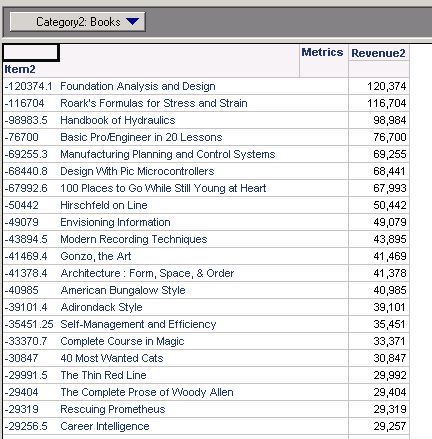
4. Keep on to create the document as above design. The effect is as below: