EducationSoftwareStrategy.com
StrategyCommunity

Knowledge Base

Product

Community

Knowledge Base

TopicsBrowse ArticlesDeveloper Zone

Product

Download SoftwareProduct DocumentationSecurity Hub

Education

Tutorial VideosSolution GalleryEducation courses

Community

GuidelinesGrandmastersEvents
x_social-icon_white.svglinkedin_social-icon_white.svg
Strategy logoCommunity

© Strategy Inc. All Rights Reserved.

LegalTerms of UsePrivacy Policy
  1. Home
  2. Topics

KB47081: How to insert special Characters as Metric alias in a Report in Microstrategy 10.x Developer


Stefan Zepeda

Salesforce Solutions Architect • Strategy


1. Go to Character Map from Windows
   - Notice the font you are using. ‘Symbol’


ka02R000000kY6BQAU_0EM440000002HHS.jpeg


2. Copy the required character and paste in the Metric Alias field from the Report editor.
- Data > Report Data Options > Display
- You will notice that the character is seen as ‘D’, the Code equivalent for the font of this interface.


ka02R000000kY6BQAU_0EM440000002HHX.jpeg

 
3. Now right-click on the Metric header and select ‘Formatting’ > D Headers.
- Go to the ‘Font’ tab
- Select the font you used to select the Delta symbol in the Character Map at the beginning.
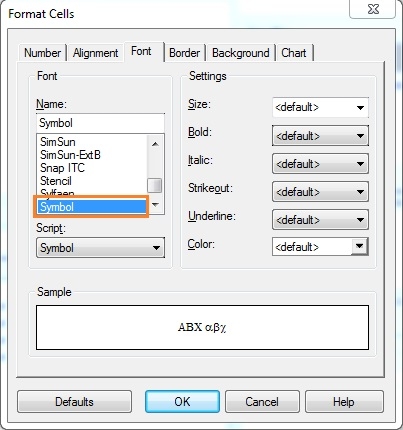


ka02R000000kY6BQAU_0EM440000002HHP.jpeg

 
4. You will now see the Delta symbol used as the Metric header.
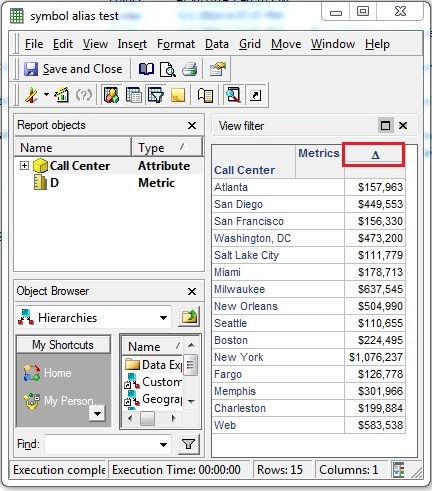
 

ka02R000000kY6BQAU_0EM440000002HHU.jpeg


Comment

0 comments

Details

Knowledge Article

Published:

June 12, 2017

Last Updated:

June 12, 2017