EducationSoftwareStrategy.com
StrategyCommunity

Knowledge Base

Product

Community

Knowledge Base

TopicsBrowse ArticlesDeveloper Zone

Product

Download SoftwareProduct DocumentationSecurity Hub

Education

Tutorial VideosSolution GalleryEducation courses

Community

GuidelinesGrandmastersEvents
x_social-icon_white.svglinkedin_social-icon_white.svg
Strategy logoCommunity

© Strategy Inc. All Rights Reserved.

LegalTerms of UsePrivacy Policy
  1. Home
  2. Topics

KB47125: How to create a blank metadata shell without any database accessible using MicroStrategy Desktop


Community Admin

• Strategy


Metadata creation often involves collaboration with your database administrator, but with MicroStrategy Configuration Wizard, a metadata shell can be generated quickly and without having access to any database.

SUMMARY:
 
Metadata creation often involves collaboration with your database administrator, but with Strategy Configuration Wizard, a metadata shell can be generated quickly and without having access to any database.
 
STEPS:
  • Launch Strategy Configuration Wizard and select "Create Metadata, History List, and Statistics Repository Tables," and click Next.
  • Check only "Metadata Tables" option and click Next.
  • Click "New..," which launch Connectivity Wizard.
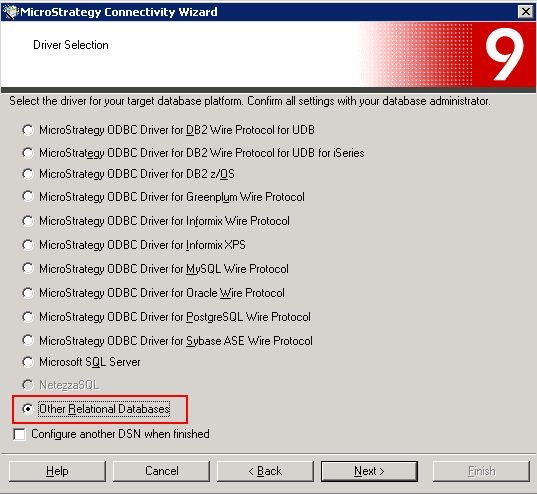
  • Select "Other Relational Database" and click "Next"
ka04W000000Of6JQAS_0EM440000002CJk.jpeg
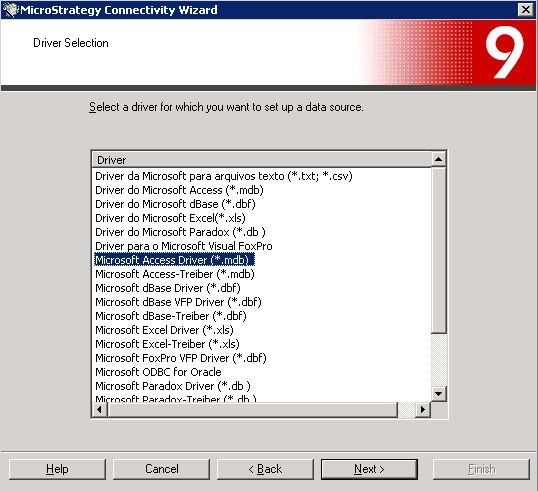
  • Select "Microsoft Access Driver (*.mdb)" and click "Next."
ka04W000000Of6JQAS_0EM440000002CJn.jpeg
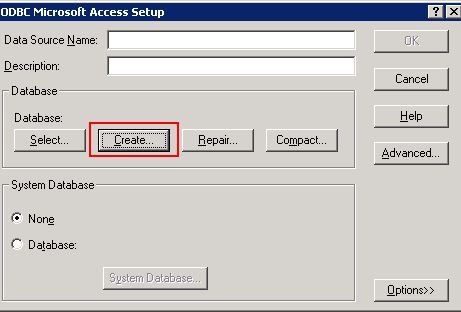
  • Click "Create" button and select the folder where the new .mdb file to be created.
ka04W000000Of6JQAS_0EM440000002CJm.jpeg
  • Save the DSN to return Configuration Wizard to complete metadata table creation.

 
VIDEO:
 
The steps to create metadata in MS Access file without having MS Access installed on the machine. 
 
TO LEARN MORE:
 
TN30459: How to create an empty metadata shell in Microsoft Access 2007 in Strategy 9.x
TN4552 : How to duplicate a project's metadata in Strategy Desktop 8.x to a Microsoft Access file


Comment

0 comments

Details

Knowledge Article

Published:

June 8, 2017

Last Updated:

June 8, 2017