In some cases it may be required to obtain a TCP dump of traffic flowing from a Strategy Cloud customer's Web browser through the Cloud F5 Load Balancer in order to troubleshoot specific issues. A TCP dump can be analyzed in order to identify potential problems with the TCP packets being transferred when particular actions are performed by the end user.
This technical note applies to taking a TCP dump at the F5 Load Balancer level, which is a task handled by the Cloud Network Team. This task should be do-able by Network Teams in all regions that have Cloud Network teams, including US, EMEA, and APAC.
Note: TCP dumps can also be taken at the machine level instead of at the F5 load balancer level. This task would be handled by the Cloud Operations Team instead of the network team, since the Operations Team administers machine level tasks. In some cases it may be useful to get TCP dumps at both the F5 Load Balancer level and the machine level at the same time, in which case both Cloud Network and Operations teams would need to be involved.
The main point to consider when requesting a TCP dump is that all web traffic in Strategy Cloud environments is encrypted via SSL (HTTPS). Therefore if this is not accounted for when obtaining the TCP dump, then the data in the TCP dump will remain encrypted and APS or Technology (or whoever is analyzing the TCP dump) will likely not be able to get much useful information out of it. See the below extract from F5 Support which outlines the recommended process to generate a Pre-Master Secret (PMS) log file that can be used to unencrypt the TCP dump. This part of the process should be handled by the Cloud Network Team.
The section below is an extract from F5 Support here: http://support.f5.com/kb/en-us/solutions/public/10000/200/sol10209.html?sr=37336250
Examining the decrypted application data
When troubleshooting SSL issues, it may be necessary to examine the decrypted application data. To do this, thessldumputility must have access to either the (asymmetric) private key from the server you want to debug, or the (symmetric) pre-master secret keys. Using the pre-master secret keys allows you to examine the decrypted application data in Wireshark without having access to the (asymmetric) private key.
Warning: Decrypting the SSL application data may expose sensitive information such as credit card numbers and passwords.
Examining the decrypted application data using the (symmetric) pre-master secret keys
Beginning in BIG-IP 11.2.0, the ssldump -M option allows you to create a pre-master secret (PMS) key log file. You can load the PMS log file into Wireshark (1.6 and later) along with the capture file, and use it to decrypt the application data without having access to the server's private key. This option gives F5 Technical Support the ability to fully decrypt sessions in the targeted capture file without revealing sensitive information about the private key.
To run ssldump using the -M option to the create a pre-master secret key log file, perform the following procedure:
Note: For F5 Technical Support to examine the decrypted application data, you must submit the capture file and pre-master secret key log file.
Once the steps above are completed, the Network Team should provide Support with the packet capture file along with the .pms(Pre-Master Secret)log file. Wireshark can be used to decrypt the packet capture by following the steps below:
1) Open Wireshark and on the main screen select Open a previously capture file. Browse to the capture file and open it.
2) In the Edit menu select Preferences > Protocols > SSL and browse to select the Pre-Master Secretlog file as seen in the screenshot below:
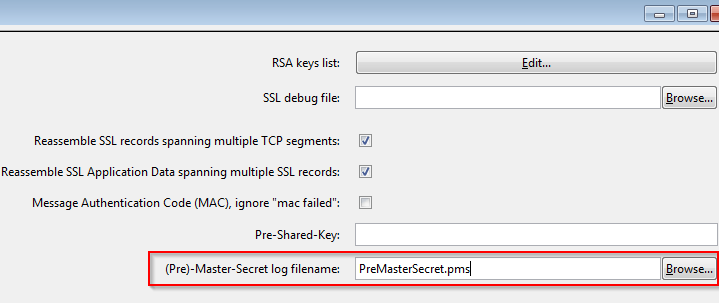
3) Click Apply / OK and then the data in the HTTPS packets should be readable.
Note that the information provided in this technical note is current as of the date of writing and is subject to change based on functionality of third-party applications including Wireshark and F5.
