EducationSoftwareStrategy.com
StrategyCommunity

Knowledge Base

Product

Community

Knowledge Base

TopicsBrowse ArticlesDeveloper Zone

Product

Download SoftwareProduct DocumentationSecurity Hub

Education

Tutorial VideosSolution GalleryEducation courses

Community

GuidelinesGrandmastersEvents
x_social-icon_white.svglinkedin_social-icon_white.svg
Strategy logoCommunity

© Strategy Inc. All Rights Reserved.

LegalTerms of UsePrivacy Policy
  1. Home
  2. Topics

KB47180: How to create a custom subtotal that includes a user-defined subset of available attribute elements in its calculation in MicroStrategy


Community Admin

• Strategy


This article describes how to create a custom subtotal which only includes a user defined subset of attribute elements available on the report in MicroStrategy.

Users may wish that only a subset of available attribute elements displayed on a grid be used in the calculation of a subtotal.
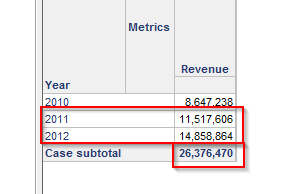
For example, if a report contains "Year" and "Revenue", users may require a subtotal only sum the revenues for the years 2011 and 2012.  In the image below it is seen that only the revenues for 2011 and 2012 are included in the calculation of the subtotal and the revenue for 2010 is not included in the calculation.
ka04W000001MKvMQAW_0EM440000002CLf.png

This can be accomplished by following the steps below as illustrated with an example made in Strategy Tutorial:
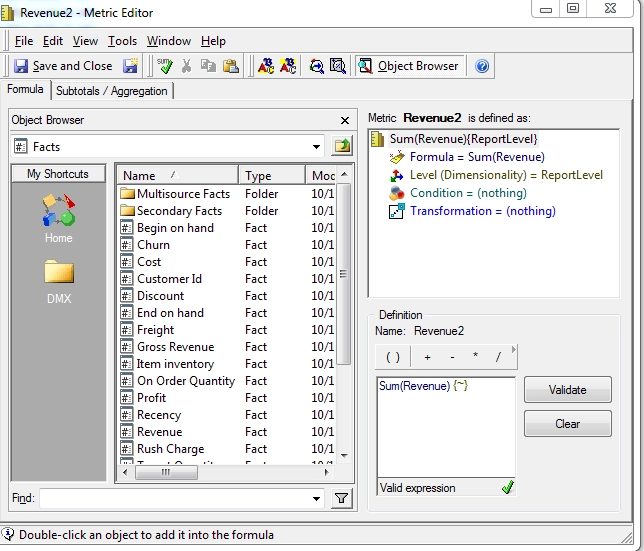
  • Create a metric defined the same way as the "Revenue" metric.  In the example below, the name of this metric will be "Revenue2"  This metric will be needed in the definition of the custom subtotal in the following steps.
ka04W000001MKvMQAW_0EM440000002CLc.png
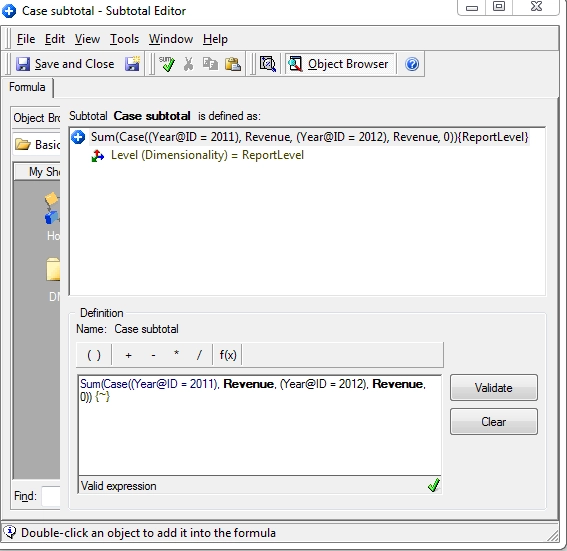
  • Create a custom subtotal using a case function to specify the attribute elements that will be included in the calculation.  The calculation below specifies that the years 2011 and 2012 will have their associated "Revenue" values included in the calculation and that all other years will be assigned a value of 0.  This guarantees that only the revenues for 2011 and 2012 will be included in the calculation.  These values will then be summed and aggregated at report level.
ka04W000001MKvMQAW_0EM440000002CLi.png
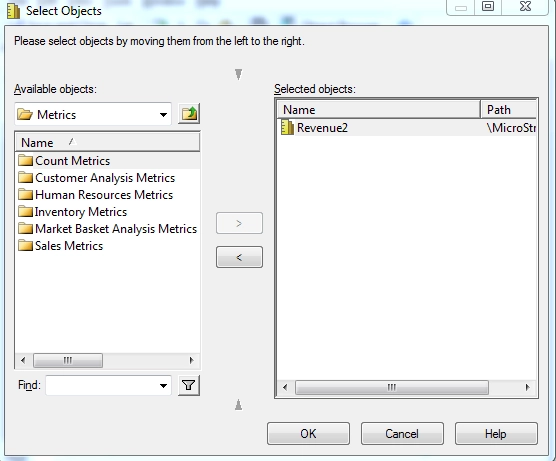
  • In the subtotal editor browse to Tools -> Apply to Metrics.  Select the "Revenue2" metric created in step 1.  The reason for creating two revenue metrics in the first place is that if the same metric is used in the definition of the subtotal and then the subtotal is applied to that same metric, a self-referential error will be seen (KB14245 goes into more on that behavior).
ka04W000001MKvMQAW_0EM440000002CLe.png
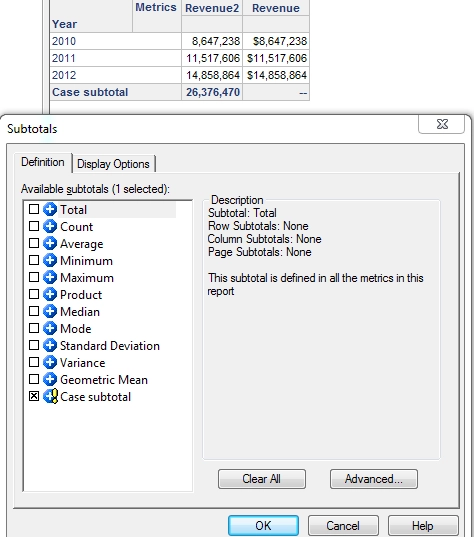
  • Users can then apply the subtotal accordingly to the report.  
ka04W000001MKvMQAW_0EM440000002CLb.png
  • Users may wish to hide the extra "Revenue" metric.  Users can refer to the following Technical Note for instructions on how to do this


          B10909: How to hide a metric on a report without MicroStrategy OLAP Services privileges 


Comment

0 comments

Details

Knowledge Article

Published:

April 3, 2017

Last Updated:

April 3, 2017