EducationSoftwareStrategy.com
StrategyCommunity

Knowledge Base

Product

Community

Knowledge Base

TopicsBrowse ArticlesDeveloper Zone

Product

Download SoftwareProduct DocumentationSecurity Hub

Education

Tutorial VideosSolution GalleryEducation courses

Community

GuidelinesGrandmastersEvents
x_social-icon_white.svglinkedin_social-icon_white.svg
Strategy logoCommunity

© Strategy Inc. All Rights Reserved.

LegalTerms of UsePrivacy Policy
  1. Home
  2. Topics

KB47283: "Custom Shapes IOError. Error reading the resource $FileName" When executing an ESRI Map with Custom Shapes in MicroStrategy 9.4.1 HF3 ASP.NET environment.


Community Admin

• Strategy


An ESRI Map configured with custom areas in MicroStrategy Web 9.4.1 HF3 may yield the error, "Custom Shapes IOError. Error reading the resource $FileName"

SYMPTOM:
 
An ESRI Map configured with custom areas in Strategy Web 9.4.1 HF3 might show the following error when executing the document in flash mode or the Visual Insight Dashboard:


"Custom Shapes IOError. Error reading the resource $FileName"
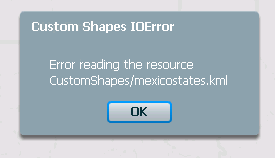
  

ka04W000000OeqvQAC_0EM44000000267T.png

 
There are several reasons for this error to occur, however, a fiddler trace of the execution will reveal an HTTP 404 Error as shown below:


ka04W000000OeqvQAC_0EM44000000267B.png

 
The Fiddler Web View for the response will show that the exact error message is an HTTP 404.3 error corresponding to a MIME type configuration as illustrated below:
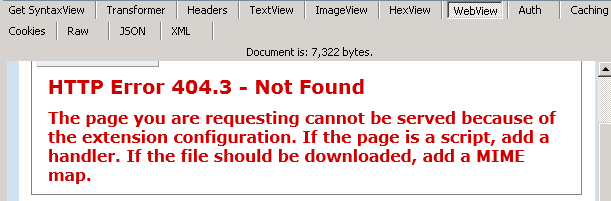
 

ka04W000000OeqvQAC_0EM44000000267H.png

 
CAUSE:
 
Keyhole Mark Up Language (KML) files are not pre-configured as allowed MIME types in Microsoft IIS. If the Strategy Web 9.4.1 HF3 administrator wants to enable the custom shape functionality for ESRI then the MIME type for KML has to be enabled by the Web Server Administrator.
 
ACTION:
 
To enable KML files as an allowed MIME type to be served by Microsoft IIS 7.0 follow these steps:
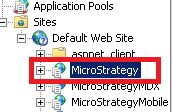
  • In the Strategy 9.4.1 HF3 Web Server, open the Internet Information Services (IIS) Manager.
     
  • Expand the appropriate Server, Site and select the Strategy Application as shown below:
     
     
ka04W000000OeqvQAC_0EM44000000267D.png
  •  
    Note: The Strategy Application might be named differently by the IIS Administrator.
     
  • In the center panel for features view double-click "MIME Types" as shown below:
ka04W000000OeqvQAC_0EM44000000267V.png
  • Under "Actions" click "Add..." and populate the new window with the following entries as specified by the KML standard:


    File Name extension: .kml
    MIME type: application/vnd.google-earth.kml+xml
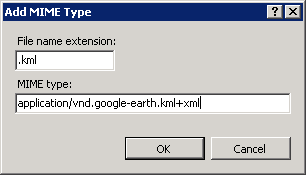

     
ka04W000000OeqvQAC_0EM44000000267F.png
  • Restarting the Web Server is not needed, however, the application pool will recycle in the background thus all current sessions will be lost.

Important Note: J2EE servers normally come with KML files pre-configured, if this problem is encountered in any other server brand contact the appropriate Web Server administrator.
KB47283


Comment

0 comments

Details

Knowledge Article

Published:

March 30, 2017

Last Updated:

October 26, 2018