SUMMARY:
This document shows how to create a Strategy Object Manager package to prevent a dependent object from being migrated over.
FOLLOW THESE STEPS:
Create Object Manager Package:
1. Receive a list of objects needed to be migrated/promoted between projects or environments.
2. Open up Strategy Object Manager and connect to Source Project.
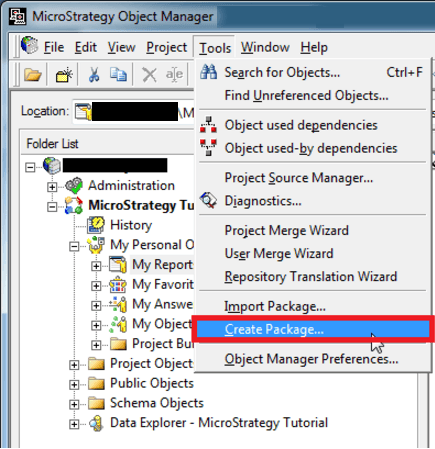
3. Create a new Package as shown below.
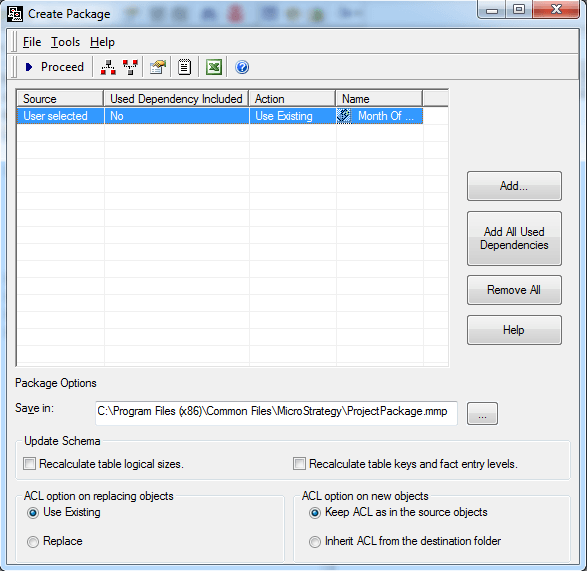
4. Migrate Objects from list into package as shown below.
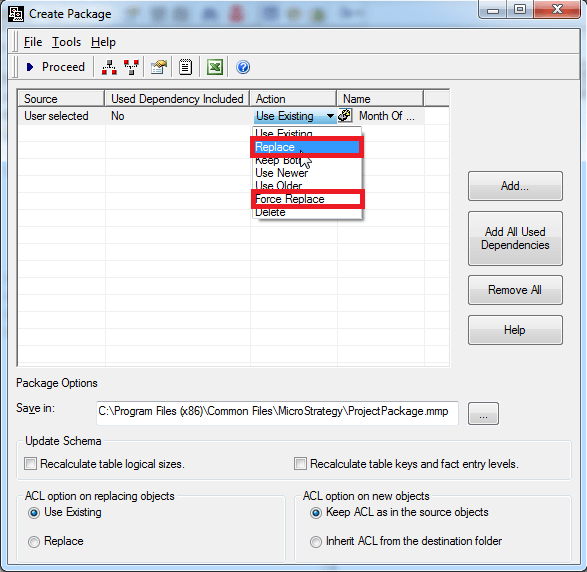
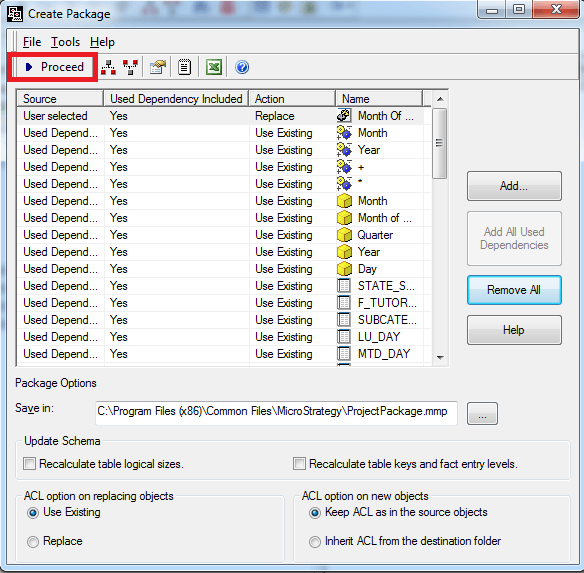
5. Change the action item of all objects to Replace or Force Replace as shown below. Force Replace will replace the object even if the GUIDs are the same. More information on KB42424.
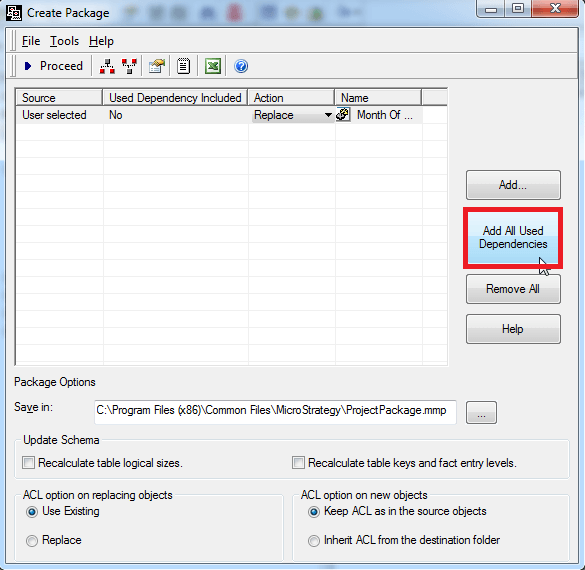
6. Select Add All Used Dependencies as shown below.
7. Once all added hit Proceed to create and save the package as shown below.
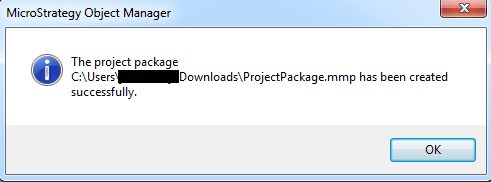
8. Project Package created successfully as shown below.
VIDEO:
You can find a detailed video on how to create the package here:
Import the Package created:
1. Connect to destination project source inside Strategy Object Manager
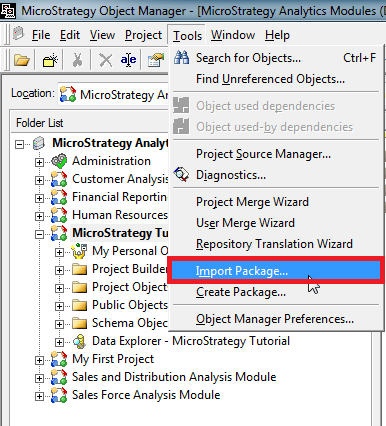
2. Select Import Package under the Tools menu as shown below:
3. Select the three dots ... to select the location of the package as shown below.
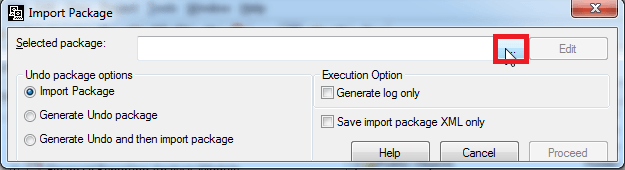
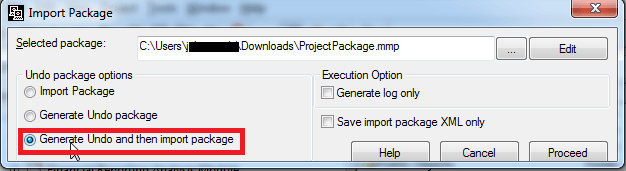
4. Select Generate Undo and then import package just in case issue occur during the import process and the need to revert back is available.
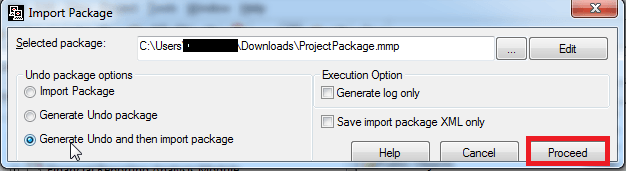
5. Select Proceed to import Package.
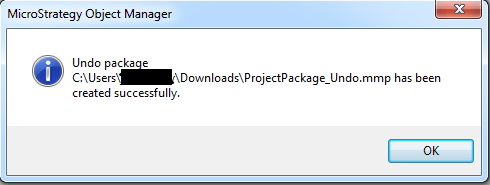
6. The Undo Package was created successfully
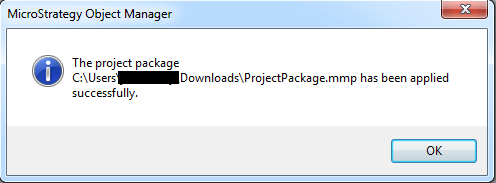
7. The import was done successfully.
TO LEARN MORE:
Strategy System Administration Guide
Chapter "Managing Your Projects"
Section: "Updating projects with new objects"
