EducationSoftwareStrategy.com
StrategyCommunity

Knowledge Base

Product

Community

Knowledge Base

TopicsBrowse ArticlesDeveloper Zone

Product

Download SoftwareProduct DocumentationSecurity Hub

Education

Tutorial VideosSolution GalleryEducation courses

Community

GuidelinesGrandmastersEvents
x_social-icon_white.svglinkedin_social-icon_white.svg
Strategy logoCommunity

© Strategy Inc. All Rights Reserved.

LegalTerms of UsePrivacy Policy
  1. Home
  2. Topics

KB4740: How to rank a metric in MicroStrategy Developer 9.x


Stefan Zepeda

Salesforce Solutions Architect • Strategy


To view the rank of a metric in Strategy Developer 9.x, a separate 'Rank' metric needs to be created. To choose the 'Rank Order by' properties, select 'Rank Parameters' in the Metric Editor.
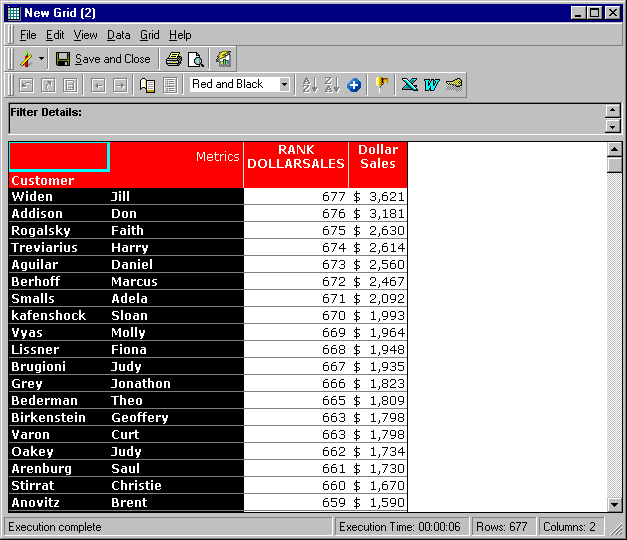
The following report shows metric ranking in descending order of Dollar Sales.
ka02R000000kcgaQAA_0EM440000002GHJ.gif

Follow the steps below to rank a metric:
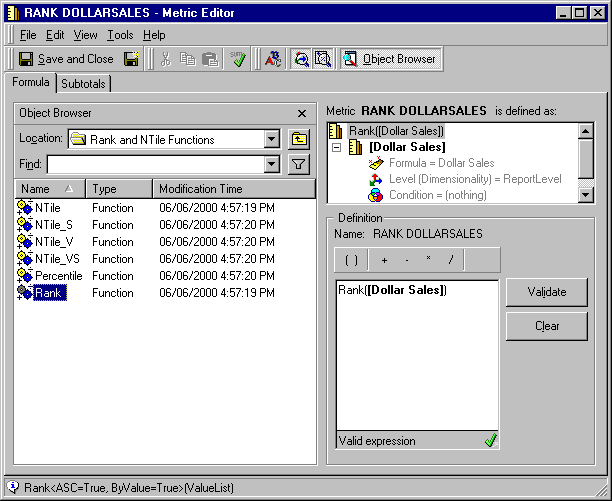
  • Create a Rank metric. To do this, open the Metric Editor, select 'Rank' from within the Object Browser under Schema Objects > Functions and Operators > Functions > Rank and NTile Function and append it to the metric to be ranked, as shown below:
ka02R000000kcgaQAA_0EM440000002GHL.gif
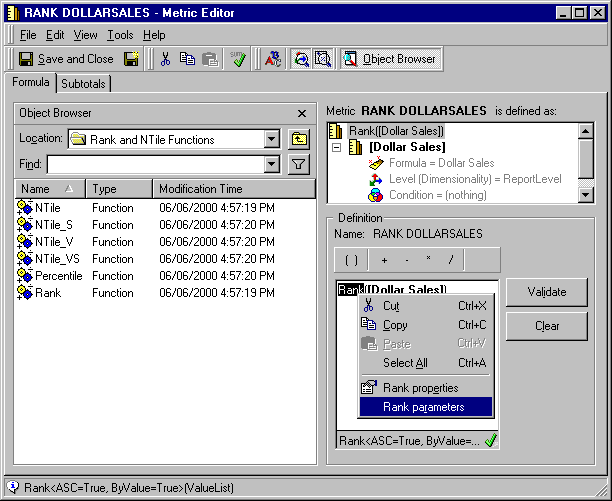
  • To change the rank to ascending or descending order, highlight the rank function in the Metric Editor's definition window and right-click to select 'Rank Parameters.'
ka02R000000kcgaQAA_0EM440000002GHK.gif
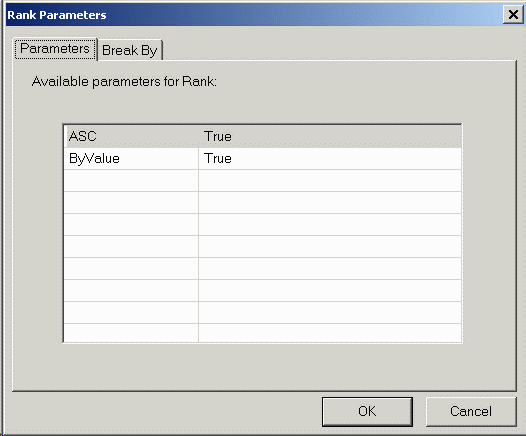
  • Change the rank parameters according to the requirements and descriptions given below:
ka02R000000kcgaQAA_0EM440000002GHU.gif
  • ASC
    Setting ASC to 'True' displays the ranked values in ascending order. Setting ASC to 'False' displays the ranked values in descending order.
     
    BY VALUE
    This function is intended for use with metrics returning values as percentages. When By Value is set to 'False,' the rank is determined as a fraction of the total number of values returned. For example, for data that returns 10 rows, the rank position of '1' is presented as 1/10, or, 0.1 and the value is displayed in the report as '0.'
     
    The default setting for By Value is 'True,' and with this setting the returned values are ranked relative to each other.


Comment

0 comments

Details

Knowledge Article

Published:

April 4, 2017

Last Updated:

April 4, 2017