EducationSoftwareStrategy.com
StrategyCommunity

Knowledge Base

Product

Community

Knowledge Base

TopicsBrowse ArticlesDeveloper Zone

Product

Download SoftwareProduct DocumentationSecurity Hub

Education

Tutorial VideosSolution GalleryEducation courses

Community

GuidelinesGrandmastersEvents
x_social-icon_white.svglinkedin_social-icon_white.svg
Strategy logoCommunity

© Strategy Inc. All Rights Reserved.

LegalTerms of UsePrivacy Policy
  1. Home
  2. Topics

KB47682: How to enable the Checkbox Input Control style in a Transaction Services Document for MicroStrategy Mobile


Community Admin

• Strategy


In MicroStrategy Mobile, a Checkbox Input Control style was introduced for Transaction Services Documents. This feature is currently available for iOS Mobile devices only, like shown below.

INTRODUCTION:
In Strategy Mobile 9.4.1 - 10.x, a Checkbox Input Control style was introduced for Transaction Services Documents. This feature is currently available for iOS Mobile devices only, like shown below.

ka04W00000148DLQAY_0EM440000002A40.png


ACTION:
Note: The steps provided in this Technical Note assume users already have a Transaction Services Document setup.
  • Open the Document in Design Mode.
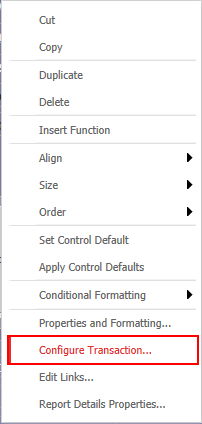
  • Right-click the Transaction object.
  • Select "Configure Transaction".
ka04W00000148DLQAY_0EM440000002A41.png
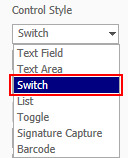
  • Select "Switch" from the Control Style drop-down
ka04W00000148DLQAY_0EM440000002A43.png
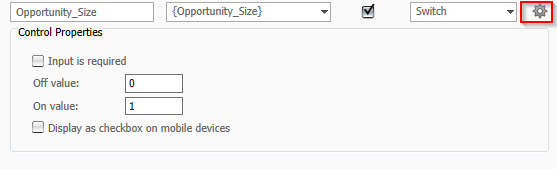
  • Click the Properties icon
ka04W00000148DLQAY_0EM440000002A3z.png
  • .
  • The Control Properties screen will display.
ka04W00000148DLQAY_0EM440000002A44.png
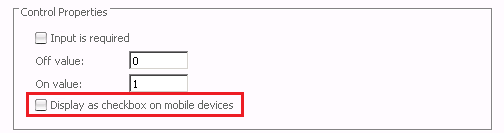
  • Check the "Display as checkbox on mobile devices" option.
ka04W00000148DLQAY_0EM440000002A42.png
  • Run the Document in Strategy Mobile 9.4.1 - 10.x.

Note: To learn more about Transaction Services, refer to the Advanced Reporting guide and the Strategy Transaction Services for Mobile App and Dashboard Developers guide.
 
KB47682


Comment

0 comments

Details

Knowledge Article

Published:

April 11, 2017

Last Updated:

December 30, 2018