EducationSoftwareStrategy.com
StrategyCommunity

Knowledge Base

Product

Community

Knowledge Base

TopicsBrowse ArticlesDeveloper Zone

Product

Download SoftwareProduct DocumentationSecurity Hub

Education

Tutorial VideosSolution GalleryEducation courses

Community

GuidelinesGrandmastersEvents
x_social-icon_white.svglinkedin_social-icon_white.svg
Strategy logoCommunity

© Strategy Inc. All Rights Reserved.

LegalTerms of UsePrivacy Policy
  1. Home
  2. Topics

KB47692: The zoom bar on an ESRI map widget disappears after maximizing/restoring the map in Flash view mode in MicroStrategy Web 9.4.1 HF4


Community Admin

• Strategy


When an ESRI map is configured in a RS Document, if the title bar is enabled, users can minimize or maximize the display of the map. However, users notice that after maximizing the ESRI map and restoring it to its original size, the zoom bar disappears in Flash mode in MicroStrategy Web 9.4.1 HF4.

SYMPTOM:
When an ESRI map is configured in a RS Document, if the title bar is enabled, users can minimize or maximize the display of the map. However, users notice that after maximizing the ESRI map and restoring it to its original size, the zoom bar disappears in Flash mode in Strategy Web 9.4.1 HF4.
 
Before maximizing:
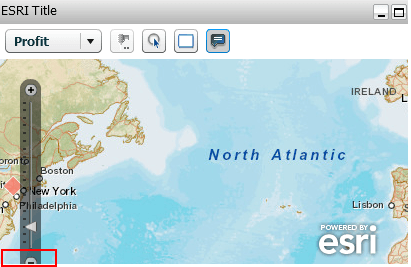
ka04W000000OaSZQA0_0EM44000000264a.png

 
Maximize:
 

ka04W000000OaSZQA0_0EM44000000264Y.png

 
After restoring:

ka04W000000OaSZQA0_0EM44000000264Z.png

 
STEPS TO REPRODUCE:
In Strategy Tutorial:

  • Create a report with Store and Profit.
  • Enable Latitude and Longitude attribute forms for Store.
  • Add Store to the report filter to reduce the amount of data.
  • Create a blank document using the report as the dataset.
  • In design mode, navigate to Insert > widgets > DHTML > ESRI map.
  • Place Store and Profit on the widget.
  • Unmerge Row and Column headers.
  • Right click the widget > Properties and Formatting.
  • Navigate to General, select "Show Title Bar".
  • Navigate to Layout and set the width to 4.25 and the height to 2.75.
  • Navigate to Widget > Widget Properties.
  • Select Show Markers, check use image markers.
  • Select Use attribute form, use Store.
  • Run the document in Flash Mode.
  • Maximize the map, like shown below.
ka04W000000OaSZQA0_0EM44000000264Y.png
  • Restore the map.
  • Notice the zoom bar is now missing, like shown below.
ka04W000000OaSZQA0_0EM44000000264Z.png

CAUSE:
This is a known issue with ESRI maps in Strategy Web 9.4.1. HF4. The issue occurs because the size of the map container is too small that it will initially clip the zoom bar, as shown below:

ka04W000000OaSZQA0_0EM44000000264a.png

 
ACTION:
When an ESRI map is configured in a RS Document, if the title bar is enabled, users can minimize or maximize the display of the map. However, users notice that after maximizing the ESRI map and restoring it to its original size, the zoom bar disappears in Flash mode in Strategy Web 9.4.1 HF4.
 
WORKAROUND:
Increase the size of the map container so the entire zoom bar is displayed, like shown below.
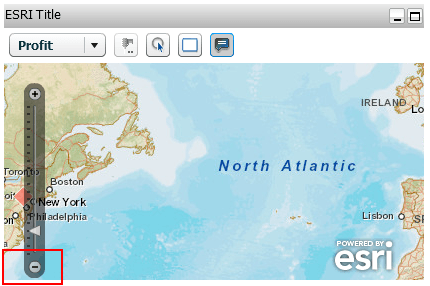
 

ka04W000000OaSZQA0_0EM44000000264b.png

 
After maximizing and restoring, the zoom bar will not disappear.
KB47692


Comment

0 comments

Details

Knowledge Article

Published:

June 21, 2017

Last Updated:

November 23, 2018