EducationSoftwareStrategy.com
StrategyCommunity

Knowledge Base

Product

Community

Knowledge Base

TopicsBrowse ArticlesDeveloper Zone

Product

Download SoftwareProduct DocumentationSecurity Hub

Education

Tutorial VideosSolution GalleryEducation courses

Community

GuidelinesGrandmastersEvents
x_social-icon_white.svglinkedin_social-icon_white.svg
Strategy logoCommunity

© Strategy Inc. All Rights Reserved.

LegalTerms of UsePrivacy Policy
  1. Home
  2. Topics

KB47753: Infinite spinning circle when trying to import a .mstr file in MicroStrategy Analytics Enterprise 10.x and later in ASP.NET environments


Community Admin

• Strategy


Infinite spinning circle when trying to import a .mstr file in MicroStrategy Analytics Enterprise 10.x and later in ASP.NET environments

SYMPTOM:
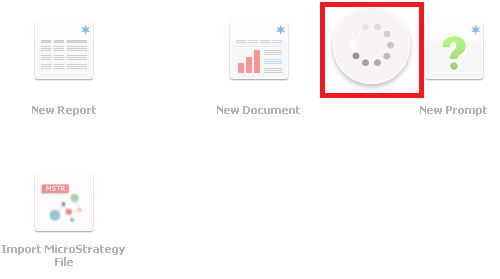
An infinite spinning circle is shown to Strategy Analytics Enterprise 10.x and later users when importing a .mstr file in an ASP.NET environment as demonstrated below:
ka04W000000OhGQQA0_0EM44000000262c.png

Additionally, a fiddler trace of the whole process will reveal an HTTP 500 error on the POST request to transfer the file.
Request:


POST http://localhost/MicroStrategy/asp/TaskProc.aspx HTTP/1.1

Response:

HTTP/1.1 500 Internal Server Error

 
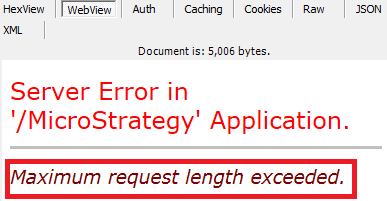
The Webview of the response will show the following:

ka04W000000OhGQQA0_0EM44000000262p.png

 
CAUSE:
This error message is returned by the IIS Web Server as a result of a governing limit being reached.
The name of the property being reached is maxRequestLength which specifies the limit for the input stream buffering threshold, in KB. The default is 4096 (4 MB).
 
ACTION:
If desired, the Web Server administrator can increase the value of the parameter maxRequestLength for the Strategy Application. This can be accomplished several ways, this Technical Note will follow the Graphical User Interface approach.

  • Open the Internet Information Services Manager for IIS 6.5 and above.
     
  • Expand the desired Server Name, Sites, and the desired Web Site (typically Default Web Site).
     
  • In this last section left click on the Strategy Application. Note: Strategy Web Administrators might have renamed this application.

ka04W000000OhGQQA0_0EM44000000262m.png
  • In the Features View panel double click the Configuration Editor. Note if the Configuration Editor does not show, install the IIS Administration Pack supplied by Microsoft. http://www.iis.net/downloads/microsoft/administration-pack
     
ka04W000000OhGQQA0_0EM44000000262n.png
  • In the Section dropdown expand system.web and select httpRuntime as shown below:
     
ka04W000000OhGQQA0_0EM44000000262a.png
  • Increase the maxRequestLength parameter to a value in bytes that will allow the file to be imported. An example is shown below:

ka04W000000OhGQQA0_0EM44000000262X.png
  • Restart the Web Server and retry importing the file.

  
WARNING MESSAGES: Microsoft IIS is not a Strategy Product. If more information is needed on these configurations contact Microsoft Technical Support.


Comment

0 comments

Details

Knowledge Article

Published:

May 29, 2017

Last Updated:

May 29, 2017