In a web server cluster running Strategy Web Services 9.x, a trust relationship must be created for each individual web server node against Intelligence Server. Each web server will be identified by its machine name and the unique token ID that is generated when establishing a trust relationship. If a web node provides a token to Intelligence Server which was created for a web server other than the one requesting a session, the session creation attempt will fail.
For steps on how to enable trusted authentication for Strategy Office, refer to technical note KB41359: How to configure Trusted Authentication for MicroStrategy Office 9.2.x and later.
In order to establish a trust relationship for each web server node, follow the steps below:
Note: The projectsources.xml on each of the web server nodes must have a project source with Standard authentication enabled.
1. Open Strategy Office configuration.
2. Set the Web Services URL to point directly to a Web Server node, not passing through the load balancer / SSO provider.
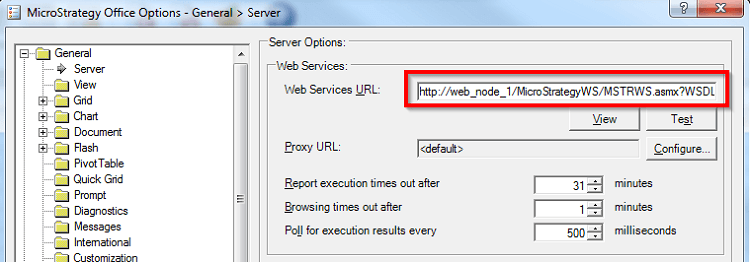
3. Restart Microsoft Excel to apply the change.
4. Log into the project source using Standard authentication.
5. Access Strategy Office options and create a trust relationship under General > Server.
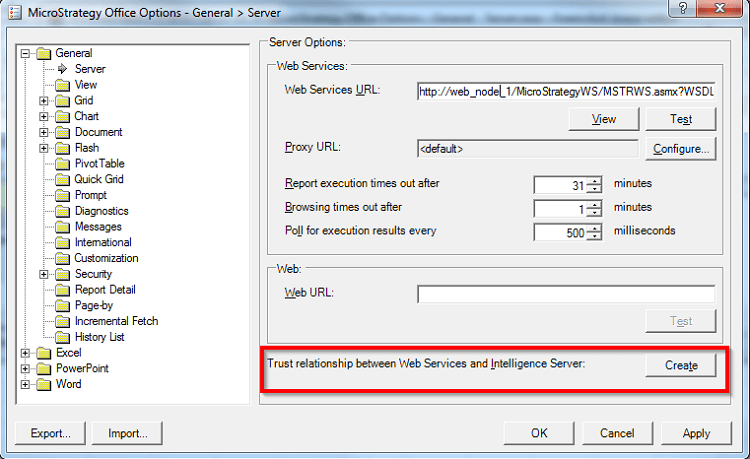
6. Repeat above steps for each of the web server nodes.
7. Follow instructions as per KB41359 - How to configure Trusted Authentication for MicroStrategy Office 9.2.x and later.
In an environment with two web servers in a cluster, one trust relationship will have to be created for each of the web server nodes as seen on the schema below:
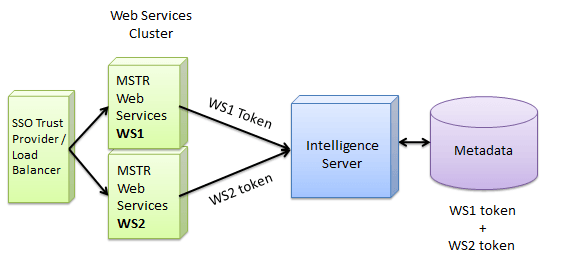
For information on how to configure trusted authentication for Strategy Office 9.x in an environment running against an Intelligence Server cluster, refer to technical note KB47766 - How to setup a trust relationship for MicroStratey Office 9.x against an Intelligence Server cluster using MicroStrategy Office 9.x
