EducationSoftwareStrategy.com
StrategyCommunity

Knowledge Base

Product

Community

Knowledge Base

TopicsBrowse ArticlesDeveloper Zone

Product

Download SoftwareProduct DocumentationSecurity Hub

Education

Tutorial VideosSolution GalleryEducation courses

Community

GuidelinesGrandmastersEvents
x_social-icon_white.svglinkedin_social-icon_white.svg
Strategy logoCommunity

© Strategy Inc. All Rights Reserved.

LegalTerms of UsePrivacy Policy
  1. Home
  2. Topics

KB47826: How to get schema diagram for a project in MicroStrategy Developer 9.4.x - 10.x?


Stefan Zepeda

Salesforce Solutions Architect • Strategy


This technical note explains how to use the "Export Project Schema" tool to get an overview of a project schema design.

The architect of a project may want to get an overview of the schema design of a project and obtain a project-level schema diagram. In such scenarios, users may take advantage of the 'Export Project Schema' feature which allows users to export the schema, or specific sections of the schema, to Microsoft Excel. It lets the users view various information about the schema design of a Strategy project.
Steps to export project schema:
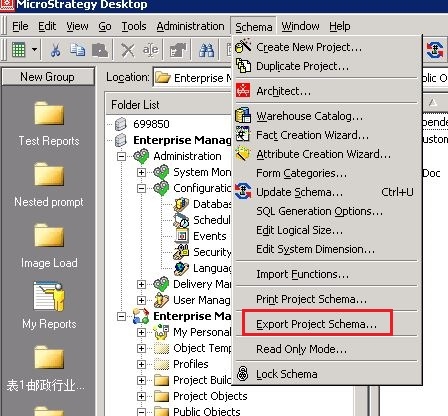
  • To access the dialog in Developer, from the 'Schema' menu, choose 'Export Project Schema'. 
     
     
ka02R000000kW4FQAU_0EM440000002CI7.jpeg
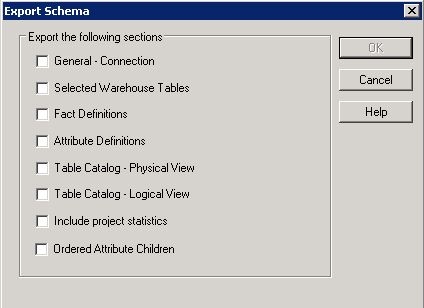
  • Once the Export Schema dialog box opens, users can select the aspects of the schema they want to export to Microsoft Excel. The various options are as follows:
     
ka02R000000kW4FQAU_0EM440000002CI8.jpeg
  •  
    General Connection: Includes general information about the project including the name, description, and version as well as connection information including the available database instances for the project.
    • Selected Warehouse Tables: Lists each warehouse table that is included in the project, along with various details about each warehouse table.
    • Fact Definitions: Includes information on every fact in a project, such as the entry level and column alias for each fact.
    • Attribute Definitions: Includes information on every attribute in a project, such as the attribute forms, attribute relationships, and so on.
    • Table Catalog - Physical View: Includes information on the physical structure of the tables in a project, such as the columns available and the column data types.
    • Table Catalog - Logical View: Includes information on the logical structure of the tables in a project, such as the attributes and facts that retrieve information from the tables.
    • Include Project Statistics: Includes statistics for the project such as the number of warehouse tables, the number of facts, the average number of facts per table, the number of attributes, and so on.
    • Ordered Attribute Children: Lists the order of attributes and their child attribute relationships. If an attribute has child attributes, or in other words, attributes that are related at a lower logical level, this list can describe the order in which these relationships are defined in the project.
  • Once the selections have been made, click OK. The Save as dialog box opens, suggesting a default name for the file and a temporary location. Users can select a different name and location as desired.


Comment

0 comments

Details

Knowledge Article

Published:

May 10, 2017

Last Updated:

May 10, 2017