EducationSoftwareStrategy.com
StrategyCommunity

Knowledge Base

Product

Community

Knowledge Base

TopicsBrowse ArticlesDeveloper Zone

Product

Download SoftwareProduct DocumentationSecurity Hub

Education

Tutorial VideosSolution GalleryEducation courses

Community

GuidelinesGrandmastersEvents
x_social-icon_white.svglinkedin_social-icon_white.svg
Strategy logoCommunity

© Strategy Inc. All Rights Reserved.

LegalTerms of UsePrivacy Policy
  1. Home
  2. Topics

KB47831: Macros are not resolved through the Navigate to this URL option in Edit Links in MicroStrategy Web.


Community Admin

• Strategy


Users can create Edit Link URLs to execute certain tasks, such as passing prompts to a target document or emailing a document using the mailto URI scheme. However, when using dynamic macros, such as &elementsPromptAnswers={&Year@GUID} or subject={Region@DESC}, users will notice that the tasks fail to execute correctly. This issue is addressed in MIcrostrategy 10.x

SYMPTOM:
 
In Strategy Web 9.3.x, users can create Edit Link URLs to execute certain tasks, such as passing prompts to a target document or emailing a document using the mailto URI scheme. However, when using dynamic macros, such as &elementsPromptAnswers={&Year@GUID} or subject={Region@DESC}, users will notice that the tasks fail to execute correctly.
 
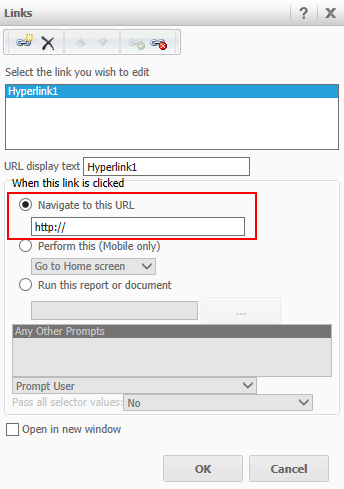
The edit links URL is shown below: 
 

ka04W000000Oe8iQAC_0EM44000000263e.png


STEPS TO REPRODUCE:
 
In Strategy Tutorial:

  1. Create a report with the Year attribute.
  2. Add Year to the report filter as an element prompt.
  3. Create a target document from this report.
  4. Insert a grid and add Year.
  5. Save and close.
  6. Create a second report with the Year attribute.
  7. Create a source document from this report.
  8. Insert a panel stack.
  9. Insert a textbox into the panel stack.
  10. In the text box, put any text, such as "This is a Link".
  11. Insert a selector with Year as the attribute.
  12. Set the panel stack as a target for the selector.
  13. Create a URL to pass the prompt answer to the target document.
  14. Right-click the textbox created in step 10.
  15. Select Edit Links.
  16. Insert the URL created in step 13 into the "Navigate to this URL" box.
  17. Save and close.
  18. Run the document.
  19. Notice the prompt page displays.

 Note: Follow KB40099 for instructions on setting up the URL API if needed.
 
 
CAUSE:
 
This is a known issue in Strategy Web 9.3.x.
 
ACTION:
This issue has been addressed with Strategy 10. Upgrade to take advantage of the fix.
 
WORKAROUND:
 
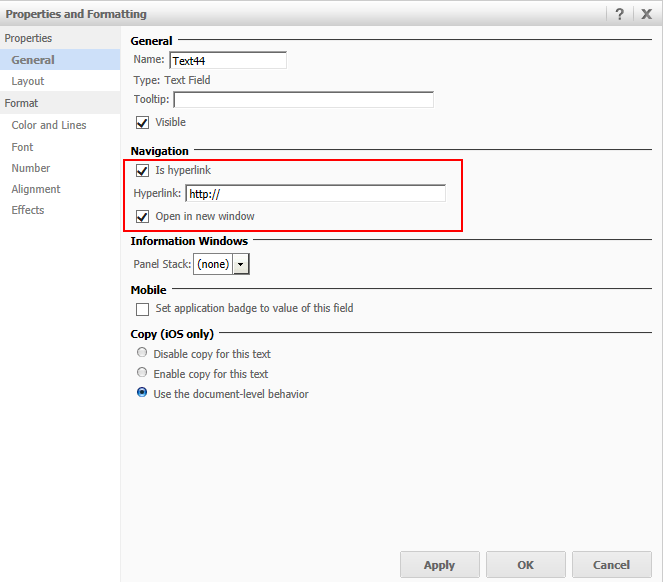
Use the 'Is Hyperlink' option on an image or text field, like shown below.
 

ka04W000000Oe8iQAC_0EM44000000263d.png


Comment

0 comments

Details

Knowledge Article

Published:

June 13, 2017

Last Updated:

June 13, 2017