In Strategy Web 9.4.1, Data Import allows users to maintain intelligent cubes from external Excel files. However, importing data from a Google Drive Spreadsheet requires some additional setup.
Steps to import a spreadsheet from Google Drive:
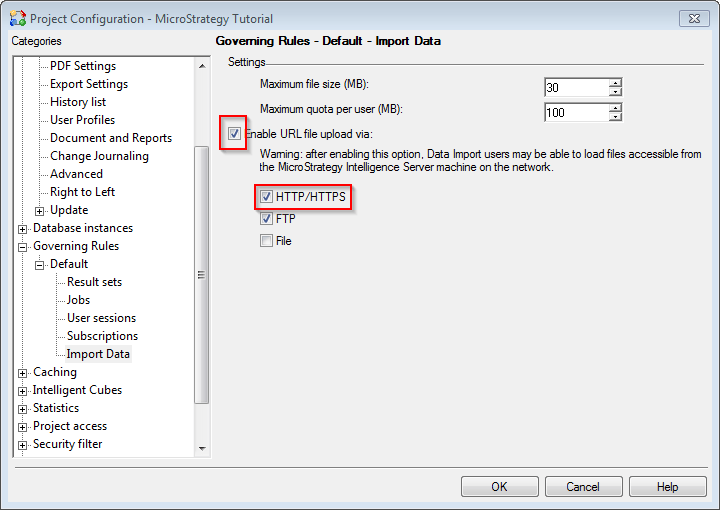
1. Go to Project Configuration > Governing Rules > Import Data and enable 'Enable URL File upload via': HTTP/HTTPS, like shown below.
2. In Strategy Web 9.4.1, navigate to Create > Import Data.
3. Select "from File".
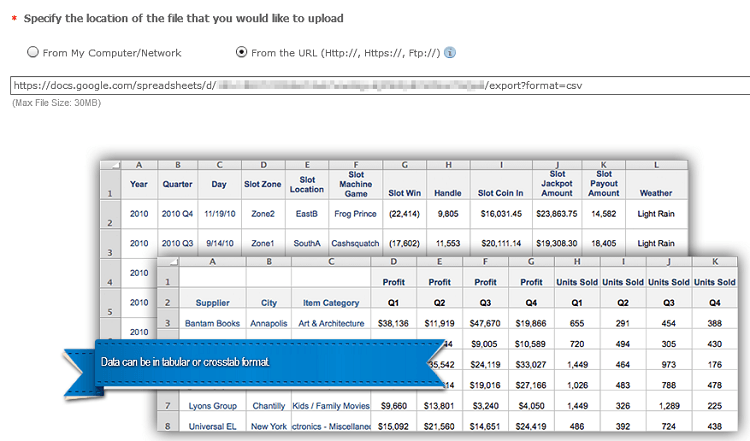
4. Select the radio button for "From the URL (Http://, Https://, Ftp://)".
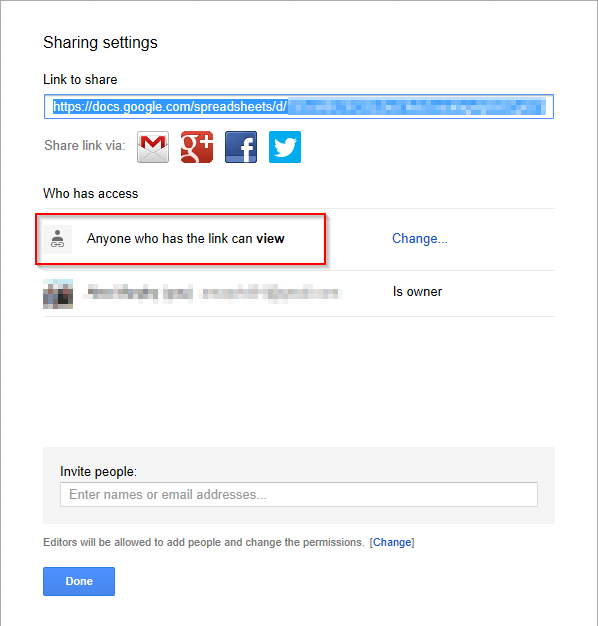
5. In another tab, go to the Google Drive Spreadsheet, and change the sharing access to "Anyone with Link."
Note:
1. This will make the spreadsheet available on the internet to anyone who has this link, consider this when dealing with sensitive data
2. Copy the link from the Google Drive "Link to Share" URL box:
https://docs.google.com/spreadsheets/d/< key >/
3. Append the following to the URL:
export?format=csv
https://docs.google.com/spreadsheets/d/< key >/export?format=csv
Third Party Software WARNING:
The third-party product(s) discussed in this technical note is manufactured by vendors independent of Strategy. Strategy makes no warranty, express, implied or otherwise, regarding this product, including its performance or reliability.
This technical note contains a link to a third party website that is not under the control of Strategy. When the user accesses a third party web site, the user does so at his or her own risk and acknowledges that Strategy is not responsible or liable for any content, advertising, products or other materials available from such third party sites. Mention of third party companies and web sites in this technical note is for informational purposes only and does not constitute an endorsement or recommendation.
