EducationSoftwareStrategy.com
StrategyCommunity

Knowledge Base

Product

Community

Knowledge Base

TopicsBrowse ArticlesDeveloper Zone

Product

Download SoftwareProduct DocumentationSecurity Hub

Education

Tutorial VideosSolution GalleryEducation courses

Community

GuidelinesGrandmastersEvents
x_social-icon_white.svglinkedin_social-icon_white.svg
Strategy logoCommunity

© Strategy Inc. All Rights Reserved.

LegalTerms of UsePrivacy Policy
  1. Home
  2. Topics

KB47967: An Information Window does not close after changing panels on a panel selector in Express mode in MicroStrategy Web 9.4.1 HF4


Community Admin

• Strategy


An Information Window does not close after changing panels on a panel selector in Express mode in MicroStrategy Web 9.4.1 HF4

SYMPTOM:
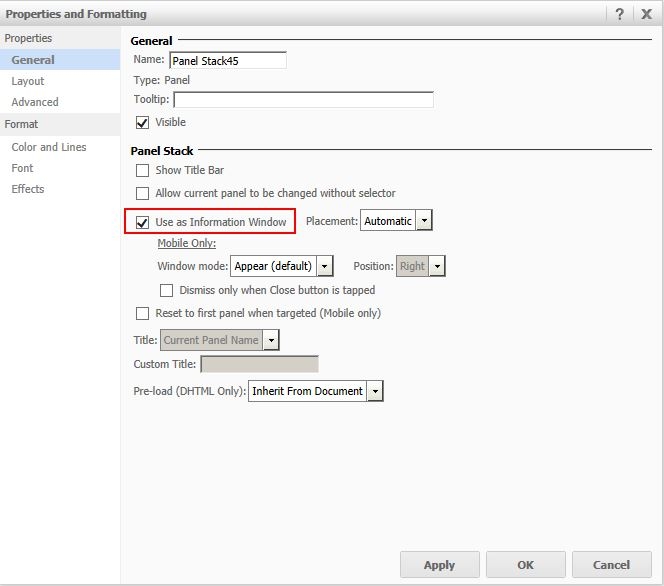
In Strategy Web 9.4.1 HF4, a panel stack can be used as an information window in Express and Flash view modes, like shown below.
 

ka04W000000OejjQAC_0EM44000000261j.jpeg

 
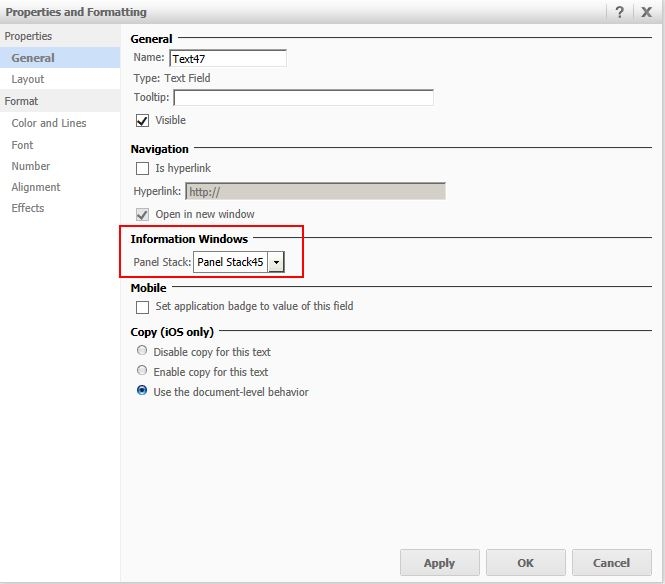
After the panel stack is configured as an information window, an object such as a text box can be set to trigger the window, like shown below.
 

ka04W000000OejjQAC_0EM44000000261w.jpeg

 
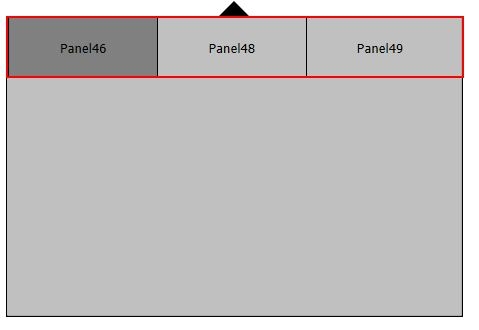
Once the information window is opened, it will close automatically when clicking anywhere outside of the window. However, if the panel stack contains a panel selector on any of the panels, the information window will not close after changing panels when run in Express view mode, like shown below.
 

ka04W000000OejjQAC_0EM44000000261y.jpeg

 
STEPS TO REPRODUCE:
In Strategy Tutorial:

  1. Create a blank document.
  2. Insert a text box.
  3. Insert a panel stack.
  4. Insert a second panel to the panel stack.
  5. Right-click the panel stack, select Create a panel selector.
  6. Place the panel selector on the first panel of the panel stack.
  7. Right-click the panel stack, select Properties and Formatting.
  8. Check the box "Use as Information Window".
  9. Right-click the text box, select Properties and Formatting.
  10. Select the panel stack as the Info Window.
  11. Run the document in Express mode.
  12. Click on the text box to open the info window.
  13. Change the panel using the panel selector.
  14. Notice the info window will not close.

 
CAUSE:
This is a known issue in Express view mode in Strategy Web 9.4.1 HF4.
 
ACTION:
Contact Strategy Technical Support for an update on this issue.
 
WORKAROUND:
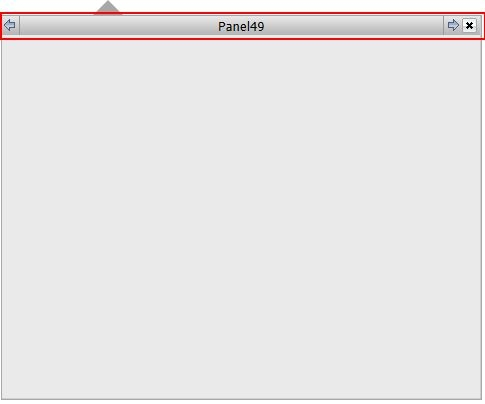
Run the document in Flash view mode, or use the native panel selector arrows on the panel stack's title bar, like shown below.
 

ka04W000000OejjQAC_0EM440000002626.jpeg


Comment

0 comments

Details

Knowledge Article

Published:

June 8, 2017

Last Updated:

June 8, 2017