EducationSoftwareStrategy.com
StrategyCommunity

Knowledge Base

Product

Community

Knowledge Base

TopicsBrowse ArticlesDeveloper Zone

Product

Download SoftwareProduct DocumentationSecurity Hub

Education

Tutorial VideosSolution GalleryEducation courses

Community

GuidelinesGrandmastersEvents
x_social-icon_white.svglinkedin_social-icon_white.svg
Strategy logoCommunity

© Strategy Inc. All Rights Reserved.

LegalTerms of UsePrivacy Policy
  1. Home
  2. Topics

Troubleshooting the Platform Analytics Compliance Telemetry Dossier


Jing (Sally) Cheng

Senior Principal Consultant • MicroStrategy


Starting with the release of Strategy ONE (March 2024), dossiers are also known as dashboards.

Overview Description

Historically, License Manager has been the only Strategy tool to notify administrators if their license contract is out of compliance. In the Strategy 2019 release, Platform Analytics offers an additional solution for auditing license compliance telemetry. Platform Analytics has the added benefit of analyzing license telemetry using the power of Strategy dossiers. Additionally, Platform Analytics can analyze compliance results across multiple environments (i.e. metadata). For more details regarding multi-environment configuration see Monitor Metadata Repositories Across Multiple Environments.
There are two types of licensing packages available for analysis in Platform Analytics:
 

  1. Licensed CPUs
    • This will be out of compliance if the number of Central Processing Units (CPU) used by the existing Strategy Intelligence Server(s) at run time exceeds the number of CPUs for which the customer is licensed. The number of CPUs licensed is encrypted into the License Key. This requires the system administrators to update the License Key for all existing Strategy Intelligence Servers included in that licensing scheme. This should be done using Strategy License Manager, each time additional capacity is added or whenever the Strategy Intelligence Server is upgraded.
  2. Named Users
    • The Products (SKUs) and corresponding Privileges associated with the Strategy Metadata Users (including Contacts)
    • The Strategy metadata will be scanned every 24-hours for the total number of named users assigned for each Strategy product based upon the user privileges assigned in the metadata. The number of users assigned will be compared against the number of named users licensed for each component, encrypted into the License Key. Should an out-of-compliance notification with respect to named users be generated during login, run the Compliance Dossier to identify the users that resulted in exceeding licensed capacity and determine the privileges that result in the non-compliance.

Named Users Details

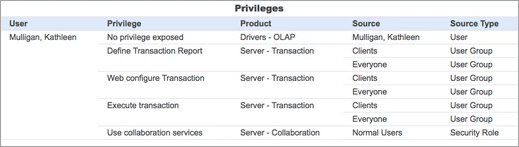
When calculating the number of Named User license in use per product, the user can inherit the privilege from multiple sources:

  • Directly - through the user object
  • User Group - through a direct user group or through a parent user group
  • Security Filter - applied to the project which the user has access

In Platform Analytics, you can analyze the fully resolved list of privileges associated with the "User" and from which "Source Type" they inherited privileges from. Feel free to refer to the following example:
 

ka0PW0000001JYaYAM_0EM2R000000lP7H.jpeg


Architecture Components


For more details about Platform Analytics architecture, see Platform Analytics Architecture and Services.
 

Producer

The Platform Analytics Compliance dossier is populated by data sent from the Strategy Intelligence Server producer during compliance checking based on the license key added in License Manager. The data is sent from the Intelligence Server producer during the automatic 24-hour compliance check to Telemetry Server or on demand in steps detailed below. Below is the list of topics which are populated with compliance telemetry:

  • Mstr.PlatformAnalytics.RemoteDiagnostics.CPULicense
  • Mstr.PlatformAnalytics.RemoteDiagnostics.UserLicense
  • Mstr.PlatformAnalytics.LicenseAuditorTelemetry
  • Mstr.PlatformAnalytics.LicenseAuditorContactsTelemetry

Storage

After the 24-hour compliance check data is produced to the Telemetry Server, the Platform Analytics Telemetry Store consumes and loads the data into the Platform Analytics Repository in real-time. By default, only the latest compliance telemetry results are stored in the PA Repository for each environment. Platform Analytics does not store historical compliance telemetry results due to performance and database size limitations.

Reporting

The compliance telemetry data is then loaded into an in-memory cube and reported on via a dossier. By default, the "Compliance Telemetry" super cube is scheduled to republish every hour.
The Compliance Telemetry dossier can be executed using two methods:

  1. Executing the Compliance Telemetry dossier in the Platform Analytics project via Web or Library. By default, the dossier is located under /Platform Analytics/Shared Reports/1. Dossiers/Compliance Telemetry
  2. License Tab in Workstation

Additional details

  • The ‘Compliance Status’ metric is calculated by subtracting the number of ‘Licenses Used’ from the number of ‘Licenses Available’. A negative ‘Compliance Status’ means that the use of the product is out of compliance.
  • The number of ‘Licenses Available’ is derived using the base modules and the number of ‘Licenses Purchased’ which comes from the license key and is shown for informational purposes only.


Troubleshooting Scenarios


Troubleshooting Scenario 1Description 

When running the Compliance Telemetry dossier, no data is returned on all chapters and pages.

Why is this happening?

This can potentially be caused by any of the following possible scenarios. Use the steps below to resolve each case.
 
1. The Compliance Telemetry super cube has not been automatically triggered by the hourly schedule subscription
As mentioned above, all cubes deployed with the Platform Analytics project are scheduled to republished hourly, see Configure the Platform Analytics Project. It is possible immediately after an initial deployment or upgrade, that the cube has not been published by the hourly schedule. In this case, the cube can be manually republished to reflect the latest data.

Solution


To republish the Compliance Telemetry super cube:
 

  • Login to the Platform Analytics project from Strategy Web
  • Navigate to Compliance Telemetry super cube. By default, it is located under Platform Analytics/Shared Reports/2. Utilities/Compliance Telemetry
  • Right-click and manually republish the cube to refresh the data


2. The 24-hour compliance audit has not yet been triggered
As mentioned above, the Intelligence Server producer triggers a daily compliance check on the metadata and produces the telemetry to the Telemetry Server to be process by Platform Analytics. By default, the periodic scanning of the metadata for the number of named users is done once a day at 23:59. Immediately after an upgrade or new deployment the 24-hour check may not be automatically triggered and therefore no new data has been produced.

Solution


To manually trigger the compliance check, follow these steps:
 

  1. Start License Manager
    • Windows GUI: From the Windows Start menu, point to All Programs, then Strategy Tools, and then select License Manager. License Manager opens in GUI mode.
    • Windows command line: From the Start menu, select Run. Type
      CMD
      and press ENTER. A command prompt window opens. Type
      malicmgr
      and press ENTER. License Manager opens in command line mode, and instructions on how to use the command line mode are displayed.
    • Linux GUI: In a UNIX or Linux console window, browse to
      <HOME_PATH>
      where
      <HOME_PATH>
      is the directory that you specified as the home directory during installation. Browse to the folder
      bin
      and type
      ./mstrlicmgr
      , then press ENTER. License Manager opens in GUI mode.
    • Linux command line: In a Linux console window, browse to
      HOME_PATH
      where
      HOME_PATH
      is the specified home directory during installation. Browse to the folder
      bin
      and type
      ./mstrlicmgr -console
      , then press ENTER. License Manager opens in command line mode, and instructions on how to use the command line mode are displayed.


  1. Trigger a Manual Compliance Check
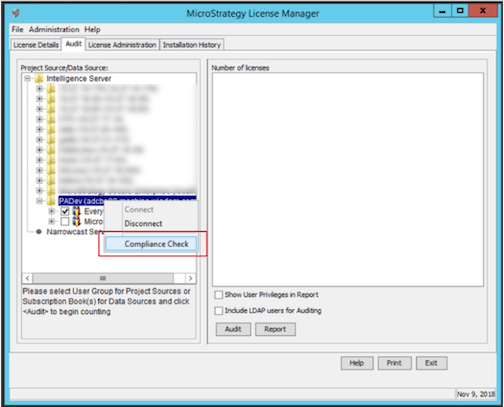
    • In License Manager, open the 'Audit' tab
    • Connect to the Project Source which you wish to trigger the audit results
    • Right-click the Project Source name and choose "Compliance Check". The compliance telemetry results will be sent to the Telemetry Server, automatically stored in the Platform Analytics Repository.


ka0PW0000001JYaYAM_0EM44000000gNQG.jpeg


  1. Republish the Compliance Telemetry super cube
    • Login to the Platform Analytics project from Strategy Web
    • Navigate to Compliance Telemetry super cube. By default, it is located under Platform Analytics/Shared Reports/2. Utilities/Compliance Telemetry
    • Right-click and manually republish the cube to refresh the data


3. The license key is unlimited and therefore will not produce license telemetry data
By default, AWS Cloud Provisioning Console environments are deployed with unlimited license keys during installation. When the license key is unlimited, the compliance check is bypassed and no data will be sent to the Telemetry Server/Telemetry Manager. As a result, the Compliance Telemetry dossiers will both be empty/return no data. It is expected that the Intelligence Server skips the compliance check when the key is unlimited as there is a performance impact from running the compliance check on Intelligence Server. Therefore, if an unlimited key is detected, the compliance check is skipped.

Solution

To update the license key:

  1. Generate a limited license key.
  2. Start License Manager
    • Windows GUI: From the Windows Start menu, point to All Programs, then Strategy Tools, and then select License Manager. License Manager opens in GUI mode.
    • Windows command line: From the Start menu, select Run. Type
      CMD
      and press ENTER. A command prompt window opens. Type
      malicmgr
      and press ENTER. License Manager opens in command line mode, and instructions on how to use the command line mode are displayed.
    • Linux GUI: In a UNIX or Linux console window, browse to
      <HOME_PATH>
      where
      <HOME_PATH>
      is the directory that you specified as the home directory during installation. Browse to the folder
      bin
      and type
      ./mstrlicmgr
      , then press ENTER. License Manager opens in GUI mode.
    • Linux command line: In a Linux console window, browse to
      HOME_PATH
      where
      HOME_PATH
      is the specified home directory during installation. Browse to the folder
      bin
      and type
      ./mstrlicmgr -console
      , then press ENTER. License Manager opens in command line mode, and instructions on how to use the command line mode are displayed.
  3. Update the License Key. In License Manager, Select the 'License Administration' tab
    • Under License Key Update, select the option 'Update Local License Key' and then click Next.
    • Type in or copy/paste the new CD key (generated in step 1) in the 'New License Key' box. The license key is case sensitive, so enter the license key carefully.
    • Click Next. The licenses are upgraded accordingly and the upgrade results are displayed in the Summary box.
    • Restart Strategy Intelligence Server for it to recognize the update and system behavior can return to normal.
  4. Re-trigger a manual compliance check or wait for the 24-hour compliance to be triggered.
    • Start License Manager, In License Manager, Select the 'Audit' tab
    • Connect to the Project Source which you wish to trigger the audit results.
    • Right-click and choose "Compliance Check". The compliance telemetry results will be sent to the Telemetry Server, automatically stored in the Platform Analytics Repository.


ka0PW0000001JYaYAM_0EM44000000gNQG.jpeg


  1. Republish the Compliance Telemetry super cube
    • Login to the Platform Analytics project from Strategy Web
    • Navigate to Compliance Telemetry super cube. By default, it is located under Platform Analytics/Shared Reports/2. Utilities/Compliance Telemetry
    • Right-click and manually republish the cube to refresh the data


Troubleshooting Scenario 2  Description 


When running the Compliance Telemetry dossier, no data is returned on either the "Named User Overview"; "Named User Details"; or the "CPU License" chapter.

Why is this happening?


This is working by design. An environment can be configured to use either a CPU-based license or a Named User-based license. The dossier will only show data based on which type of key has been configured during installation or in License Manager. For example, if an environment is configured with a Named Users license key, the CPU chapter will return no data, and vice versa.

Troubleshooting Scenario 3 Description


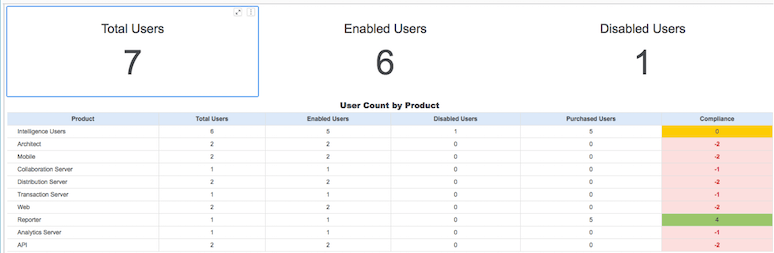
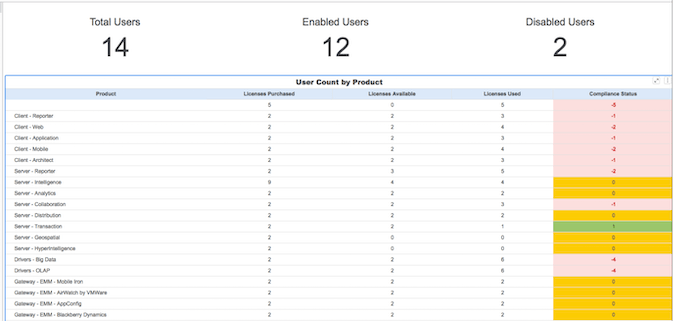
Immediately after updating a license key, the Compliance Dossier will incorrectly calculate the available and in-user license counts for named users.

Why is this happening?


As mentioned in the storage section, by default, only the latest compliance telemetry results are persisted in the PA Repository for each environment. Platform Analytics does not store historical compliance telemetry results due to performance and database size limitations.
​​​​​​​Steps to reproduce


  • Create a Strategy 2019 environment with a named user license key.
  • Generate compliance telemetry. Refer to the below example for reference: 
     
ka0PW0000001JYaYAM_0EM44000000gTIS.jpeg


  • Update the license to a new key and generate compliance data. Do not create any new user.

    Refer to the following image: 
     
ka0PW0000001JYaYAM_0EM44000000gTIX.jpeg


  1. The Compliance Dossier will show duplicate data because of both license keys have been aggregated in the grid.


Solution


This issue will resolve itself after the next day's automated auditing cycle. Alternatively, a filter can be added on the dossier filter panel for the new license key.

An issue has been logged to Strategy to prevent the aggregated/duplicated data for the first day of Compliance Telemetry.
 

Learning Resources


Interested in learning more about Platform Analytics? Visit the Learning Center on Community!


Comment

0 comments

Details

Knowledge Article

Published:

February 15, 2019

Last Updated:

March 21, 2024