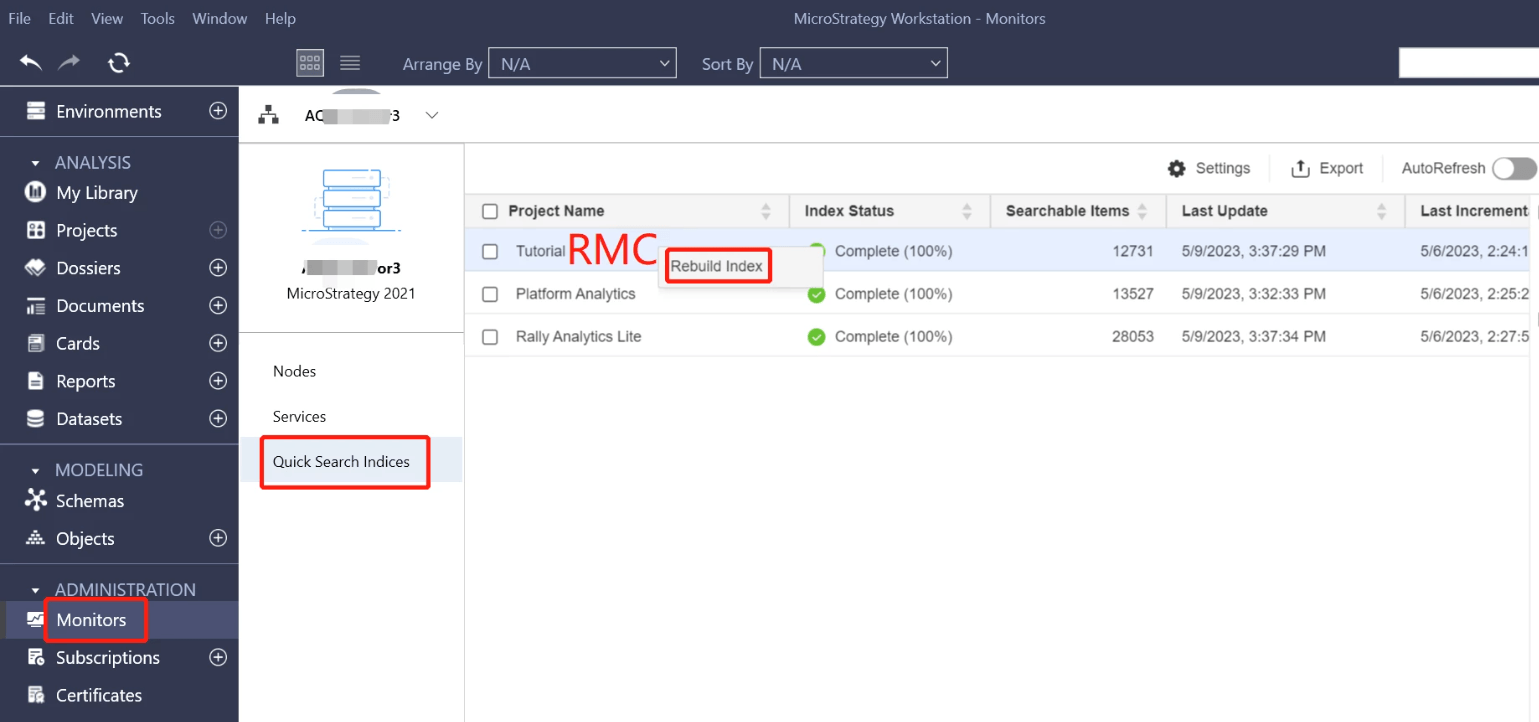
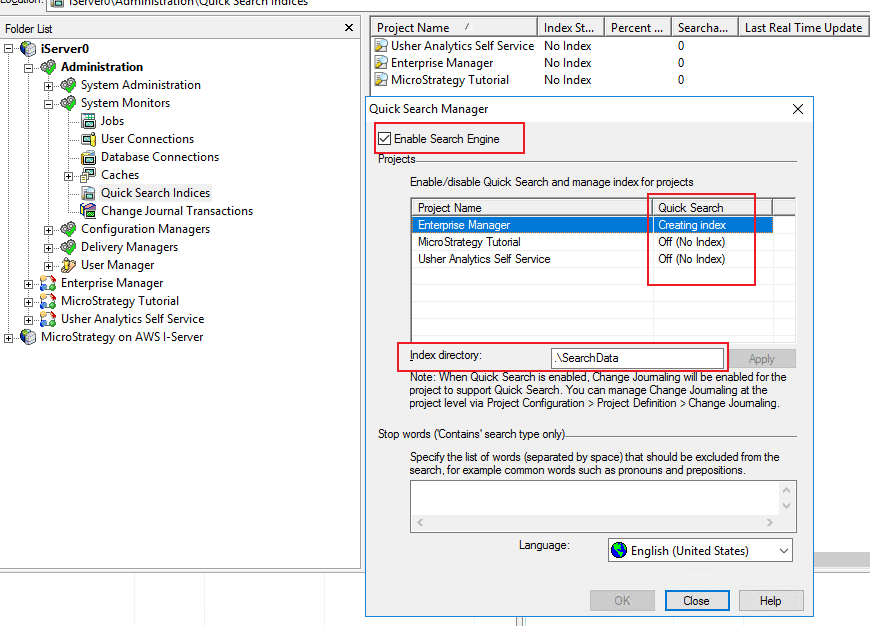
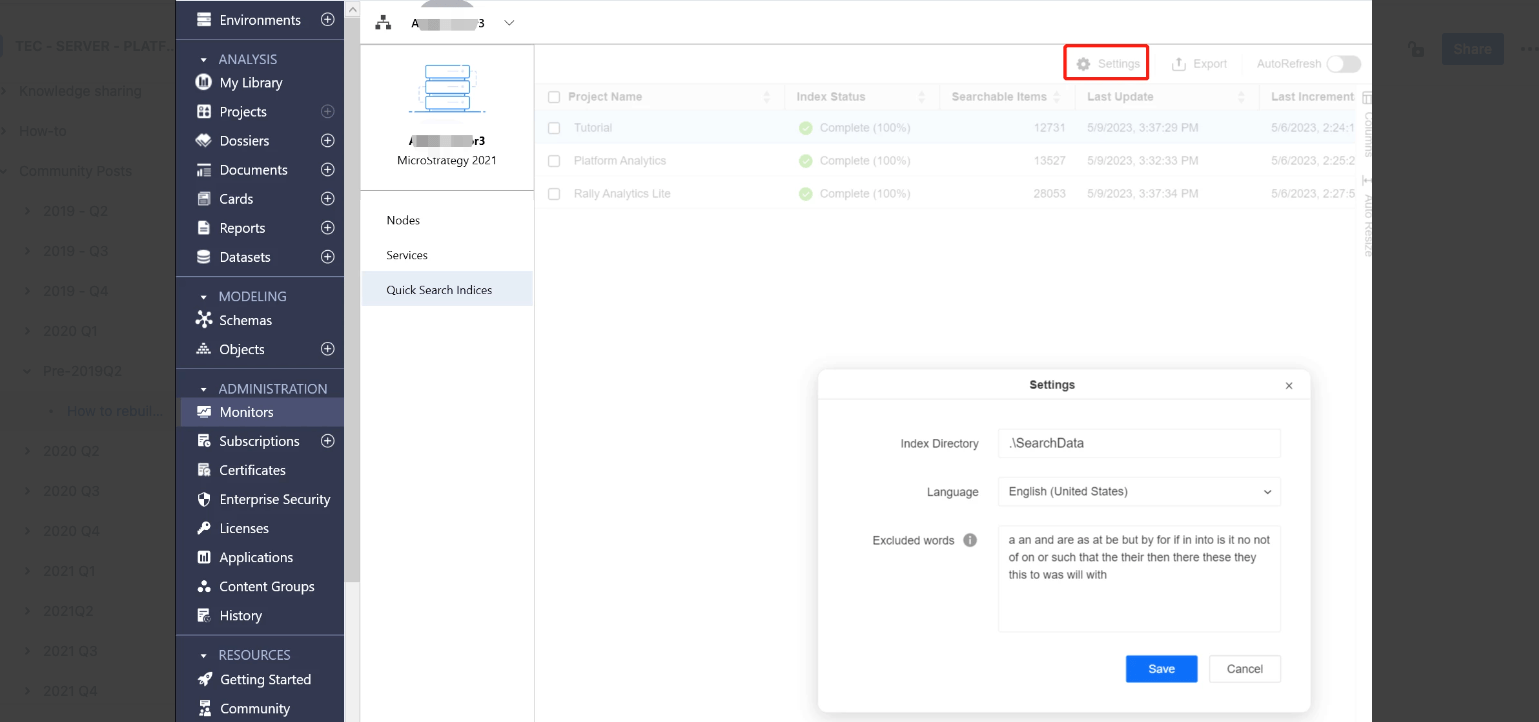
Depending on the product version, the process of rebuilding or changing your index directory may vary.
For more information, see Monitoring Quick Search Indices.
In Strategy 2019 and above, the indices are automatically rebuilt when the metadata, the index version, or the folder is changed. The auto rebuild process begins when you load a project or start the server.
If your index is corrupted, you will need to manually rebuild the index. In these newer versions of Strategy, you can either use the Rebuild Index button in Developer, or remove the index folder named after the project ID.
Note: If your environment is clustered, you may need to do manually rebuild the index in all the clustered nodes. For example:
If Project1 is loaded into both Node A and Node B, the index of Project1 may be out of sync. If separate index folders are used, rebuild the index on both nodes to re-sync. If you are using a shared index folder, rebuild the index in either Node A or Node B to re-sync. If Project1 is only loaded to Node A, you only need to rebuild that index to re-sync.
Once you rebuild the index, monitor your indices through the Quick Search Manager.
Beginning in Strategy 10.9, you can rebuild the index with a click of a button in Developer.
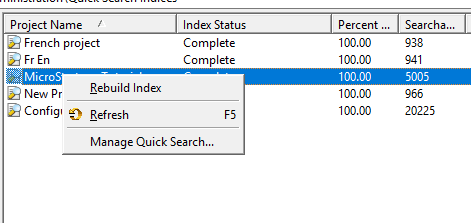
Once you rebuild the index, monitor your indices through the Quick Search Manager.
Prior to Strategy 2021, use the following approach to rebuild the index.
For example, say the Strategy Tutorial index needs to be rebuilt. The following steps could be used to rebuild it:
b19dedcc11d4e0efc000eb9495d0f44f) and identify where the index folder is located (
E:\SearchData).
E:\SearchDataand delete the
b19dedcc11d4e0efc000eb9495d0f44findex folder, which is named after the project ID.
If you do not want to restart the Intelligence Server, you can change the index directory to a different folder. After, manually restart the crawl process. The index is rebuilt.
Once you rebuild the index, monitor your indices through the Quick Search Manager.