EducationSoftwareStrategy.com
StrategyCommunity

Knowledge Base

Product

Community

Knowledge Base

TopicsBrowse ArticlesDeveloper Zone

Product

Download SoftwareProduct DocumentationSecurity Hub

Education

Tutorial VideosSolution GalleryEducation courses

Community

GuidelinesGrandmastersEvents
x_social-icon_white.svglinkedin_social-icon_white.svg
Strategy logoCommunity

© Strategy Inc. All Rights Reserved.

LegalTerms of UsePrivacy Policy
  1. Home
  2. Topics

KB483213: Cartesian joins generated through implicit or explicit relationship filters ignore the "Cartesian join warning" VLDB property.


Community Admin

• Strategy


Reports execute when they contain cross joins even though the Cartesian Join Warning is set to "Cancel Execution".

Symptoms

  • Relationship filter on report
  • Cartesian Join Warning set to "Cancel Execution"
  • Sub Query Type set to "WHERE EXISTS (SELECT *...)"
  • Report executes even though SQL contains a cross join

Glossary

  • Cartesian Join Warning  - VLDB setting that sets the desired behavior for handling Cartesian joins (also known as cross joins)
  • Sub Query Type - VLDB setting that determines the SQL syntax of sub-queries for the database
  • Relationship filter - filters an attribute based on their relationship to other attributes

Steps to Reproduce

  • Log in to a project in Strategy Developer. Here, we will use Strategy Tutorial objects.
    1. At this time, relationship filters can only be created in Developer.
  • Create a new Filter.
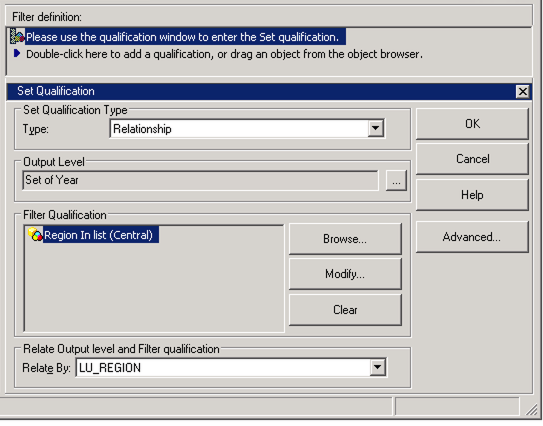
    • Select filtering option "Add a Set qualification".
    • Select Set Qualification Type "Relationship".
    • For the Output Level, select the Year attribute.​​​​
    • Under Filter Qualification, create a new filter of Region in list "Central"
    • Set the Relate By to "LU_REGION" table.
    • Save and close. The final definition should look like this:
ka04W00000148N5QAI_0EM2R000000hT2s.jpeg
  • Create a new Blank Report.
    • Add Year to the rows.
    • Add Revenue to the columns.
    • Navigate to "Data" on the toolbar and open "VLDB Properties".
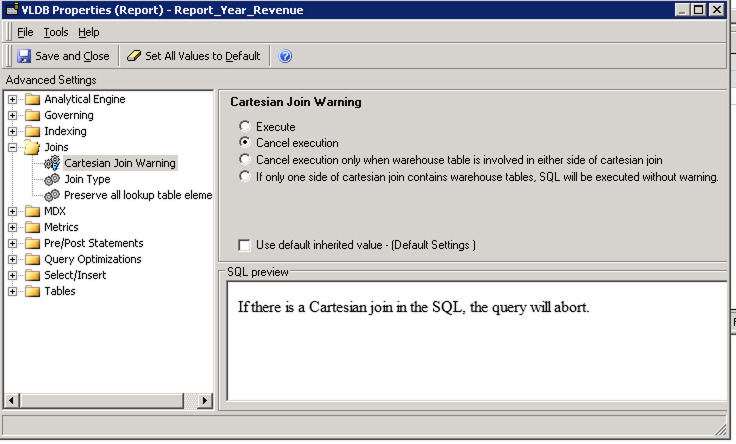
    • Change Cartesian Join Warning from default to "Cancel Execution".
ka04W00000148N5QAI_0EM2R000000hT3M.jpeg
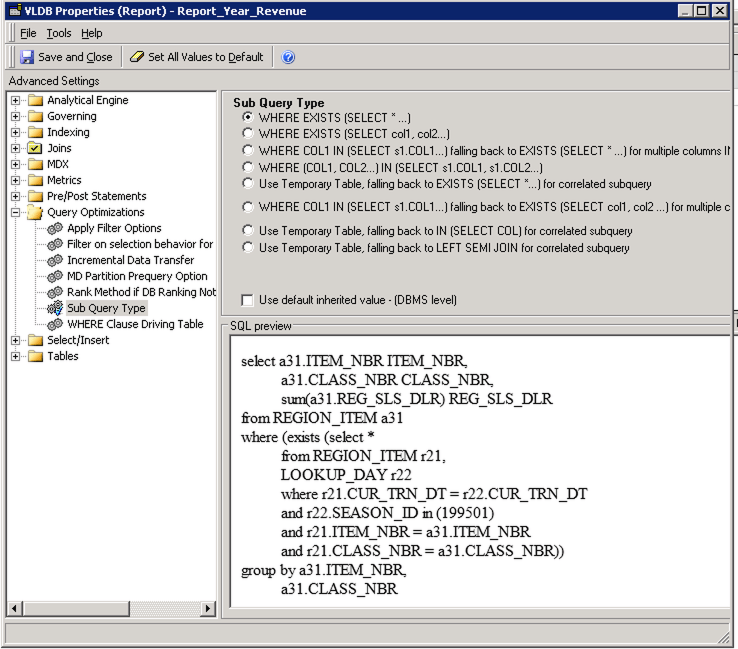
    • Change Sub Query Type from default to "WHERE EXISTS (SELECT *...)".
ka04W00000148N5QAI_0EM2R000000hT3W.jpeg
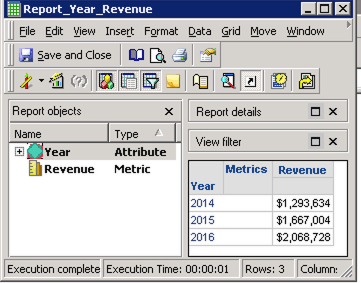
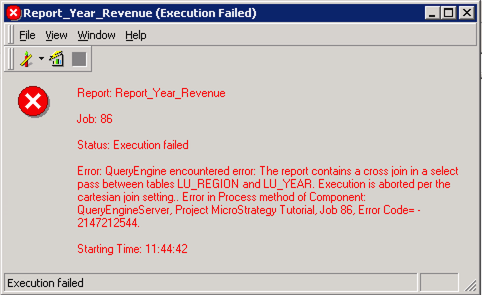
  • Run the report. The report should fail as Cartesian Join Warning was set to "Cancel Execution", but it executes anyways.


Expected Result:

ka04W00000148N5QAI_0EM2R000000hT2T.jpeg

Actual Result:

ka04W00000148N5QAI_0EM2R000000hT2Y.jpeg

Cause

  • Engine does not identify cross joins in sub-queries in the SQL Where clause of the main query.
    • Before fix, Engine only checked inside SQL From clause.


Looking at the SQL from the example above, the highlighted text shows a Cartesian join in a sub query of the Where clause:
select      a13.[YEAR_ID] AS YEAR_ID,
                sum(a11.[TOT_DOLLAR_SALES]) AS Revenue
from        [DAY_CTR_SLS]    a11, 
               [LU_CALL_CTR]    a12, 
               [LU_DAY]    a13
where      a11.[CALL_CTR_ID] = a12.[CALL_CTR_ID] and 
                a11.[DAY_DATE] = a13.[DAY_DATE]
 and        ((exists (select    *
               from       [LU_REGION]    r11, 
                           [LU_YEAR]    r12
               where    r11.[REGION_ID] in (4)
               and        r12.[YEAR_ID] = a13.[YEAR_ID]))
 and a12.[REGION_ID] in (4))
group by a13.[YEAR_ID]
 

Solution

  • Upgrade to Strategy 11.0 or above. We recommend the latest version.
  • Set Data Engine Version setting to 11.
    • The project level setting Data Engine Version can only be enabled through Workstation. For more details on enabling the setting, see Change Data Engine Version.

In the new fix, incorrect Engine logic is corrected to check for cross joins in the SQL Where clause when Cartesian Join Warning is set to "Cancel Execution". It will prevent the report from executing when it previously did.
 
Strategy Internal Reference number for this technical note is KB483213 and DE24791.


Comment

0 comments

Details

Knowledge Article

Published:

May 1, 2019

Last Updated:

July 2, 2019