1. In Strategy Developer, create a normal report with Year, Category and Revenue
2. Save the report and log into the Web to create a dashboard using this report as the dataset.
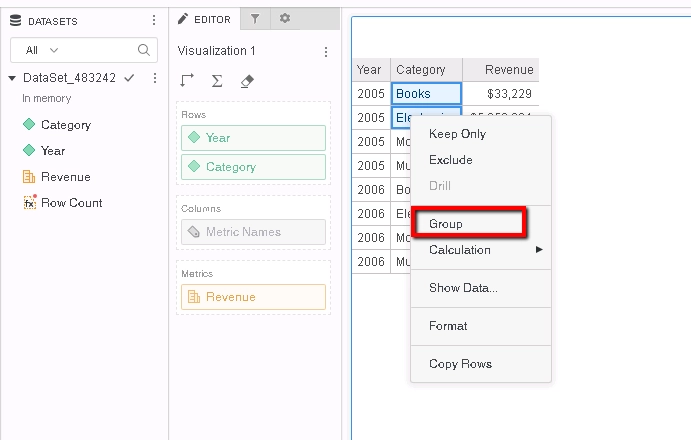
3. Select elements “Books” and “Electronics”, right-click and select Group; give a name to the new group, e.g., “B+E”.
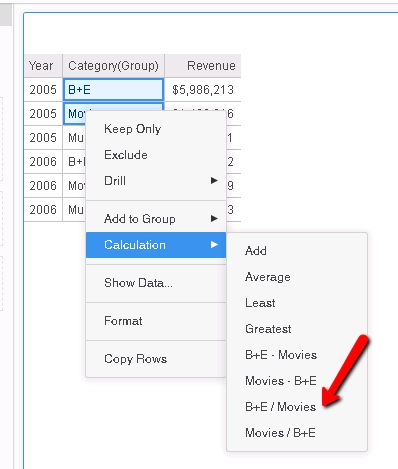
4. Select the new group and Movies, right-click and select Calculation, and choose “B+E/Movies”; give a name to the new calculation, e.g., “B+E/Movies”.
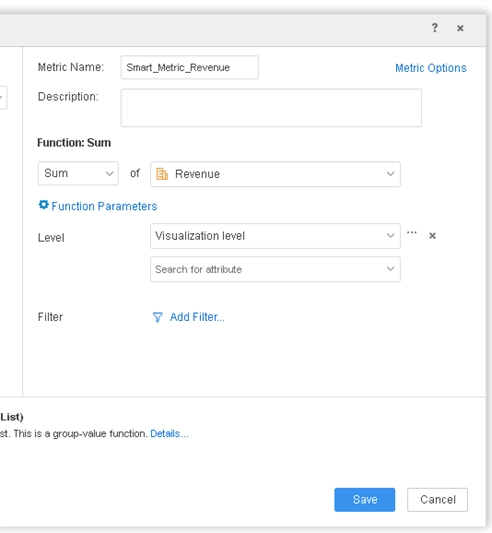
5. Create a Smart Metric based on Revenue.
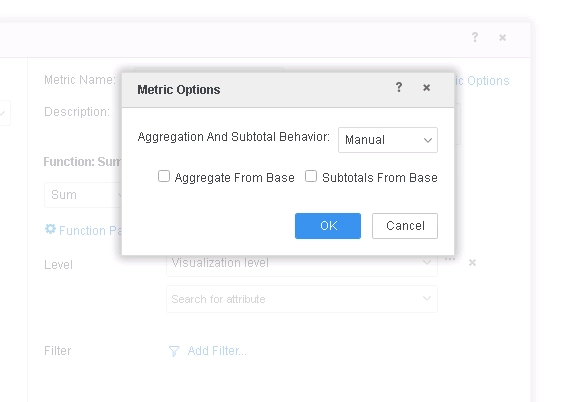
Make sure in the “Metric Option”, select “Manual” and un-check both.
6. As shown in the grid, the element “B+E/Movie” has no value for this Smart Metric.
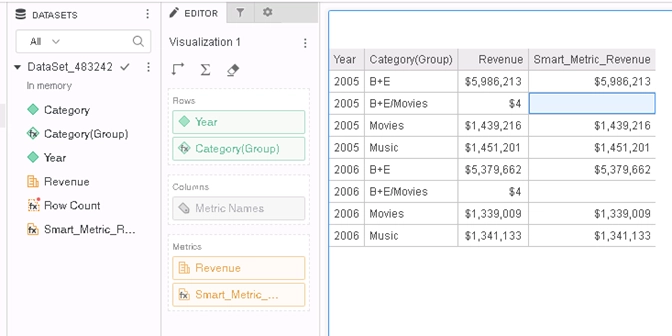
This is a known defect before Strategy 10.9. For the group element "B+E", we have two hidden leaf elements Book and Electrics. Before the fix, smart metrics returns "null" since the engine skips the calculations of the undisplayed leaf elements Book and Electrics which gives null value for "B+E". With the fix, we will do the calculations no matter the leaf elements are displayed or not.
To solve this issue, please upgrade to Strategy 10.9 or above. We recommend the latest version.
If you are upgrading to Strategy 11.0 or above, to pick up the fix, enable project level setting "Data Engine Version" to 11. This property can only be enabled through Workstation. For more details on enabling the setting, refer to Change Data Engine Version.
If you are upgrading to Strategy 10.9 / 10.10 / 10.11: To pick up the fix, enable the Feature Flag "Defect fixes that may impact Data, SQL, MDX, CSI" within the Web Preferences -> Project Defaults. For more details on enabling Feature Flags refer to What are the Feature Flag options and what do they accomplish in MicroStrategy Web 10.8 and up. Starting Strategy 11.0, this Feature Flag is removed and replaced with project level setting called "Data Engine Version".
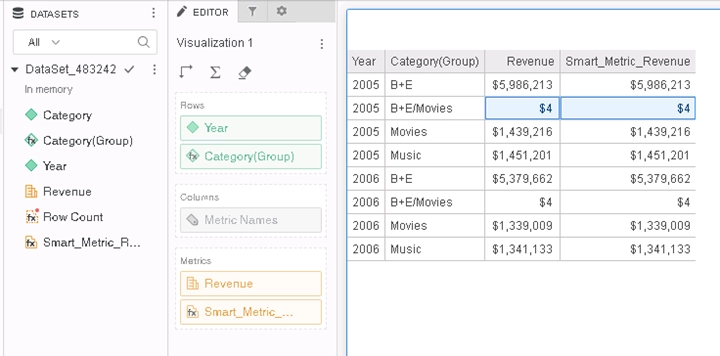
After the fix, the Smart Metric will be calculated for the derived element.
Strategy Internal Reference number for this technical note is KB483242 and DE67539.
