EducationSoftwareStrategy.com
StrategyCommunity

Knowledge Base

Product

Community

Knowledge Base

TopicsBrowse ArticlesDeveloper Zone

Product

Download SoftwareProduct DocumentationSecurity Hub

Education

Tutorial VideosSolution GalleryEducation courses

Community

GuidelinesGrandmastersEvents
x_social-icon_white.svglinkedin_social-icon_white.svg
Strategy logoCommunity

© Strategy Inc. All Rights Reserved.

LegalTerms of UsePrivacy Policy
  1. Home
  2. Topics

KB483501: When Setting Up Library on Android, Users Receive a Failed to Validate Certificate Error


Flynn Zhang

Scrum Master • MicroStrategy


When setting up SSL with public certificates for Library on Android, users receive a Failed to validate certificate error.

Description

When setting up SSL with public certificates for Strategy Library on Android, you may receive a Failed to validate certificate error.

ka04W000000WARNQA4_0EM2R000000nNSC.jpeg

Why is this happening?

Most public certification authorities (CAs) don't sign server certificates directly. Instead, they use their main CA certificate, referred to as the root CA, to sign intermediate CAs. This allows the root CA to be stored offline to reduce risk of compromise. However, operating systems like Android typically trust only root CAs. As a result, the app on the Android device produces an error if the certificate chain is not sent to the client.
Run the following command to test if a certification chain is missing:


openssl s_client -showcerts -connect [Web server host name]:8443

If the results contain only one certificate key, and the issuer is not the root CA, then the intermediate CA is missing. See step 5 in the next section to see how to find the root CA.

ka04W000000WARNQA4_0EM2R000000lRXq.jpeg

Solution

To resolve this, the server sends a chain of certificates from the server CA through any intermediaries necessary to reach a trusted CA during the SSL handshake, instead of the server sending only the client certificate.

  • Open server.xml under [Installation Path]\Common Files\MicroStrategy\Tomcat\apache-tomcat-9.0.12\conf. Locate the connector for port 8443. The KeystoreFile attribute is the certificate that the Web server is using.
ka04W000000WARNQA4_0EM2R000000lRYF.jpeg
  • Navigate to the certificate folder. It should be the keystoreFile value. In this example, it’s under the same folder as tomcat conf. Go to File > Open command prompt > Open command prompt as administrator.
  • Run the command shown below to extract the private key from the p12/pfx file. The password is the keystorePass value in server.xml. After running the command, a private.key.pem file is created under the certificate folder. The p12/pfx file should only have one private key.
    
    openssl pkcs12 -in IntermediateCert.p12 -nocerts -nodes -out private.key.pem

    Note: Openssl is normal installed under C:\Program Files\OpenSSL-Win64\bin. If the command cannot be recognized, an administrator can download the tool from https://slproweb.com/products/Win32OpenSSL.html.
  • Run command shown below to extract a server-only certificate from the p12/pfx file. After running the command, the server_only.cert.pem file is created. If there is only one key in the file, no intermediate CA is installed. The key is surrounded by the begin private key and end private key tags.
    
    openssl pkcs12 -in missing.intermediate.p12 -nokeys -out server_only.cert.pem
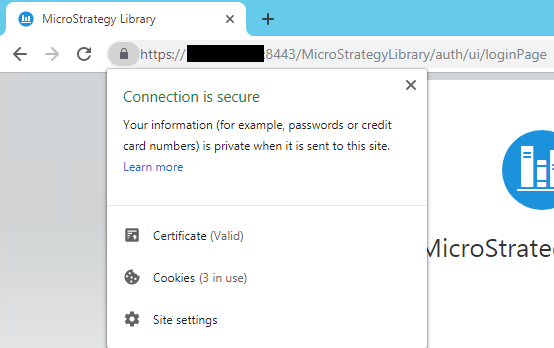
  • The next few steps detail exporting the intermediate CA from Web. This is only supported on Windows. Click on the lock tag and Certificate.
ka04W000000WARNQA4_0EM2R000000lRYy.jpeg
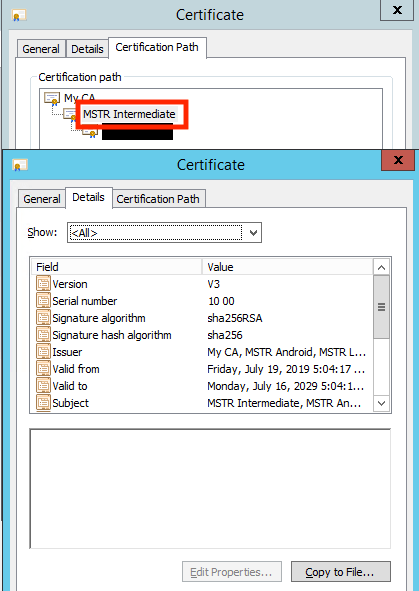
  • Open the Certification Path tab and select the intermediate CA.
  • Click View Certificate. The CA is the root in this example.
  • Open the Details tab.
  • Click Copy to File.
ka04W000000WARNQA4_0EM4W000001J0Hi.jpeg
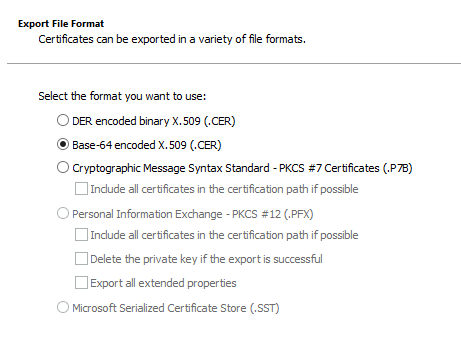
  • In the Certificate Export wizard, click Next.
  • Select Base-64 encoded X.509 (.CER).
ka04W000000WARNQA4_0EM2R000000lRZD.jpeg
  • Enter a filename for the intermediate CA and save it to the certificate folder, which is ICA in this example.
  • Run the following commands to append the intermediate CA to the server-only certificate.
    On Windows:
    
    copy server_only.cert.pem + ICA.cer chain.cert.pem

    On Linux:
    
    cat server_only.cert.pem ICA.cer > chain.cert.pem

  • After running the commands in the previous step, make sure there are two certificate keys.
  • Run the following command to generate the chain certificate and private key into a new p12/pfx file:
    
    openssl pkcs12 -export -in chain.cert.pem -inkey private.key.pem -out newIntermediateCert.p12

  • Update keystoreFile in server.xml with the new certificate the restart the Tomcat server.
  • Test the certificate with the command shown below. Your results should contain two certificate keys.
    
    openssl s_client -showcerts -connect [Web server host name]:8443


Comment

0 comments

Details

Knowledge Article

Published:

July 24, 2019

Last Updated:

October 6, 2020