The following example uses Strategy Tutorial attributes and metrics.
1. Open Strategy Developer and create a new Intelligence Cube.
a. Right-click, click “new” and choose “Intelligent Cube”.
b. Choose “Empty Intelligent Cube” and click “OK”.
c. Add attribute “Customer” to the grid, then save and close.
d. Publish the cube
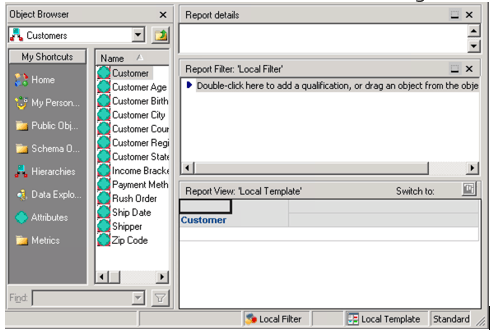
2. Create a new prompt based on attribute “Customer”.
a. Right-click, click “new” and choose “Prompt”.
b. Choose “Qualify on an attribute” and click next.
c. Choose “Use a predefined list of hierarchies”, and add “Customer”.
d. Click “Finish” and save and close the prompt.
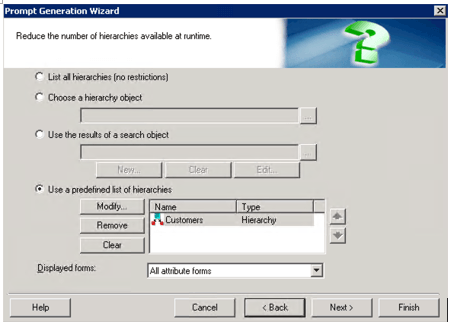
3. Create a new report based on the cube created in step 1 and add the prompt to it.
a. Right-click on the cube, and choose “Create Report”.
b. In the “View filter” section of the new report, click “New”, click on “Field” and chose “Select a Prompt…” to add the prompt created in step 2.
c. Save and close the report.
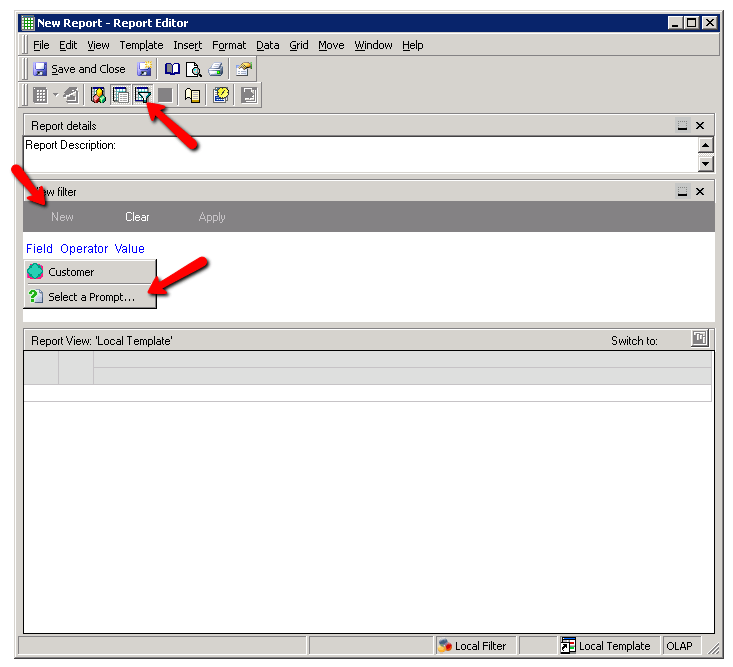
4. In Strategy Web, use the search function of prompt in the report.
a. Open Strategy Web and open the report created in step 3.
b. In the prompt window, choose Customer as the attribute for qualification.
c. Choose the expression type to be “Select”.
d. Click “Edit…” to open the window for the search function.
e. In the search bar, type in "aaby", the first element displayed, and search.
f. Nothing is found, none is returned and “0 items” is shown in the window.
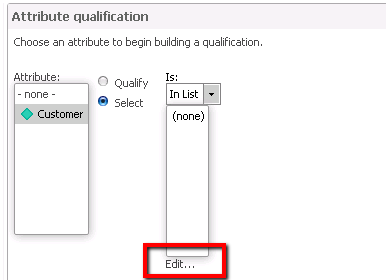
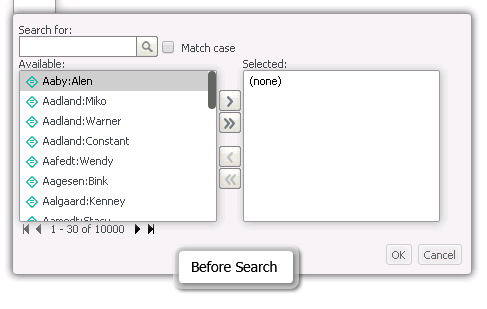
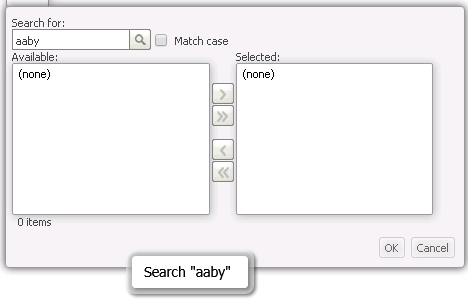
Note: Screenshots taken in Strategy Developer and Strategy Web.
This is a known defect before Strategy 2020.
When a report uses a “Use a predefined list of hierarchies” prompt, the attribute info of this prompt and the some form info of the prompted attributes are not stored in the same place, therefore from Data Engine's perspective, those attributes have missing forms, and when searched, those attribute elements are not matched or returned.
To resolve this defect, please upgrade to Strategy 2020 or above, and set Data Engine Version setting to 12.
The project level setting Data Engine Version can only be enabled through Workstation.
In the fix, Data Engine has optimized the search filtering logic to ensure correct attribute elements are returned.
Strategy Internal Reference number for this technical note is KB483590 and DE131538.
