Starting with the release of Strategy ONE (March 2024), dossiers are also known as dashboards.
How to Map Imported Data to a Project Attribute
The following example uses Strategy Tutorial Project.
1. Open Strategy Web.
2. Click on the account menu, choose “Preference” to enter the setting window.
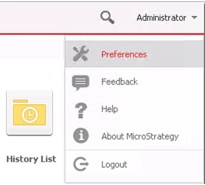
3. Click on “Show advanced options” next to the Language section and change the Metadata and Data Language to another language different from the default one.

4. Click apply and close the setting window.
5. Create a new dossier.
6. Create the new dataset DS1:
a. Add External Data > Databases > Select Tables.
b. Select the "QTR_CATEGORY_SLS" table and “LU_CATEGORY” table from the data source “Tutorial Data”.
c. Click “Prepare Data”, keep only Category Id and Category Desc attributes in LU_CATEGORY table.
d. Right-click on “Category Id” and click “Map to Project Attribute”.
e. Choose the Category attribute in user preference language, and map the Category Id and Category Desc accordingly.
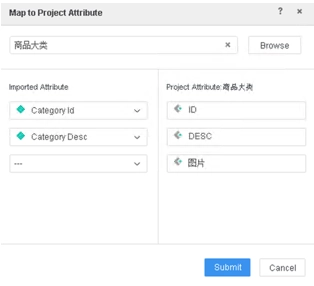
f. Click “Submit” then “Finish” to save the dataset, import either with live connect mode or as In-Memory dataset.
7. Add the new Category attribute (in user preference language) and any metric into the visualization, blank cells are returned for the Category attribute.
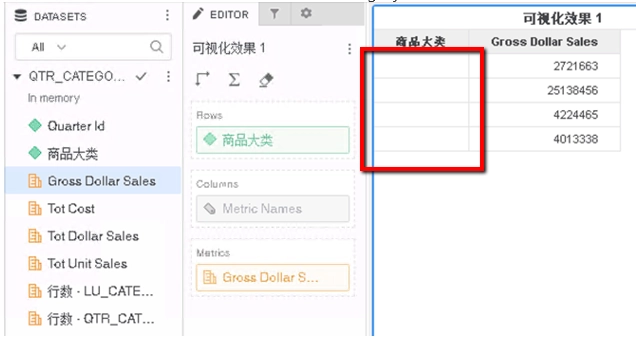
This is a known defect before Strategy 2020.
The cause of this issue is because MTDI cube currently does not support data internationalization.
Since the MTDI cube cannot specify data language, when the cube is published, it uses the project default language, which is different from the data language and causes the data failed to be displayed.
To resolve this defect, please upgrade to Strategy 2020 or above, and set Data Engine Version setting to 12.
The project level setting Data Engine Version can only be enabled through Workstation. For more details on enabling the setting, see Change Data Engine Version.
In Strategy 2020, the locale is not loaded for MTDI cube, so there will not be language mismatch and data will be correctly displayed.
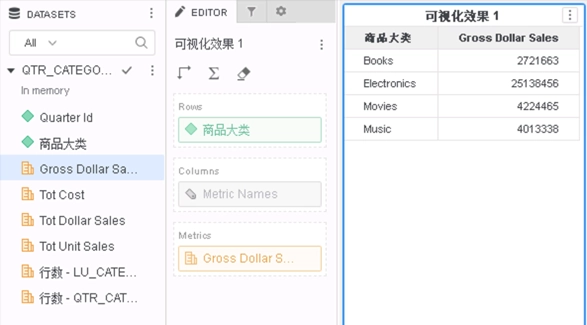
Strategy Internal Reference number for this technical note is KB483617 and DE131872.
