EducationSoftwareStrategy.com
StrategyCommunity

Knowledge Base

Product

Community

Knowledge Base

TopicsBrowse ArticlesDeveloper Zone

Product

Download SoftwareProduct DocumentationSecurity Hub

Education

Tutorial VideosSolution GalleryEducation courses

Community

GuidelinesGrandmastersEvents
x_social-icon_white.svglinkedin_social-icon_white.svg
Strategy logoCommunity

© Strategy Inc. All Rights Reserved.

LegalTerms of UsePrivacy Policy
  1. Home
  2. Topics

KB483804: Accessing "Data Engine Version" setting in MicroStrategy Developer


Community Admin

• Strategy


Before, users with administrator privileges can only view or change the Data Engine Version in Workstation. For some users, this could be infeasible due to unavailable of Workstation. In this article, we introduce a way to expose the setting in the Microstrategy Developer and users can view and change the Data Engine Version in Developer. Please note that Workstation is still the preferred way to make any changes to the Data Engine Version setting because Workstation shows only the most appropriate Data Engine Versions to the user whereas Developer will show all the available Data Engine Versions. Moreover, Workstation shows user-friendly Data Engine Version options as compared to the Developer.

Glossary

  • VLDB.xml
  • Data Engine Version

Steps to Expose the Setting (Starting version 2021, this step is not needed because Developer has this property out-of-the-box)

  1. Locate the VLDB.xml file in the "Program Files (x86)\Common Files\Strategy" folder on a machine where Strategy Developer is installed.
  2. Before editing the file, please create a backup.
  3. Open the file and search for <Setting> XML tag
  4. Add the following text right before the first <Setting> tag found in Step 3.

<Setting>
    <Name>AEVersion</Name>
    <MaxValues>1</MaxValues>
    <GroupID>9</GroupID>
    <Type>5</Type>
    <DataSourceType>15</DataSourceType>
    <ReportType>7</ReportType>
    <DisplayName>Data Engine Version</DisplayName>
    <DisplayLevel>1</DisplayLevel>
    <ShowSQLPreview>1</ShowSQLPreview>
    <SQLPreview1>
        <font face="Times Roman" size="3">
            <DL>
                <DT>Data Engine Version</DT>
                <DD> 10 = Strategy 10.4 platform behavior </DD>
                <DD> 11 = Strategy 2019 platform behavior</DD>
                <DD> 12 = Strategy 2020 platform behavior</DD>
            </DL>
        </font>
    </SQLPreview1>
 </Setting>
View and Edit the Setting in Developer

  • Restart the Developer.
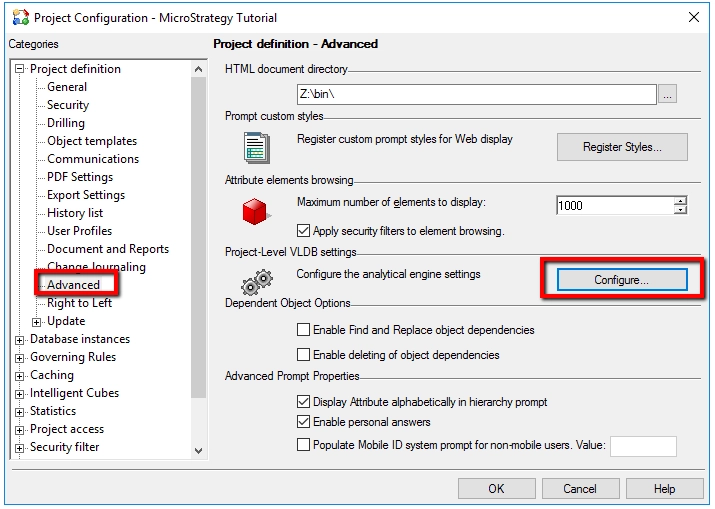
  • Open "Project Configuration" for the project that you would like to view or modify.
  • Select Advanced->Configure to open the VLDB setting editor for that project.
ka0PW0000005oKLYAY_0EM2R000000mqCY.jpeg
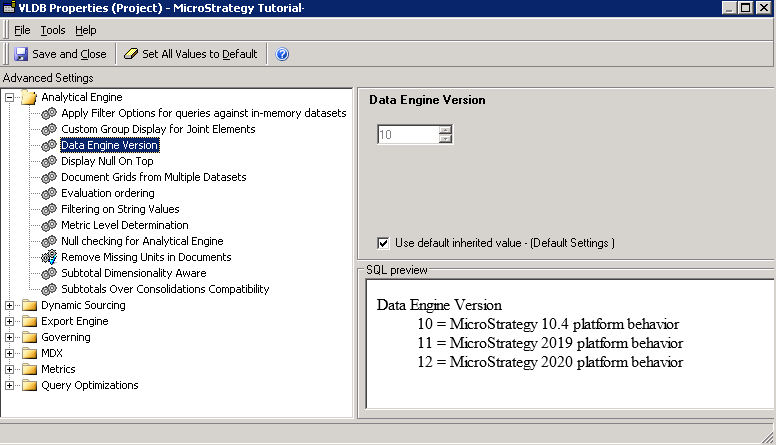
  • Go to "Analytical Engine Folder" and go to the setting in that folder called "Data Engine Version".
    • If you cannot find "Data Engine Version" setting, either the VLDB.XML file was not updated properly or the metadata is not updated to Strategy 2019 or newer.
ka0PW0000005oKLYAY_0EM2R000000mqIq.jpeg
  • Users can view and optionally modify the current value of the "Data Engine Version" setting
    • Note that Developer shows different values compared to the ones in the Workstation. The Version mapping is shown in the SQL preview Section.
  • Starting version 2021, there is a new option for Data Engine Version 2021 which is 13.
  • Starting version June 2025, there is a new option for Data Engine Version 2025 which is 14.
  • After the setting is modified, please restart Intelligence Server to ensure the setting is taken into effect.

Please note this KB article is only valid for Strategy versions 2019 and 2020.  Accessing "Data Engine Version" via developer will be enabled out of box starting from 2021 release. 


Comment

0 comments

Details

Knowledge Article

Published:

November 19, 2019

Last Updated:

May 27, 2025