SYMPTOM:
When opening a table in Strategy Architect 9.x, users see both the structure of the table and the key of the table as shown below:

However, the table in the warehouse, as shown in this screenshot from Microsoft Access, is defined to have a different Primary Key.

Note that Strategy Architect displays 'City' as the Primary key, while users have defined 'Customer' as the Primary Key in the warehouse.
CAUSE:
This behavior is by design.
The Strategy table editor includes two tabs, "Logical View" and "Physical View." The Physical view is a reflection of the table structure as defined in the warehouse and simply lists all the columns present in the warehouse table.
The Logical view shows how the table is related to the Strategy schema. The key icons are not intended to reflect the warehouse table's physical keys, but rather which logical attributes in the Strategy schema should function as lowest-level join attributes for this table. The key attributes are determined solely by attribute mappings to the table and attribute relationships, where the logical table keys are the lowest-level attributes present on the table from each hierarchy (parent-child relationship chain) that contains attributes in the table.
In other words, any attribute that has a child attribute also on the same table will not be considered a key. Key attributes are those that have no child attributes defined on the same table. Key attributes may have children defined on different tables.
The concept of a logical table key is thus different from the warehouse primary key.
In the above example, the following relationship is set up:
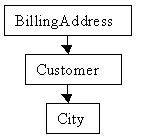
Strategy Architect assigns the logical table key to the attribute located at the lowest level: in this case, City.
