EducationSoftwareStrategy.com
StrategyCommunity

Knowledge Base

Product

Community

Knowledge Base

TopicsBrowse ArticlesDeveloper Zone

Product

Download SoftwareProduct DocumentationSecurity Hub

Education

Tutorial VideosSolution GalleryEducation courses

Community

GuidelinesGrandmastersEvents
x_social-icon_white.svglinkedin_social-icon_white.svg
Strategy logoCommunity

© Strategy Inc. All Rights Reserved.

LegalTerms of UsePrivacy Policy
  1. Home
  2. Topics

KB484514: Set up integrated authentication to an IBM Cognos TM1 server


Mingzhi Zhu

Quality Engineer, Principal • MicroStrategy


The article details how to set up integrated authentication to an IBM Cognos TM1 server.

Use the following procedures to set up integrated authentication to an IBM Cognos TM1 server.

Step up the integrated authentication environment

Set up an integrated authentication environment for Strategy Intelligence server and Web server. Detailed steps can be found here.

Set up the TM1 server

Set up the TM1 server for Kerberos. Detailed steps can be found here. You should only follow the steps under these two subheadings:
  • Configuring the TM1 Server
  • Testing via TM1 Architect and Preparing the TM1 Application Server for Kerberos/SPNEGO Authentication.

Set up an authentication environment for the MDX cube provider

  • Install the MDX cube provider on the same machine where Intelligence server is installed.
  • Install the IBM Cognos TM1 client on the same machine.
  • In the installation folder of the MDX cube provider, locate the Datasources.xml file. The default path is C:\Program Files (x86)\MicroStrategy\MDX Cube Provider.
  • Open the file in a text editor and modify the following settings:
    • <AuthenticationMode>Integrated</AuthenticationMode>
    • <DatasourceType>3</DatasourceType>
    • <ProgramID>TM1OLAP</ProgramID>
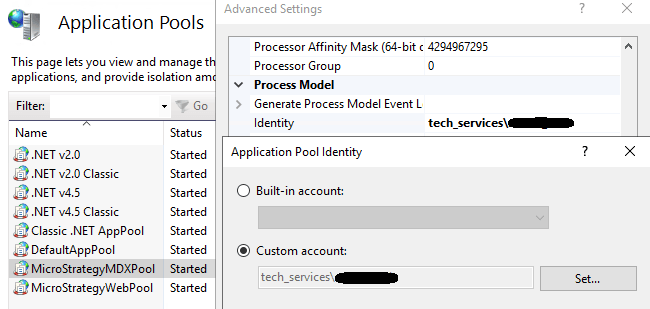
  • Change the identity of the StrategyMDXPool application pool to the account used by the Intelligence and Web servers.
ka04W000000UJukQAG_0EM4W000001IOeF.jpeg
  • Open IIS Manager
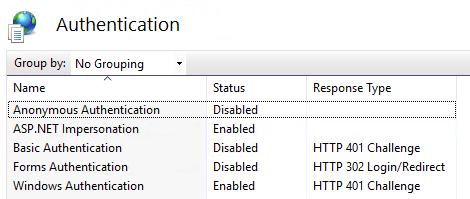
  • Change the authentication type of the StrategyMDX applications.
ka04W000000UJukQAG_0EM4W000001IOeK.jpeg
  • Open the Configuration Editor of the StrategyMDX application.
  • Go to the system.webServer/security/authentication/windowsAuthentication section, set useAppPoolCredentials to True and click Apply.
ka04W000000UJukQAG_0EM4W000001IOco.jpeg
  • Restart IIS.

Test the connection using XMLAtest

  • Open a command prompt as an administrator and run xmlatest.
  • Use test information similar to that shown below.
    
    Welcome to XMLA Test.
    Please type the target URL, starting with http:
    http://tec-w-010664.labs.Strategy.com/StrategyMDX/StrategyMDX.asmx
    Do you wish to use Kerberos authentication (y/n) ?
    y
    Please type the name of the DataSource on XMLA source. If unknown, just press <ENTER> key:
    ts-tm1-64
    Please type the name of the Catalog on XMLA source. If unknown, just press <ENTER> key:
    Sdata941
    

  • If the test is succesful, the result contains the cube information under the catalog.
ka04W000000UJukQAG_0EM4W000001IOgL.jpeg

Set up the connection in Strategy Developer

  • Create a new database instance using the URL of the MDX cube provider.
ka04W000000UJukQAG_0EM4W000001IOga.jpeg
  • Go to Project Configuration > Database Instances > Authentication > Warehouse.
  • Change Metadata authentication type to Kerberos and select the newly created database instance.
ka04W000000UJukQAG_0EM4W000001IOgp.jpeg
  • Now that the connection has been created, you can use it in both Strategy Developer and Strategy Web with integrated authentication.

Comment

0 comments

Details

Knowledge Article

Published:

August 17, 2020

Last Updated:

August 17, 2020