During Installation, Windows users see an error that says “The code execution cannot proceed because node.dll was not found. Reinstalling the program may fix this problem.”
This issue occurs if the Workstation Installer is run directly from the .zip file without extracting all files first. Make sure to extract all files first to a separate folder, and run the setup.exe from that folder.
During installation on Windows, users get the error, “MicroStrategy Desktop has been detected on this machine.”
On Windows, you can have either MicroStrategy Desktop or Workstation installed, but you cannot have both. You must un-install MicroStrategy Desktop before installing Workstation.
After install, I open Workstation, but do not see my environment there.
Hit the Refresh button in the top left of the main Workstation window.
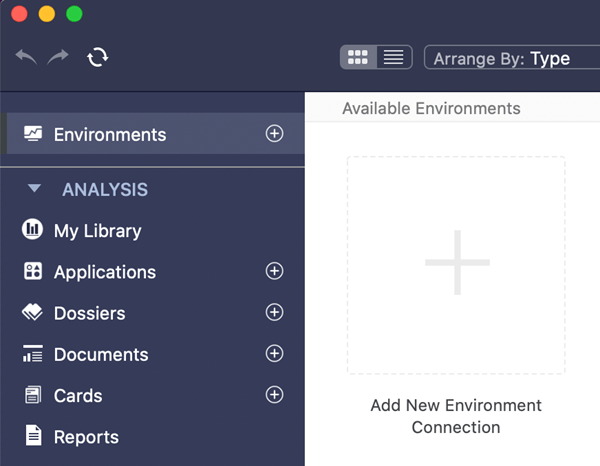
I see the environment in Workstation, but when I try to connect, it takes a long time and says “connecting” but never really connects.
Possible reasons for this are:
To troubleshoot, copy the Environment URL by editing the connection in Workstation and attempt to connect in a browser. You will get a more descriptive error message there.
You see the environment in Workstation, but when they trying to connect, you get the error, “Intelligence server is unavailable.”
There was a problem when the environment was provisioned and the OIDC configuration was not set up properly. The environment must be terminated and a new one requested. If you require assistance with this, please contact info@microstrategy.com.
The main Workstation window does not display a full navigation menu on the left. I don’t see Dossiers, Documents, Reports.
HyperIntelligence installs a light version of MicroStrategy Workstation that does not include Dossiers, Documents, Reports, etc. For full functionality, connect to any licensed Intelligence Server you have available and you will revert to full functionality.
The main Workstation window displays a full navigation menu on the left, with other items other than Applications, Cards and Datasets, such as Dossiers, Documents, and Reports.
This happens once you connect to a non-HyperIntelligence environment and it cannot be changed back. The assumption is that because you have other non-HyperIntelligence environments, you are aware of the additional Workstation functionality.
After installing Workstation on a Mac, I get a message asking me to update my keychain.
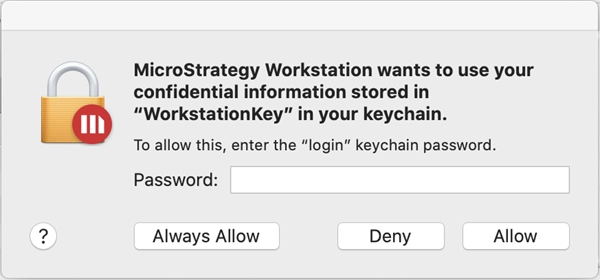
Occasionally, your Mac will keep asking for your keychain password. The pop up appears three to four times in a row and the password must be entered correctly each time. This issue is mentioned on the Apple support site, in If your Mac keeps asking for your keychain password.
When installing Workstation on Mac, the following message appears:
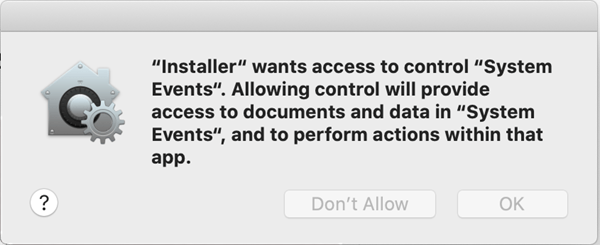
This message is requesting permission to silently run the HyperIntelligence service in the background and start the service when your computer starts.
When I create a card, I get an error about a cartesian join.
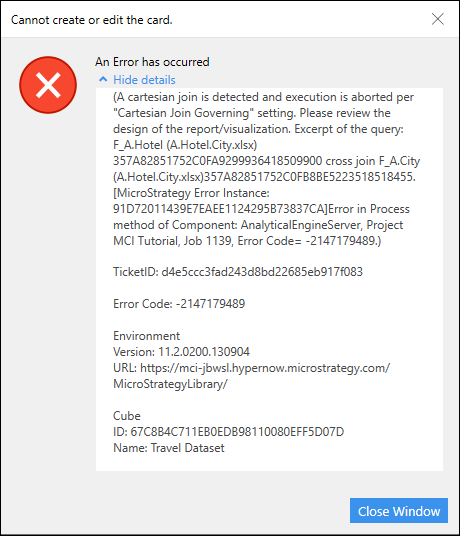
This means that you have multiple tables in your dataset and there is no defined relationship between the tables. On your card, you added an attribute from each of your tables, thus causing a cartesian join. By default, we have the Cartesian Join Governing setting enabled to prevent a situation like this from using up all the memory in the environment and causing a system crash.
The solution would be to create a relationship between your tables to prevent a cartesian join from happening. See KB484141 for more information.
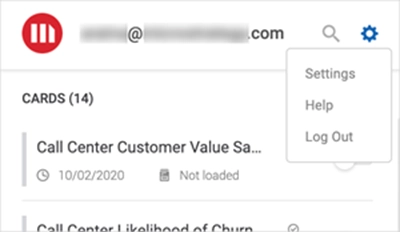
How do I log out of the service app?
You can log out the service app by logging out from MicroStrategy resource center or the HyperIntelligence website.
How do I update the service app?
The service app is updated when you update Workstation. When newer releases become available, an Update Available icon appears on the top of the service app. Clicking the icon updates Workstation, as well as the service app.

How do I change the interface language of the service app?
The service app interface language can be changed by changing the Operating System locale setting. After changing the locale setting, relaunch the service app to show the correct language.
How do I refresh the service app? I don’t see all environments shared with me on the app.
How do I manually launch the service app?
How do I deploy my Hyper browser plugin?
You can do this in two ways, which are listed below in order of preference.
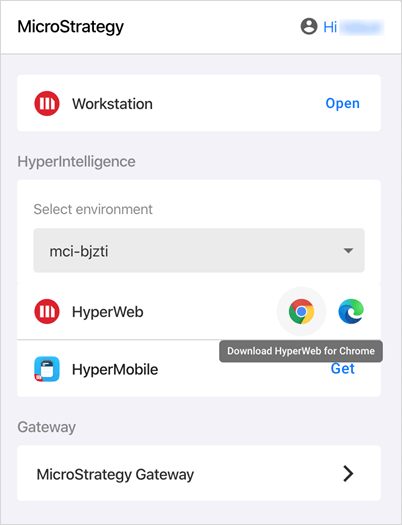
2. Use the link provided in the Welcome email for your respective browser. This link sends you to the browser extension store. After adding the extension, it is automatically configured with the environment URL.
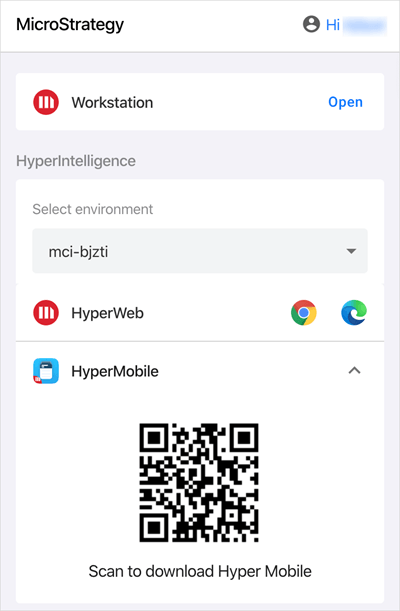
How do I deploy HyperMobile?
There are multiple ways to deploy HyperMobile manually. However, the best way to deploy is via the HyperIntelligence service. This takes the user through a workflow that pre-configures the app.
Can I connect to multiple environments at the same time?
Not at this time. To use cards across different environments, you need to switch the environment URL, following the instructions in the next section.
How can I switch between environments in my plugin?
You can do this one of two ways:
There is a known bug in Chrome where the gear icon cannot be opened on an external monitor when using a Mac laptop.
Can I add thresholds on my card? Can I change the color of the card depending on the thresholding data?
You must add a metric to the card body and build a threshold using that metric. The threshold changes both the header and font color of the metric. Attribute-based thresholds are not available yet.
Why is my two-character keyword not generating matches?
Keywords must have at least three characters to generate matches, any less produces major performance degradations. One common use case for this is stock tickers not highlighting when they have less than three characters. For Asian languages, the requirement is reduced to two characters or more.
How do I set up images for cards?
Images must be added as an alternative form to the header attribute. See Adding Images to Cards for more information.
Can I add HTML to the card body? HTML tags are not always rendered as expected.
No, for security purposes HTML code is sanitized when it is added to the card body. This prevents malicious code from being added to the card.
I’ve created a card, I see it in the plugin, but I can’t turn it on. I see a “Card is not available” error. What are the possible reasons? How do I fix this?
Card is not available is the lowest level error. If you’re seeing this then you're experiencing a rare or new error. Please export the logs and contact support.
I’ve created a card and turned it on. However, I do not see matches when I browse. What are the possible reasons? How do I fix this?
Are there any major differences expected between iOS and Android versions of HyperMobile?
HyperiOS is now available with AppConfig. This allows admins to push a configured iOS app with restrictions (such as disabling certain features) to users. Besides this feature--and the UI/UX designed to conform to material design considerations for each OS--the apps have feature parity.
Are there any major differences expected between HyperWeb and HyperMobile?
HyperWeb and HyperMobile represent two different use cases and the way they are used are slightly different. Besides this, functionally, they are mostly similar. A few differences that stand out include:
If I run into questions about specific features and workflows, where’s the best place I can find HyperIntelligence specific documentation?
Besides the initial configuration piece, HyperIntelligence on HyperIntelligence works the same as the regular app on our platform. See HyperIntelligence Troubleshooting to troubleshoot issues with HyperIntelligence.
Are there any specific logs we can gather for troubleshooting and where can we find them?
How do I add alternative keywords?
Note: Alternative keywords can be used to expand matches for a card.
Add alternative keywords as alternative forms to the header attributes. See Allow Alternate Forms of a Keyword for more information.
To enable alternative keywords, see Alternate Keyword Matching .
What is pattern matching?
Pattern matching is an alternative matching system that uses repeated patterns to find matches rather than exact keywords. It allows for much larger datasets to be used to make cards. However, pattern matched cards cannot be searched for in the extension. See Enable Pattern Matching for more information.
I shared a card with another user, but they cannot see it.
For another use to see a card:
I added an SVG image, but I don't see it on mobile.
SVG is not universally supported at this time. Images should be JPG, PNG, or GIF for consumption on HyperWeb and HyperMobile.
What MicroStrategy Server features are not available in HyperIntelligence?
The following MicroStrategy server features are not available:
Why are there less available connections in HyperIntelligence than in the traditional platform?
At this moment, HyperIntelligence includes only a subset of connectors available in our traditional platform.
What connectors are not included in HyperIntelligence?
Type | Connector | |
|---|---|---|
Not included in MicroStrategy 2021 nor in HyperIntelligence, based on Cloud Elements connector | Act! Essencials, Autopilot, Autotask CRM, BambooHR, Base CRM, BigCommerce, Bullhorn, Chargebee, Chargify, Citrix Sharefile, Close.io, Clover, Connectwise, Connectwise CRM, Constant Contact, Ecwid, Freshbooks Cloud Accounting, Freshdesk, Greenhouse.io, Infusionsoft CRM, Infusionsoft Online Sales, Intacct, Magento, Microsoft Dynamics CRM, Netsuite ERP 2016, Oracle Sales Cloud, Oracle Service Cloud, Oracle Taleo Business Edition, Pipedrive, QuickBooks Online, Rally, Sage Live, Sage One, Salesforce Pardot, SAP Hybris Cloud, SAP Successfactors, ServiceMax, SmartRecruiters, Stripe, Sugar CRM, WooCommerce, Zendesk, Zoho CRM, Zuora | |
MicroStrategy Connectors |
| |
Gateways that use third-party ODBC/JDBC drivers | Actian Matrix, Actian Vectorwise, Amazon Athena, Amazon Aurora MySQL Compatible, Arcadia Platform, Aster, Azure Cosmos DB, Cirro, Cisco Data Virtualization, DataDirect Cloud, Eloqua, Exasolution, GBase8a, Hubspot, IBM Informix XPS,IBM IPS, IBM Netezza, Infobright, Informatica, Kognitio, MapD, MariaDB, Marketo, MarkLogicConcur, MemSQL, Microsoft Access, Microsoft Excel, Mongo BI, Paypal, Pivotal Greenplum, ServiceNow, Shopify, Splunk, Square and Vertica. | |
OLAP | OLAP (MDX) and Search Engine Indices |
What new connectors are available in HyperIntelligence?
There are new connectors for Amazon S3, Azure Data Lake Storage Gen2, and Google Cloud Storage. These connectors are based on our Cloud Connector, which imports files in Parquet, Avro, ORC, and JSON format.
Note: The new Amazon S3 connector is a different implementation of the previous Amazon S3 connector, based in a Cloud Elements connector.
For Cloud gateways that use OAuth to authenticate, do HyperIntelligence users have to register their own OAuth app?
Similar to the traditional platform, when Workstation connects to an instance, MicroStrategy uses pre-defined OAuth parameters for the following connectors: Dropbox, Google Drive, Salesforce Reports, Google Analytics, Twitter, and Google BigQuery Native.
We also include demo connectors for: ElasticSearch, Neo4j, Solr, and TapClicks.
HyperIntelligence users still need to configure their own OAuth parameters for the following Community Connectors: Adobe Analytics, data.world, Fitbit, Jira Cloud, SharePoint Files, as well as Google BigQuery for ODBC/JDBC driver.
How do I connect to my on-premises databases?
HyperIntelligence instances are running on Cloud installations without direct access to final user’s network. To set such connectivity, the traditional approach is setting up a VPN tunnel between these networks. This requires collaboration between MicroStrategy and customers ITS/Networking/Security teams, requiring high level approvals and can take days or weeks.
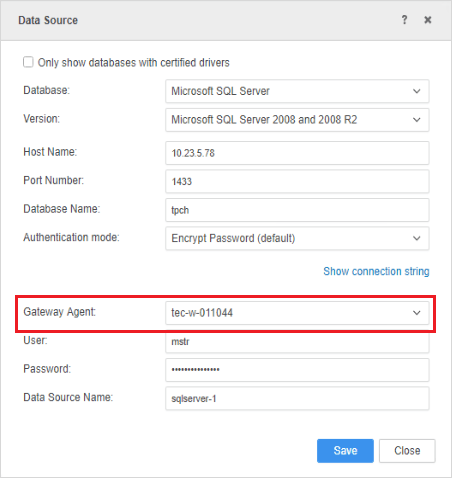
HyperIntelligence offers a gateway agent to allow end users to connect to on-premise databases seamlessly, even though the MSTR platform is deployed in the cloud and there is a firewall between the platform and on-premise databases. This aims to satisfy the on-premises database access use case with no configuration required from you to setup data access.
What exactly is a gateway agent?
It is a process that runs as part of the MicroStrategy Tray app which establishes a connection from the Intelligence-Server to access on-premises databases.
How do I enable the gateway agent to connect to my on-premises databases?
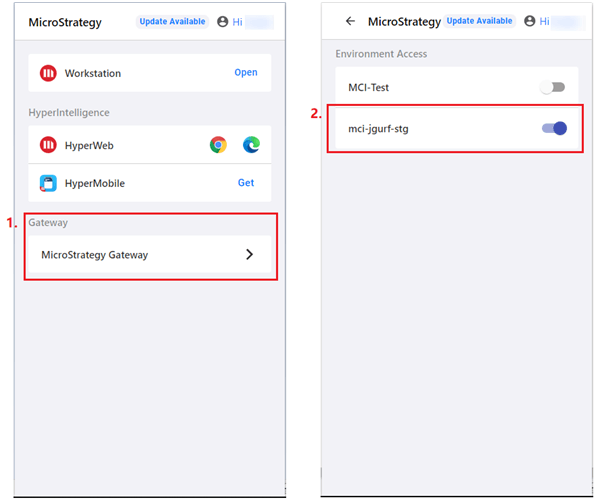
How many gateway agents can I connect to?
You can connect to a maximum of six agents in a HyperIntelligence environment. Use ports between 30011 and 30099. If no port is available, the connection is refused.
Do all connectors support gateway agent?
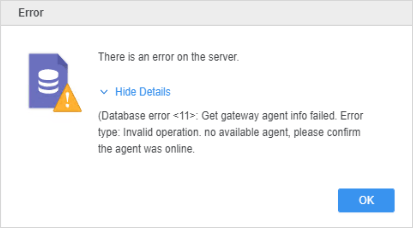
For the first release, support includes ODBC/JDBC connections and S/4HANA connector. The agent is not required when downloading data from Cloud repositories (Google BigQuery, Snowflake, Salesforce).
How can users invited to my environment can connect to their on-premises gateways?
You can invite other team members to your environment in Workstation. Once the invitation is sent out, the HyperIntelligence environment is available to your team members. Then, your team members can enable the gateway agent on their Workstation machine and use of the gateway agent to connect to on-premise gateways.
What is the maximum amount of data that can be imported?
Data is limited by MicroStrategy governing settings. Values have been adjusted to meet hardware limits, considering five users. These settings are exposed as part of the Workstation application settings. For our first release, these values are:
What other settings are used when importing data?
Other settings that affect importing data, that are not exposed to the user are:
What happens if the Intelligence-Server crashes?
Intelligence server is executed as a Docker container orchestrated by Kubernetes. If this container crashes, the process is restarted in two minutes. You should wait over two minutes to attempt to reconnect. This applies to other containers as well.
