Samsung Knox Manage is Samsung’s Mobile Device Management (MDM) solution. Since it supports AppConfig, you can integrate the MicroStrategy Mobile and MicroStrategy Library Android apps with Knox Manage using AppConfig. You must have a Samsung account with a Knox license.
You should first prepare the app in your Knox Manager following the Samsung Knox documentation.
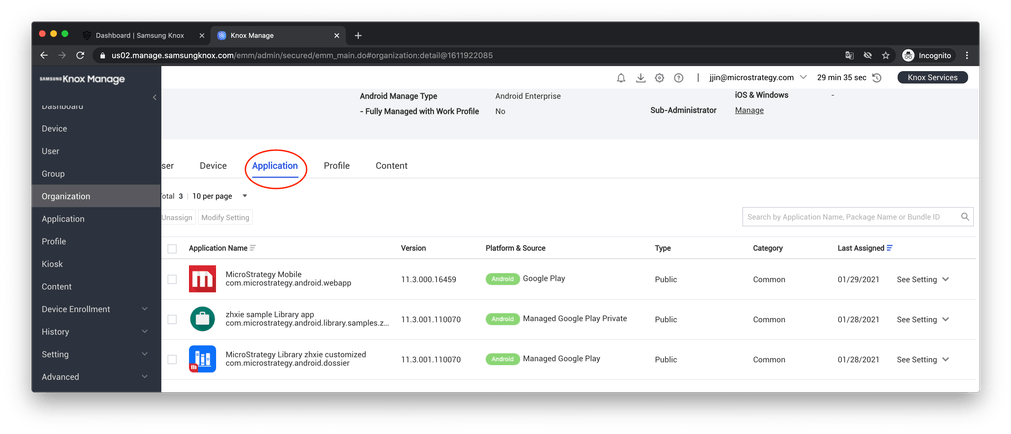
2. Select the app that needs an AppConfig update and click Modify Setting.
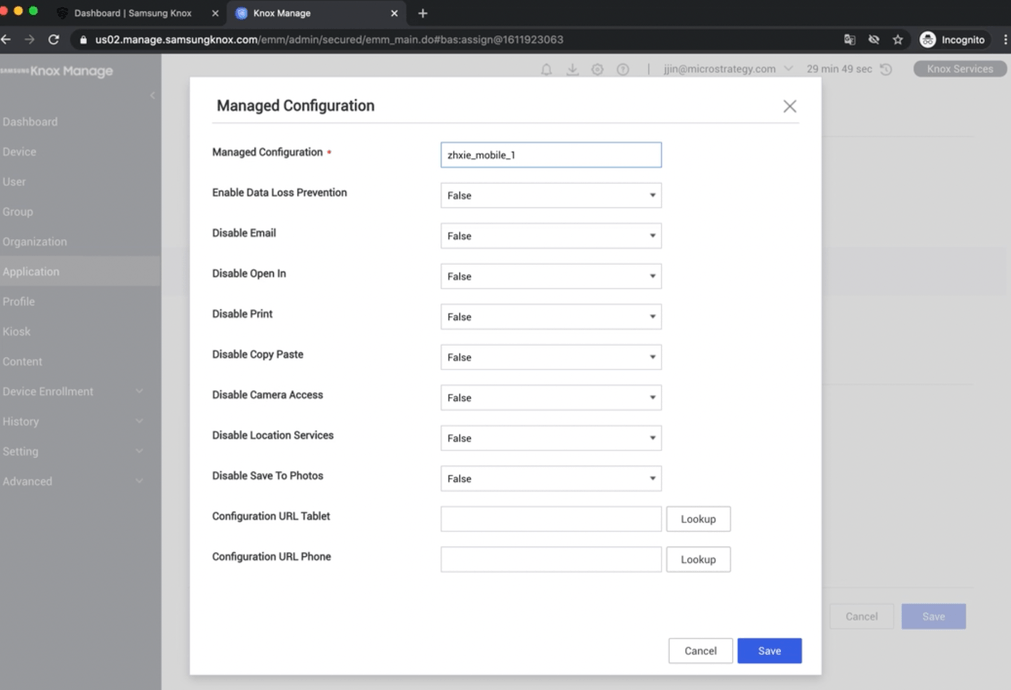
The available configuration items for the MicroStrategy Library app are listed below. When you customize configuration items for things like disabling copy/paste, applying a Library configuration URL, etc., the changes affect the managed app.
Title | Key | Value Type | Sample Value |
|---|---|---|---|
Enable Data Loss Prevention | EnableDataLossPrevention | Bool | true |
Disable Email | DisableEmail | Bool | false |
Disable Open In | DisableOpenIn | Bool | true |
Disable Print | DisablePrint | Bool | false |
Disable Copy Paste | DisableCopyPaste | Bool | false |
Disable Camera Access | DisableCameraAccess | Bool | false |
Disable Location Services | DisableLocationServices | Bool | false |
Disable Save To Photos | DisableSaveToPhotos | Bool | false |
Disable Advanced Settings | DisableAdvancedSettings | Bool | true |
Disable Preferences | DisablePreferences | Bool | true |
Configuration URL Tablet | ConfigurationURLT | String | dossier://?url=https%3A%2F%2Fpulse.seacda.com% |
Configuration URL Phone | ConfigurationURLP | String | dossier://?url=https%3A%2F%2Fpulse.seacda.com% |
See section 6 of EMM | Android and IOS | Supported EMM Feature list and comparison for the definition of each configuration in MicroStrategy Library.
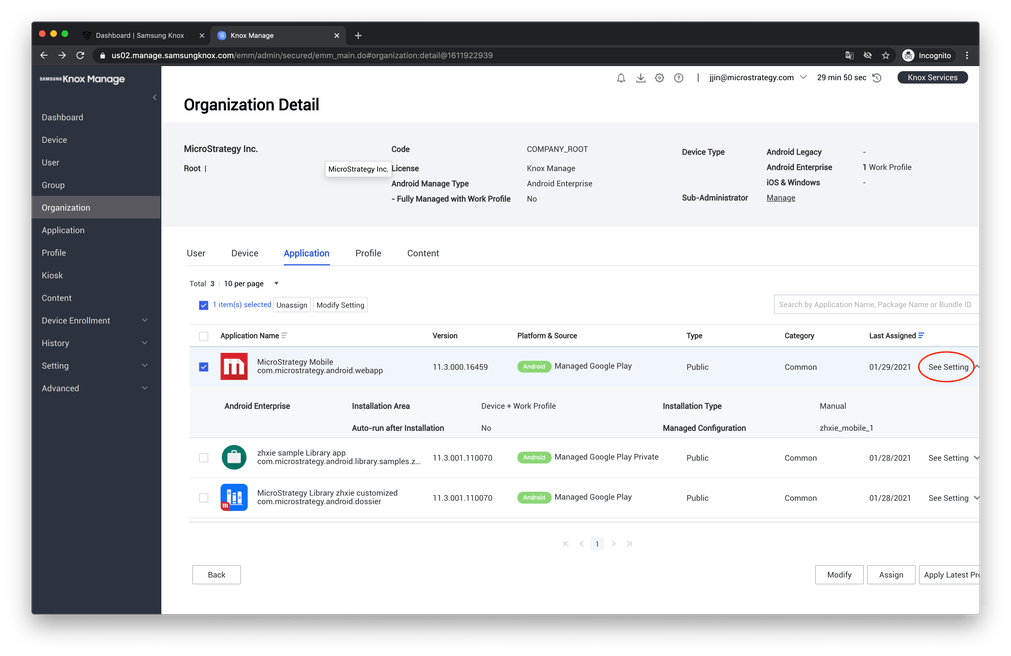
3. After your configurations are saved, click See Setting to confirm everything is set correctly.
4. You will need to wait for a period of time before AppConfig is updated on your app. This may be a half an hour or longer depending on your AppConfig implementation. You can also uninstall and reinstall the app on your device to see the changes faster.
