EducationSoftwareStrategy.com
StrategyCommunity

Knowledge Base

Product

Community

Knowledge Base

TopicsBrowse ArticlesDeveloper Zone

Product

Download SoftwareProduct DocumentationSecurity Hub

Education

Tutorial VideosSolution GalleryEducation courses

Community

GuidelinesGrandmastersEvents
x_social-icon_white.svglinkedin_social-icon_white.svg
Strategy logoCommunity

© Strategy Inc. All Rights Reserved.

LegalTerms of UsePrivacy Policy
  1. Home
  2. Topics

KB485466: Default Filter Forms of Attribute Filters in a Dossier Created from an Intelligent Cube


Fei Liang

Software Engineer, Principal • MicroStrategy


This article summarizes the behavior of default filter forms for attribute filters in dossiers created from Intelligent cubes.
Starting with the release of Strategy ONE (March 2024), dossiers are also known as dashboards.

Description

This article summarizes the behavior of default filter forms for attribute filters in dossiers created from Intelligent cubes.
 

Steps to Reproduce

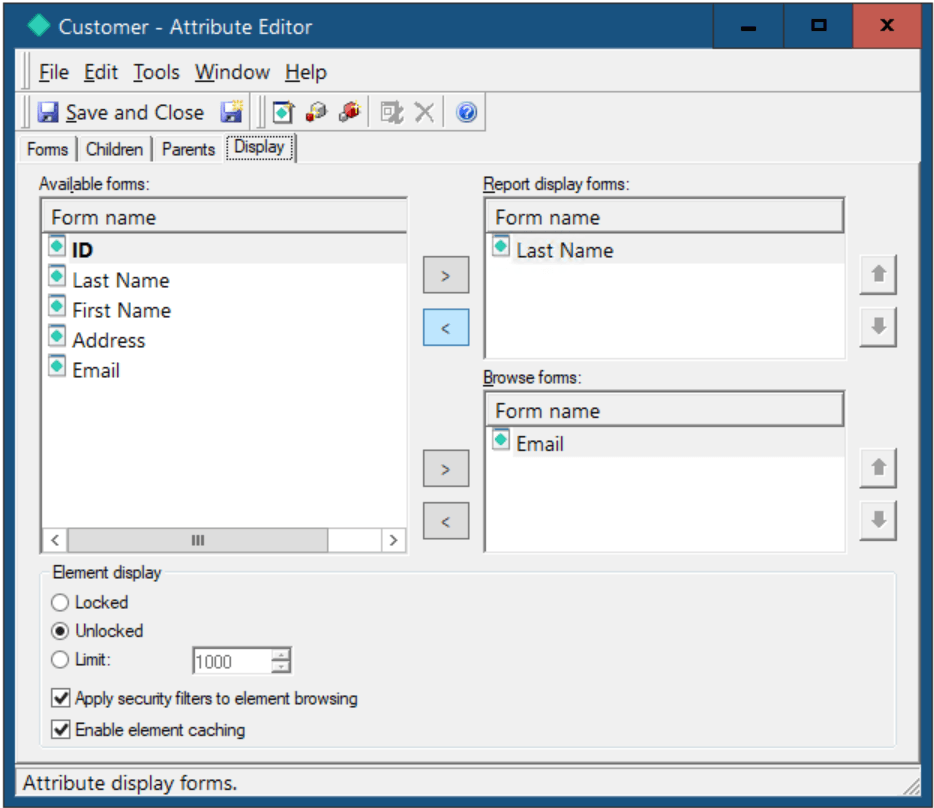
  • Open the Strategy Tutorial project in Developer and edit the Customer attribute.
  • In the Display tab, set the Last Name as Report display forms.
ka0PW0000001JhbYAE_0EM4W000004ZU54.jpeg
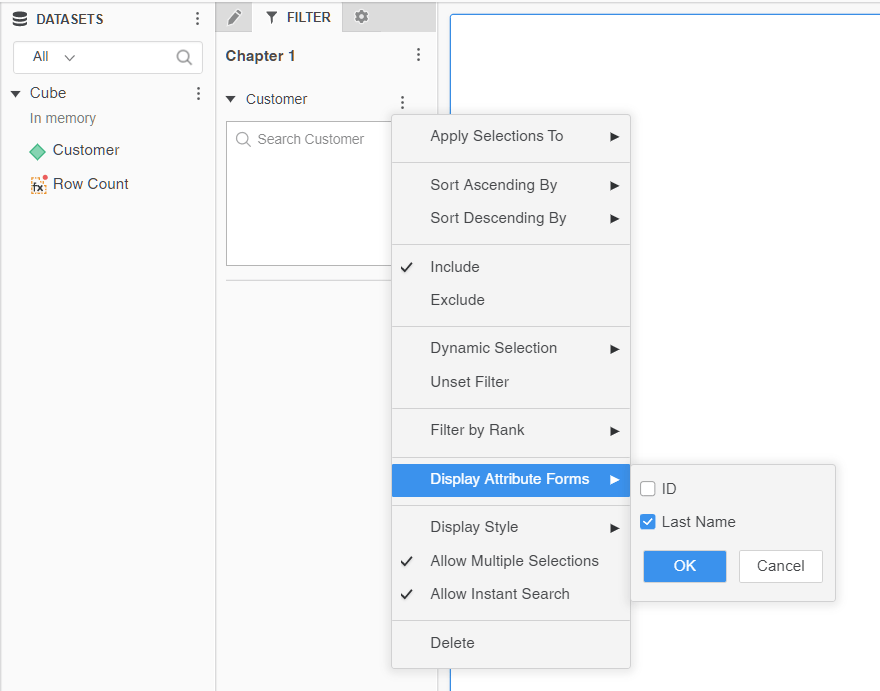
  • Create a dossier, add Customer to the Filter panel. The default form is Last Name.
ka0PW0000001JhbYAE_0EM4W000004ZU5O.jpeg
  • In Developer, create an Intelligent cube with the Customer attribute and publish it.
  • Create a dossier based on the Intelligent cube and add Customer in the Filter panel. The default form is Last Name.
ka0PW0000001JhbYAE_0EM4W000004ZU8N.jpeg
  • In Developer, edit the Intelligent cube, right-click Customer in the grid, choose Attribute Forms > More. 
  • Select Use the following attribute forms and add ID and Address to Report objects forms.
ka0PW0000001JhbYAE_0EM4W000004ZU9B.jpeg
  • Save your changes and republish the Intelligent cube.
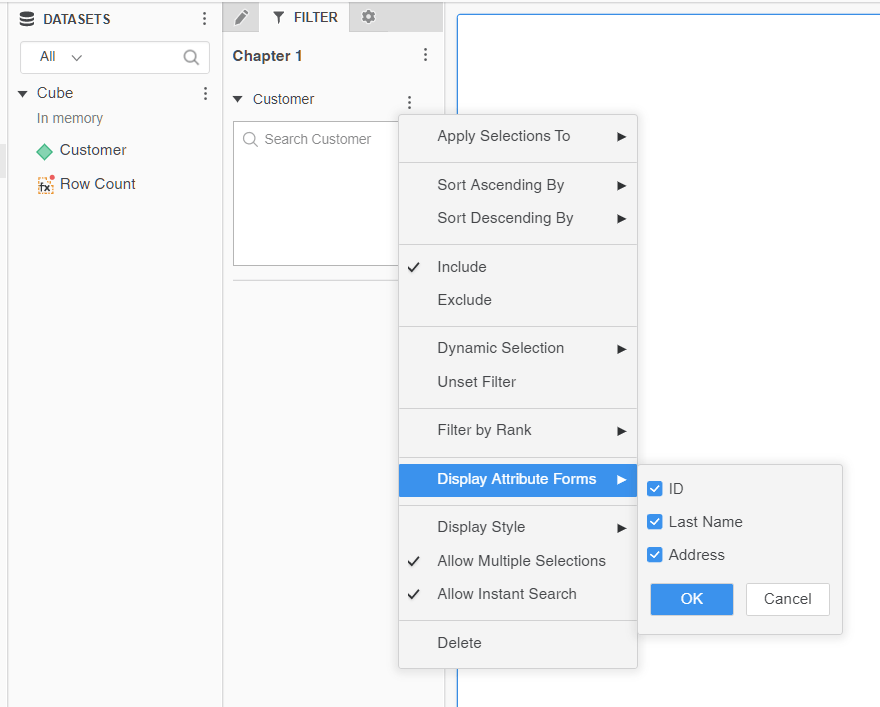
  • Create a dossier based on the Intelligent cube, add Customer to the Filter panel. Its default forms are ID, Last Name, and Address.
ka0PW0000001JhbYAE_0EM4W000004ZU9u.jpeg
  • In Developer, create another Intelligent cube with Customer. This time, set ID and Email as its Report objects forms.
ka0PW0000001JhbYAE_0EM4W000004ZUAJ.jpeg
  • Save your changes and publish the cube.
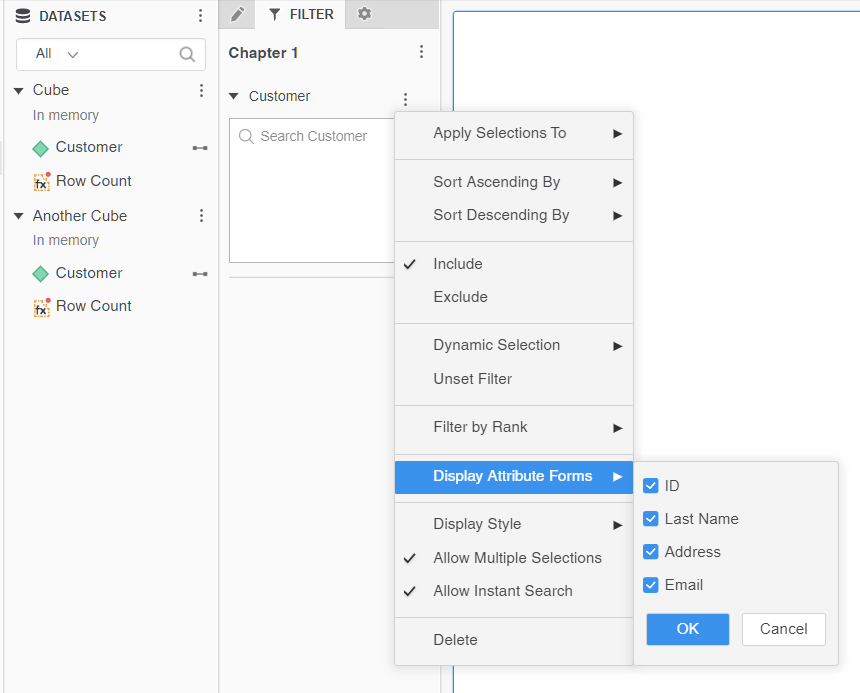
  • Create a dossier and import the two Intelligent cubes you created earlier. Add Customer to the Filter panel. Its default forms are ID, Last Name, Address, and Email. This is a combination of enabled forms from both datasets.
ka0PW0000001JhbYAE_0EM4W000004ZUAY.jpeg

Explanation

If the dossier directly imports a schema attribute by choosing existing objects and using it as a filter, its default display attribute forms are its source attribute’s report display forms that are set in the Attribute Editor in Developer.
If the dossier is created from Intelligent cubes, by default, the display Attribute forms for a filter in a dossier Filter panel are its source attribute forms enabled in the dataset. When the dossier imports multiple datasets containing the same attribute with different forms enabled in each dataset, their forms are combined.
In conclusion, if the attribute display form is customized at a level other than attribute level, such as the cube level, Strategy respects this customization.


Comment

0 comments

Details

Knowledge Article

Published:

April 26, 2022

Last Updated:

March 21, 2024