EducationSoftwareStrategy.com
StrategyCommunity

Knowledge Base

Product

Community

Knowledge Base

TopicsBrowse ArticlesDeveloper Zone

Product

Download SoftwareProduct DocumentationSecurity Hub

Education

Tutorial VideosSolution GalleryEducation courses

Community

GuidelinesGrandmastersEvents
x_social-icon_white.svglinkedin_social-icon_white.svg
Strategy logoCommunity

© Strategy Inc. All Rights Reserved.

LegalTerms of UsePrivacy Policy
  1. Home
  2. Topics

KB485784: Google BigQuery JDBC connection times out


Ladislav Jerabek

Software Engineer, Principal • Strategy


This article describes how to resolve an issue where a Google BigQuery JDBC connection times out.

Description

When running a report or publishing a cube in Strategy connected to Google BigQuery using the JDBC driver, the report runs for an extended period of time and then times out.
 

Why is this happening?


There may be incorrect JDBC connection string parameters and/or insufficient Google BigQuery privileges. In addition, if the JDBC driver logs are enabled and you see the following error in the driver logs, you have insufficient Google BigQuery permissions.


POST https://bigquery.googleapis.com/bigquery/v2/projects/Strategy-sr/queries
{
  "code": 403,
  "errors": [
    {
      "domain": "global",
      "message": "Access Denied: Table Strategy-sr:TUTORIALWH_1X.order_detail: User does not have permission to query table Strategy-sr:TUTORIALWH_1X.order_detail, or perhaps it does not exist in location US.",
      "reason": "accessDenied"
    }
  ],
  "message": "Access Denied: Table Strategy-sr:TUTORIALWH_1X.order_detail: User does not have permission to query table Strategy-sr:TUTORIALWH_1X.order_detail, or perhaps it does not exist in location US.",
  "status": "PERMISSION_DENIED"
}

This issue is caused by the driver. Strategy is working with the vendor to address the issue by providing the proper error message.
 

Solution


Follow the solutions below to address the issue.

  • Verify the JDBC connection string with correct parameters is used
  • Verify the Google user account has the necessary BigQuery permissions
  • Check the Google BigQuery console for errors

Verify the JDBC connection string with correct parameters is used

Follow one of the topics below to create a Google BigQuery JDBC  data source with the recommended connection string parameters.

  • JDBC (recommended)
  • ODBC (not recommended)

Note: Strategy recommends creating new data sources in the Data Sources section of the main Workstation window.
 

JDBC (recommended)

  1. Create a JDBC data source using one of the following topics:
    Connect to GoogleBig Query in Workstation using JDBC/ODBC (JDBC is recommended)
    Create a JDBC DSN-less Connection
  2. Set the EnableHighThroughputAPI connection string parameter value to 1. Keep in mind that the Google Storage API must be enabled in your project for this parameter to work. See Enable and disable APIs in the Google API Console help for more information.
  3. If your dataset contains long string columns, consider limiting the number of characters retrieved by the driver by setting StringColumnLength to a lower number (for example 4000) than the default of 65535.
  4. Make sure that logging is disabled by removing the LogLevel connection string parameter or setting its value to 0. This is because logging significantly decreases the driver’s performance. Logging is turned off by default.

ODBC (not recommended)

  1. Create an ODBC data source using one of the following topics:
    Connect to Google BigQuery in Workstation using JDBC/ODBC (JDBC is recommended)
    Create an ODBC DSN Connection
    Create an ODBC DSN-less Connection
  2. Set the EnableHTAPI (High-Throughput API)connection string parameter value to 1. Make sure the UseSystemTrustStore parameter is set to 0. Keep in mind that the Google Storage API must be enabled in your project for the EnableHTAPI parameter to work. See Enable and disable APIs in the Google API Console help for more information.
  3. Set AllowLargeResults to 1 for result sets larger than the BigQuery maximum result sizes.
  4. If your dataset contains long string columns, consider limiting the number of characters retrieved by the driver by setting DefaultStringColumnLength to a lower number (for example 4000) than the default of 16384.
  5. Make sure that logging is disabled by removing the LogLevel connection string parameter or setting its value to 0. This is because logging significantly decreases the driver’s performance. Logging is turned off by default.

Verify the Google user account has the necessary BigQuery permissions

Make sure the user account has at least the following Google BigQuery roles assigned on the project level. Otherwise, the data source will not work.

  • BigQuery Data Owner
  • BigQuery Job User
  • BigQuery User

It may be possible to assign these roles on the dataset/table level. However, Strategy has not certified all possible combinations of role configurations. To learn more about granting roles to a user, see Manage access to project, folders, and organizations in the Google Identity and Access Management (IAM) help.
 

Check the Google BigQuery console for errors

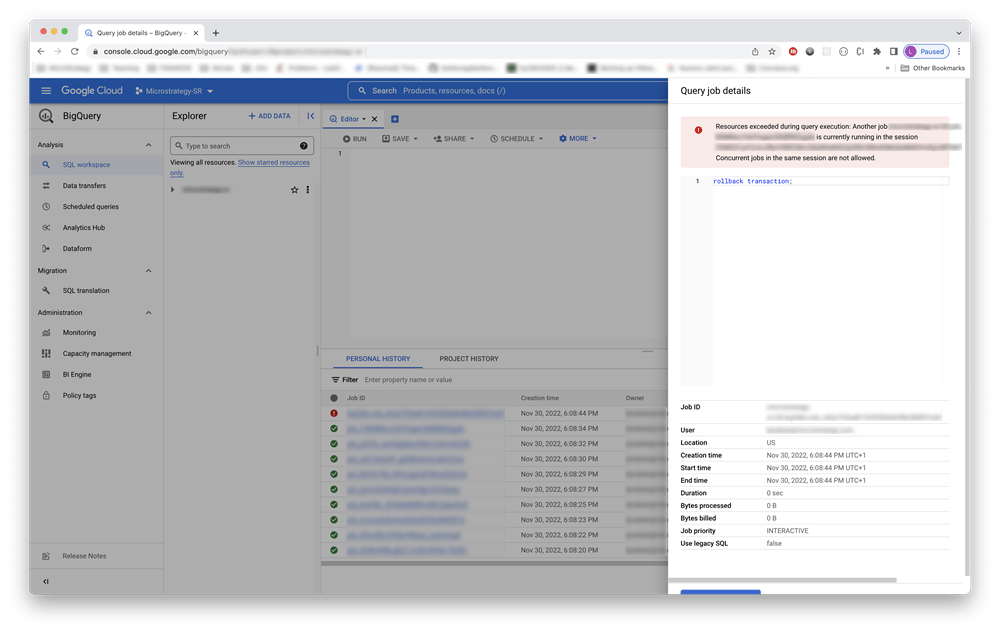
Occasionally, Google BigQuery errors out due to computing quotas or other errors. However, the driver swallows the exception which causes the connection to hang and eventually time out. Always check the Google BigQuery console for any errors. To access the Google BigQuery console, go to https://console.cloud.google.com/bigquery.
ka04W000000OcI2QAK_0EM4W000006Haxz.jpeg

Related Articles
KB484010: Technical Considerations: MicroStrategy and BigQuery


Comment

0 comments

Details

Knowledge Article

Published:

November 17, 2022

Last Updated:

December 9, 2022