Starting in MicroStrategy 2021 Update 8, an administrator can choose the default authentication mode for the Library server. This gives the administrator the flexibility to determine which authentication mode is used when users log into Library for the first time when multiple authentication modes are enabled. This article outlines how the default authentication mode setting affects login behaviors for Library web and mobile.
In MicroStrategy Web, auth.modes.default is valid for an extended period of time. There is a possibility that when configuring this setting for MicroStrategy web, it is also copied to the Library server configuration. In releases prior to MicroStrategy 2021 Update 8, Library web did not read this setting. Therefore, administrators may not be aware that this setting is added to the Library server configuration file. Starting in MicroStrategy 2021 Update 8, Library web reads this setting. If the login mode presented is different after upgrading to MicroStrategy 2021 Update 8, check this setting using Workstation or the Library config file as detailed in the steps shown further below.
When an auth mode is set as the default and users open Library web, a login prompt appears. This is similar to when SAML is set as the default and there is no MicroStrategy login prompt that appears, but the SAML IdP appears.
| Enabled auth mode | Default auth mode | Behavior change vs. prior version |
|---|---|---|---|
Fresh install | Standard | Standard | No behavior change |
Upgrade | Only one mode enabled | The only enabled mode | No behavior change |
| Multiple auth modes enabled | Web and Mobile client read the default auth mode (auth.modes.default) defined in configOverride.xml | Following 2 scenarios' behavior change are by design |
HyperIntelligence clients have special handling when SAML or OIDC is enabled. When these two auth modes are enabled, the Library server default auth mode is ignored, but uses one of these two auth modes as default. This is the default behavior for all 2021 HyperIntelligence clients, which means this Library server feature won't affect the HyperIntelligence clients' behavior.
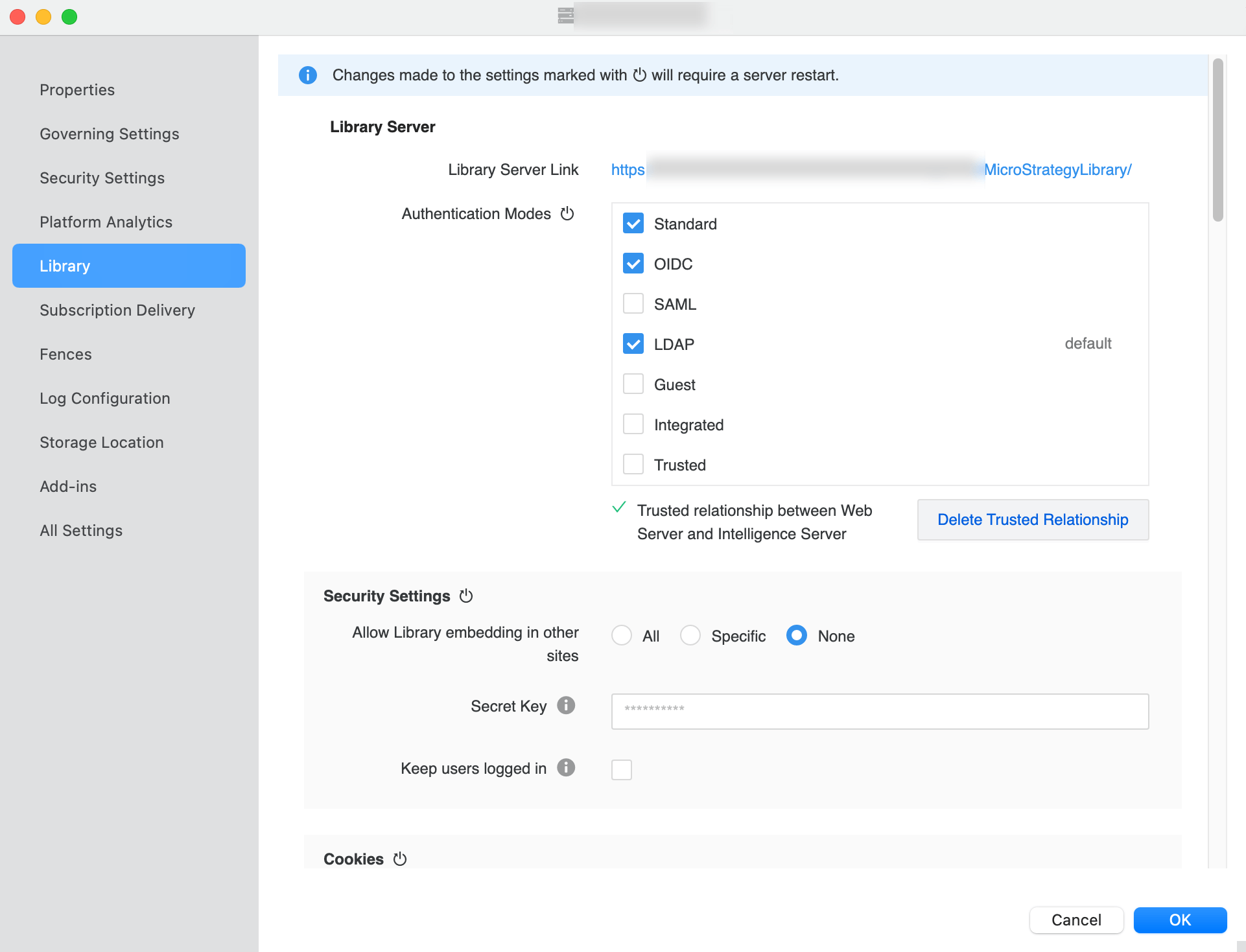
NOTE: with this method, admin need to restart Tomcat/Library server for all library server nodes.
Supported Authentication Mode | Authentication Mode Value |
|---|---|
Standard | 1 |
Guest | 8 |
LDAP | 16 |
Trusted | 64 |
Integrated | 128 |
SAML | 1048576 |
OIDC | 4194304 |
