EducationSoftwareStrategy.com
StrategyCommunity

Knowledge Base

Product

Community

Knowledge Base

TopicsBrowse ArticlesDeveloper Zone

Product

Download SoftwareProduct DocumentationSecurity Hub

Education

Tutorial VideosSolution GalleryEducation courses

Community

GuidelinesGrandmastersEvents
x_social-icon_white.svglinkedin_social-icon_white.svg
Strategy logoCommunity

© Strategy Inc. All Rights Reserved.

LegalTerms of UsePrivacy Policy
  1. Home
  2. Topics

KB486001: In MicroStrategy 2021, you can distribute content to Microsoft Teams channels using SMTP email delivery in Workstation Distribution Services.


Yifan Liu

Product Owner • Strategy


This article describes how to distribute MicroStrategy content to Microsoft Teams channels using Workstation Distribution Services.

Starting with the release of Strategy ONE (March 2024), dossiers are also known as dashboards.

Description

Microsoft Teams is one of the most used collaboration and communication tools in the world. Although currently in Strategy Distribution Services there is no inherent support for a Microsoft Teams specific transmission method, we can leverage email subscriptions to distribute Strategy content to channels in Microsoft Teams. This article describes the steps needed to utilize existing SMTP email communication protocol in Distribution Services to send content such as dossiers, reports, and documents to one or more channels in Microsoft Teams in the form of email subscriptions.
 

Steps

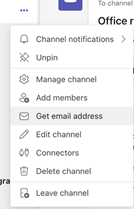
  • Right-click any channel in Microsoft Teams and choose Get email address.
     
ka0PW0000001JktYAE_0EM4W0000071WL3.jpeg
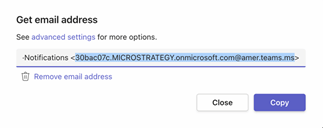
  • Copy the email portion of the address that is inside the angled brackets < > and has a valid email address format.
     
ka0PW0000001JktYAE_0EM4W0000071WL8.jpeg
  • Open Workstation, go to Users and Groups, and create a new contact.
  • On the General tab, fill in a Name and select a Strategy user in Security.
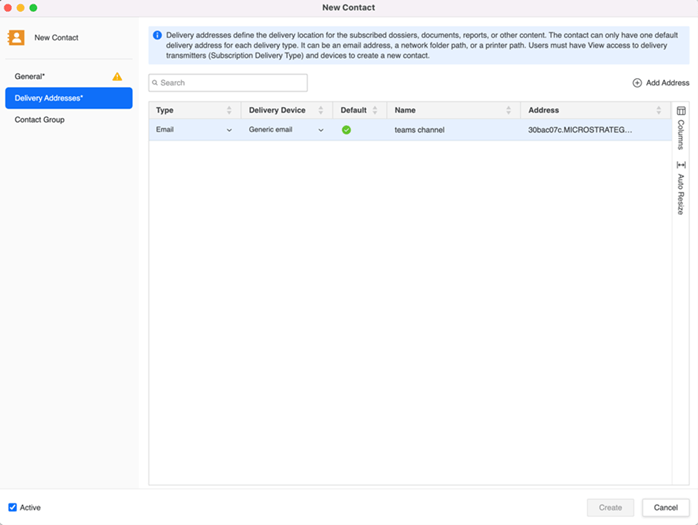
  • On the Delivery Addresses tab, either use the default email delivery address or create a new email delivery address. Enter the email address you copied from the Teams channel into Address.
     
ka0PW0000001JktYAE_0EM4W0000071WLS.jpeg
  • Click Create and finish creating the contact.
  • In Workstation, go to the Subscriptions smart tab, create a new subscription, and select an environment and project.
  • In the new subscription editor, select Email as the subscription type
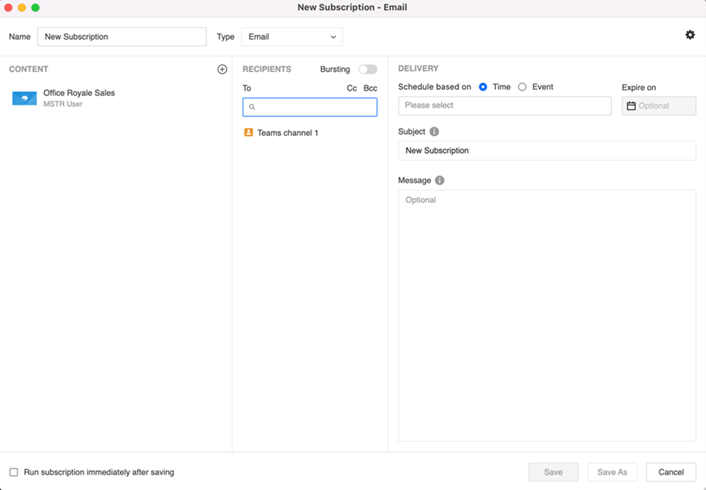
  • In the Recipients section, select the contact you created earlier that corresponds to the channel in Teams that you want to distribute the contents to.
     
ka0PW0000001JktYAE_0EM4W0000071WLc.jpeg
  • All other settings and fields apply as they do in a normal email subscription, including support for multiple contents, macros, export format settings, and so on.
  • When finished, save the subscription.
  • Execute the subscription. The Teams channel receives a message with an attachment that contains the contents that can be downloaded or opened in a browser. This message also includes a copy of the email in EML format.

Notes

  • This method allows users to use SMTP email delivery in Distribution Services to send subscriptions to Teams channels. Users can configure the email transmitter to change the sender email address, as well as the header and other settings that apply to all email subscriptions.
  • This method supports all subscription related workflows that are supported by email subscriptions, such as multi-content (Microsoft side limit applies), bursting, and so on.
  • This solution works for both public and private channels, but not group chats. This is because group chats do not have an associated email in Teams.

Limitations of this approach to distribute contents to Teams channels:

  • Maximum message body limit is 24KB
  • Maximum number of attachments is 20
  • Maximum file size of each attachment is 10MB
  • There is a throttling limit on how many emails you can send to a channel. The limit is six emails per ten seconds, per channel, per user and eight emails, per ten seconds, per tenant, per user.
  • If the message exceeds this limit, a preview message is generated and the user is asked to download and view the original email from the provided link.
  • If the number of attachments or images exceeds this limit, you'll see an error message.
    For more information, see Exchange Online limits.
    Reference: Emailing a channel

Comment

0 comments

Details

Knowledge Article

Published:

April 21, 2023

Last Updated:

March 21, 2024