EducationSoftwareStrategy.com
StrategyCommunity

Knowledge Base

Product

Community

Knowledge Base

TopicsBrowse ArticlesDeveloper Zone

Product

Download SoftwareProduct DocumentationSecurity Hub

Education

Tutorial VideosSolution GalleryEducation courses

Community

GuidelinesGrandmastersEvents
x_social-icon_white.svglinkedin_social-icon_white.svg
Strategy logoCommunity

© Strategy Inc. All Rights Reserved.

LegalTerms of UsePrivacy Policy
  1. Home
  2. Topics

KB486134: Workstation attribute editor strips trailing zeros from numbers after decimal point


Qinyi Chen

Quality Engineer, Principal • Strategy


When users create attribute forms in Workstation, the Data Engine omits trailing zeros from numbers after the decimal point. This article introduces a workaround using ApplySimple.

Symptoms

  • The attribute form is defined with numbers with trailing zeros, however when we generate the SQL, the trailing zeros are omitted

Steps to Reproduce

  • With Strategy Tutorial tables and columns we can reproduce this issue.
  • Create a new attribute Year_Duration, and create a new attribute form: 
ka04W00000148ttQAA_0EM4W000005ayQL.jpeg
  • Create a report, and add the Year_Duration attribute to the report.
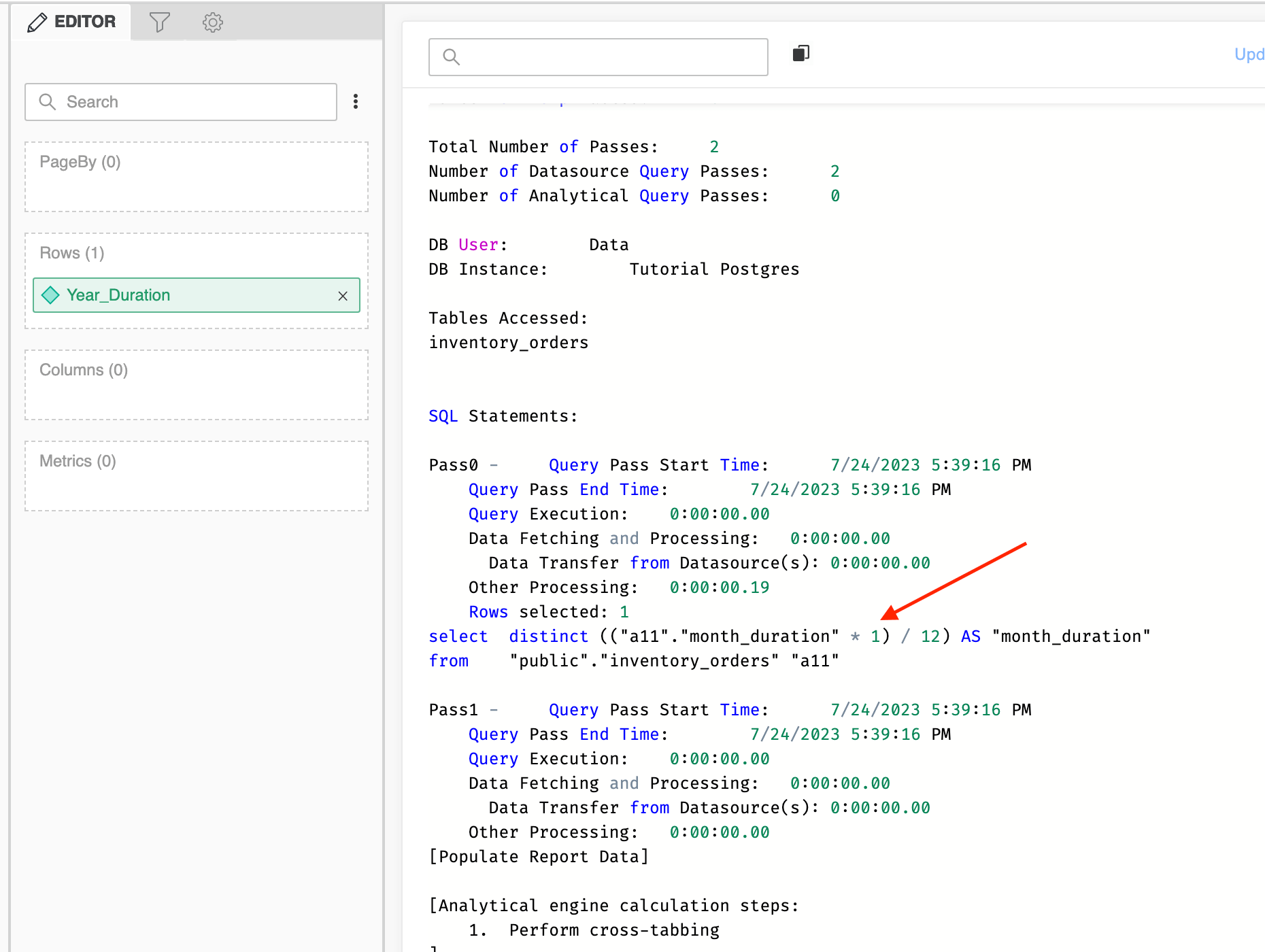
  • Execute the report, and view SQL, we can see the 0 in the 1.0 is omitted:
ka04W00000148ttQAA_0EM4W000005ayQp.jpeg

Cause


This is a known behavior in Strategy 2021 and previous versions. The Data Engine is designed to omit the trailing zeros when loading the constant expression. 

Workaround


There is a workaround using ApplySimple for this issue. Instead of defining the attribute form directly, we can use Apply Simple and define the attribute form like this:

ka04W00000148ttQAA_0EM4W000005ayTU.jpeg

When we replace this attribute with the original one, execute the report and view SQL, we can see the SQL contains the trailing zero.

ka04W00000148ttQAA_0EM4W000005ayTe.jpeg


Comment

0 comments

Details

Knowledge Article

Published:

July 24, 2023

Last Updated:

July 24, 2023