EducationSoftwareStrategy.com
StrategyCommunity

Knowledge Base

Product

Community

Knowledge Base

TopicsBrowse ArticlesDeveloper Zone

Product

Download SoftwareProduct DocumentationSecurity Hub

Education

Tutorial VideosSolution GalleryEducation courses

Community

GuidelinesGrandmastersEvents
x_social-icon_white.svglinkedin_social-icon_white.svg
Strategy logoCommunity

© Strategy Inc. All Rights Reserved.

LegalTerms of UsePrivacy Policy
  1. Home
  2. Topics

KB486151: Enable Google Analytics 4 support in older releases of MicroStrategy 2021 and MicroStrategy ONE, prior to MicroStrategy ONE Update 11


Yuwei Yang

Quality Engineer, Senior • MicroStrategy


This article explains how to enable Google Analytics 4 in older releases of MicroStrategy 2021 and MicroStrategy ONE, prior to MicroStrategy ONE Update 11.

Summary

Google Analytics 4 is Google's next-generation measurement solution, set to replace Universal Analytics (UA). Starting in July 2023, Universal Analytics properties stopped processing new data, and the UA API is fully deprecated since April 2025.
During the transition period, from Strategy ONE Update 11 to Strategy One (April 2025), GA4 and UA can cause the following error in

DSSErrors.log
:
Error in accessing information from the external data source (Database Instance: Google Analytics, Error: GAnalyticsResultWrapper::Fetch failed. Google Analytics Connector encountered an error. Error type: Google Analytics Error. Universal Analytics is deprecated. Please migrate to GA4.. Connection String: .)

Therefore, only GA4 will be supported moving forward. Strategy recommends that you upgrade to Strategy One (May 2025) for a fully revamped UI designed exclusively for GA4. If you are on an older release, a patch solution is available to ensure you can still leverage GA4's features and insights.
See the following guide to apply the patch, ensuring a smooth transition and enabling GA4 without a full upgrade.

Apply the Patch

  1. Download the attached MSTRGAnalyticsHelper.jar patch file.
  2. Find
    MSTRGAnalyticsHelper.jar
    in the build path and create a backup file.

    Example path in a Windows installation:

    C:\Program Files (x86)\Common Files\Strategy\MSTRGAnalyticsHelper.jar


    Example path in a Linux installation:

    /opt/Strategy1/install/jar/MSTRGAnalyticsHelper.jar


  3. Replace
    MSTRGAnalyticsHelper.jar.


  4. Backup and delete
    GAnalytics.jar.
  5. Kill the child process.

    Windows:
    MJMulPrc_64.exe


    Linux:
    M8MulPrc


Import Data from Google Analytics 4 After Applying the Patch

The implementation of the patch solution retains the current UI for the Google Analytics Data Connector and its related data import workflow. Instead, it focuses on backend adjustments to accommodate both UA and GA4. In this patch variant, you must write your own freeform query for GA4 data import.
  • Log into Workstation, Library Web, or Strategy Web.

  • Add new data and choose Google Analytics.

  • Sign into your Google Analytics account.

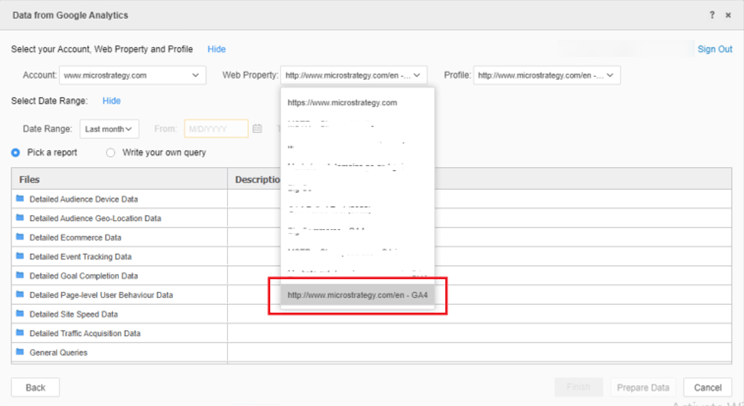
  • Choose a GA4 Account and Web Property. There is no need to choose Profile since there has no profile/view in GA4.

ka0PW0000005UzxYAE_0EM4W0000090CPn.jpeg
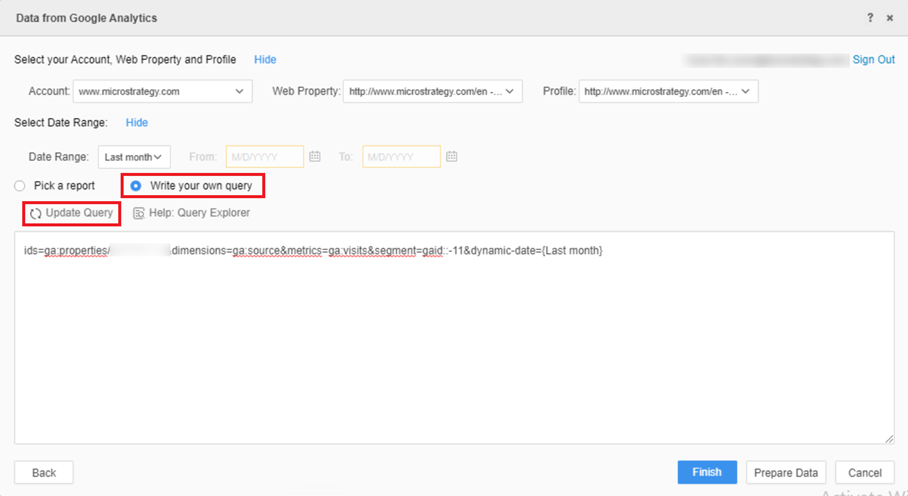
  • Select Write your own query and click Update Query.

ka0PW0000005UzxYAE_0EM4W0000090CVB.jpeg
  • Add a custom query with a specific format to work with the GA4 workflow.

    ids=ga:properties/{PROPERTY_ID}&format=GA4&query={JSON_BODY}


    • PROPERTY_ID
      is automatically retrieved when you click Update Query
    • format=GA4&
      identifies the GA4 property
    • JSON_BODY
      can be generated according to the GA4 Query Explorer
  • Click Prepare Data and follow the remaining MTDI workflow.


Comment

0 comments

Details

Knowledge Article

Published:

September 1, 2023

Last Updated:

April 23, 2025