If the login mode has been changed to SAML in Strategy Web > Preferences > Security, but SAML authentication is not configured properly, accessing Strategy Web preferences to change the authentication mode back to standard is not possible. Instead, a “Error in login – Invalid Login Mode.” error appears and it's impossible to log in to Strategy Web:
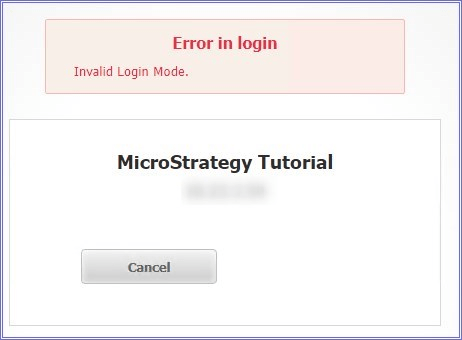
Please note that on the Strategy Web Admin page, the enabled authentication method may not be changed to SAML.
When SAML is selected as an authentication method, it automatically disables standard authentication. Therefore, if SAML is not configured correctly, no user (even administrator) is able to log in to Strategy Web to revert the changes.
To resolve the issue the default login mode must be changed directly in the configuration file for Strategy Web.
The file “sys_defaults_<server>.properties” is located in <Strategy Web Deployment>/WEB-INF/xml folder.
In order to resolve the issue, the default authentication mode needs to be changed without logging to Strategy Web. To achieve that, following steps need to be applied:
1. Edit the sys_defaults_<server>.properties file.
2. Locate the "defaultloginmode" parameter.
3. Change the value of this parameter to 1 (which stands for Standard authentication).
4. After the change this line of the file should look like this:
defaultloginmode = 1

5. To apply the changes the Web server needs to be restarted.
6. After the restart standard authentication is enabled again and users can log in to Strategy Web.
