EducationSoftwareStrategy.com
StrategyCommunity

Knowledge Base

Product

Community

Knowledge Base

TopicsBrowse ArticlesDeveloper Zone

Product

Download SoftwareProduct DocumentationSecurity Hub

Education

Tutorial VideosSolution GalleryEducation courses

Community

GuidelinesGrandmastersEvents
x_social-icon_white.svglinkedin_social-icon_white.svg
Strategy logoCommunity

© Strategy Inc. All Rights Reserved.

LegalTerms of UsePrivacy Policy
  1. Home
  2. Topics

KB486428: "Request timed out" is returned when searching for elements in the MicroStrategy Web prompt page


Yanqing Liu

Cloud Support Expert I • MicroStrategy


In MicroStrategy Web 2021, if "X-Frame-Options" is set to "DENY", after performing a search in an element prompt, "Request timed out" is returned. Change "X-Frame-Options" to "SAMEORIGIN" to fix the issue.

Symptom:

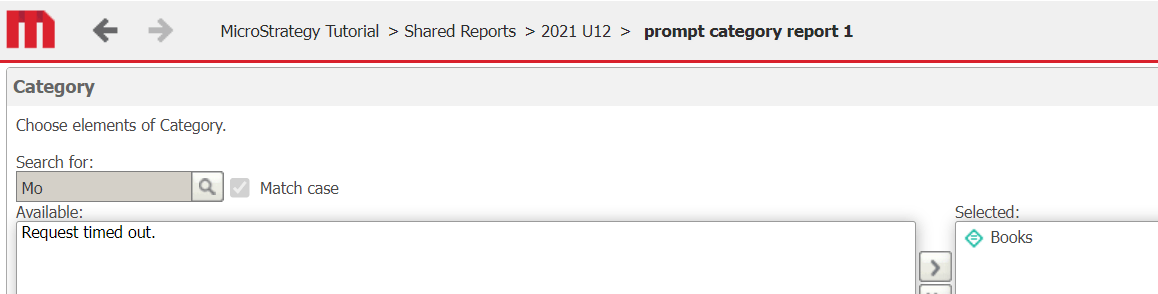
In Strategy Web 2021, after performing a search in an element prompt,  "Request timed out" is returned as shown below:
 

ka0PW0000001CWzYAM_0EMPW000004dJYL.jpeg

In the Console tab of the browser's developer tool, it returns the following error message:


Refused to display '<website>' in a frame because it set 'X-Frame-Options' to 'deny'.

ka0PW0000001CWzYAM_0EMPW000004dJbZ.jpeg

Cause:

The "Request timed out" happens when "X-Frame-Options" is set to "DENY" for Strategy Web. When the header is set to "DENY", the page cannot be displayed in a frame, even from the same origin and consequently impacts the usage of prompt element search in Strategy Web. 
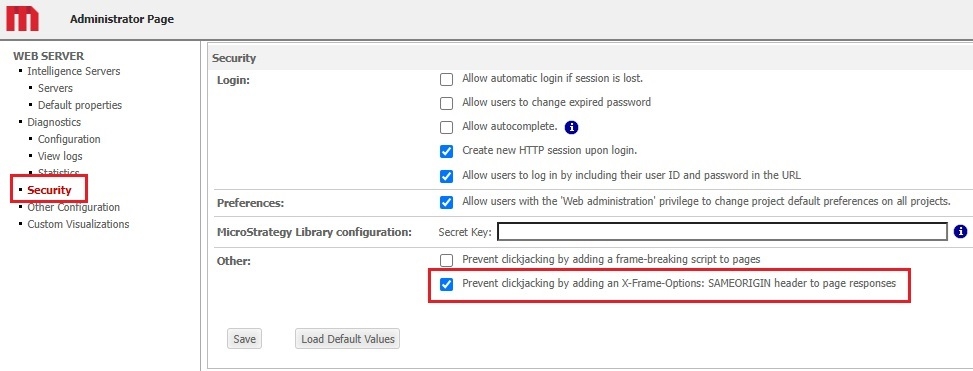
The value of the "X-Frame-Options" is configurable via the Strategy Web Admin interface and only allows setting it to "SAMEORIGIN", which means the page can be displayed if all ancestor frames are the same as the origin of the page itself.
This can be done by going to Security, and enabling the checkbox for "Prevent clickjacking by adding an X-Frame-Options: SAMEORIGIN header to page responses."
ka0PW0000001CWzYAM_0EMPW000005IorV.jpeg

This means that an administrator must have set the "X-Frame-Options" value to "DENY" by manually modifying the web.xml file.

Action:

  1. There are two places where the "X-Frame-Options" could have been set to "DENY."
    • <Strategy Web Home>\WEB-INF\web.xml
    • <Tomcat Home>\conf\web.xml
  2. Open both files and search for either "antiClickJackingOption" or "X-Frame-Options". Confirm if the value is set to "DENY" in any of them or in both.
  3. If the value exists in either, manually remove them and restart the web server.
  4. Note: If the value does not exist in either of these two files, then the header option was set on a 3rd party tool, such as a load balancer.
  5. Now configure the "X-Frame-Options" value via the Strategy Web Admin page > Security
  6. Enable the checkbox for  "Prevent clickjacking by adding an X-Frame-Options: SAMEORIGIN header to page responses."
  7. Hit Save.

Comment

0 comments

Details

Knowledge Article

Published:

April 3, 2024

Last Updated:

April 3, 2024