EducationSoftwareStrategy.com
StrategyCommunity

Knowledge Base

Product

Community

Knowledge Base

TopicsBrowse ArticlesDeveloper Zone

Product

Download SoftwareProduct DocumentationSecurity Hub

Education

Tutorial VideosSolution GalleryEducation courses

Community

GuidelinesGrandmastersEvents
x_social-icon_white.svglinkedin_social-icon_white.svg
Strategy logoCommunity

© Strategy Inc. All Rights Reserved.

LegalTerms of UsePrivacy Policy
  1. Home
  2. Topics

KB486431: Sync up Python script modifications with Python transaction configurations in a dashboard


Yiwen Gu

Quality Engineer, Principal • MicroStrategy


This article details how to sync up Python script modifications with Python transaction configurations in a dashboard.

Symptom

Python script changes are not syncing up with existing Python transaction configurations.
 

Solution

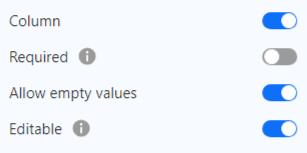
After Python transactions are configured in a dashboard with certified Python script, users can still modify the variables in the Workstation Python Script Editor and change the settings shown below. Make sure to re-certify the Python script after the changes are done.
 

ka0PW0000001KRJYA2_0EMPW000004h6B7.jpeg

To sync up Python script changes with existing Python transaction configurations:

  • In your dashboard, open the Format panel and click Transaction Options
ka0PW0000001KRJYA2_0EMPW000004iXUF.jpeg
  • .
  • Click on the action name to open the Python Transaction Configuration Editor.
  • Click Refresh.
  • Make sure all variable changes are updated in the mapping table and in each variable control type property.
  • Click Done. This action configuration syncs up with current Python script variable settings. Make sure to do this for each action that uses the modified and re-certified Python script.
  • Save the dashboard.

Comment

0 comments

Details

Knowledge Article

Published:

March 13, 2024

Last Updated:

March 22, 2024