EducationSoftwareStrategy.com
StrategyCommunity

Knowledge Base

Product

Community

Knowledge Base

TopicsBrowse ArticlesDeveloper Zone

Product

Download SoftwareProduct DocumentationSecurity Hub

Education

Tutorial VideosSolution GalleryEducation courses

Community

GuidelinesGrandmastersEvents
x_social-icon_white.svglinkedin_social-icon_white.svg
Strategy logoCommunity

© Strategy Inc. All Rights Reserved.

LegalTerms of UsePrivacy Policy
  1. Home
  2. Topics

KB486433: HTML Content Settings When Upgrading to MicroStrategy One (March 2024) or Later from Previous Versions


Stanislav Gordiienko

Senior Product Manager • MicroStrategy


After upgrading to MicroStrategy ONE (March 2024), the setting to enable granular control of all custom Web content is on. MicroStrategy suggests using the Content Inspector and performing an audit of which custom web components should be enabled in your environment.

Starting in Strategy ONE (March 2024), all custom Web content is disabled by default to ensure a secure platform configuration. To enable custom Web content in dashboards, documents, and reports, see Enable Custom HTML and JavaScript Content in Dashboards, Documents, Reports, and Bots.
These steps reverts the content behavior similar to Strategy ONE Update 12 and earlier.

Implications


After upgrading to Strategy ONE (March 2024) or later, the setting to enable granular control of all custom Web content is on.
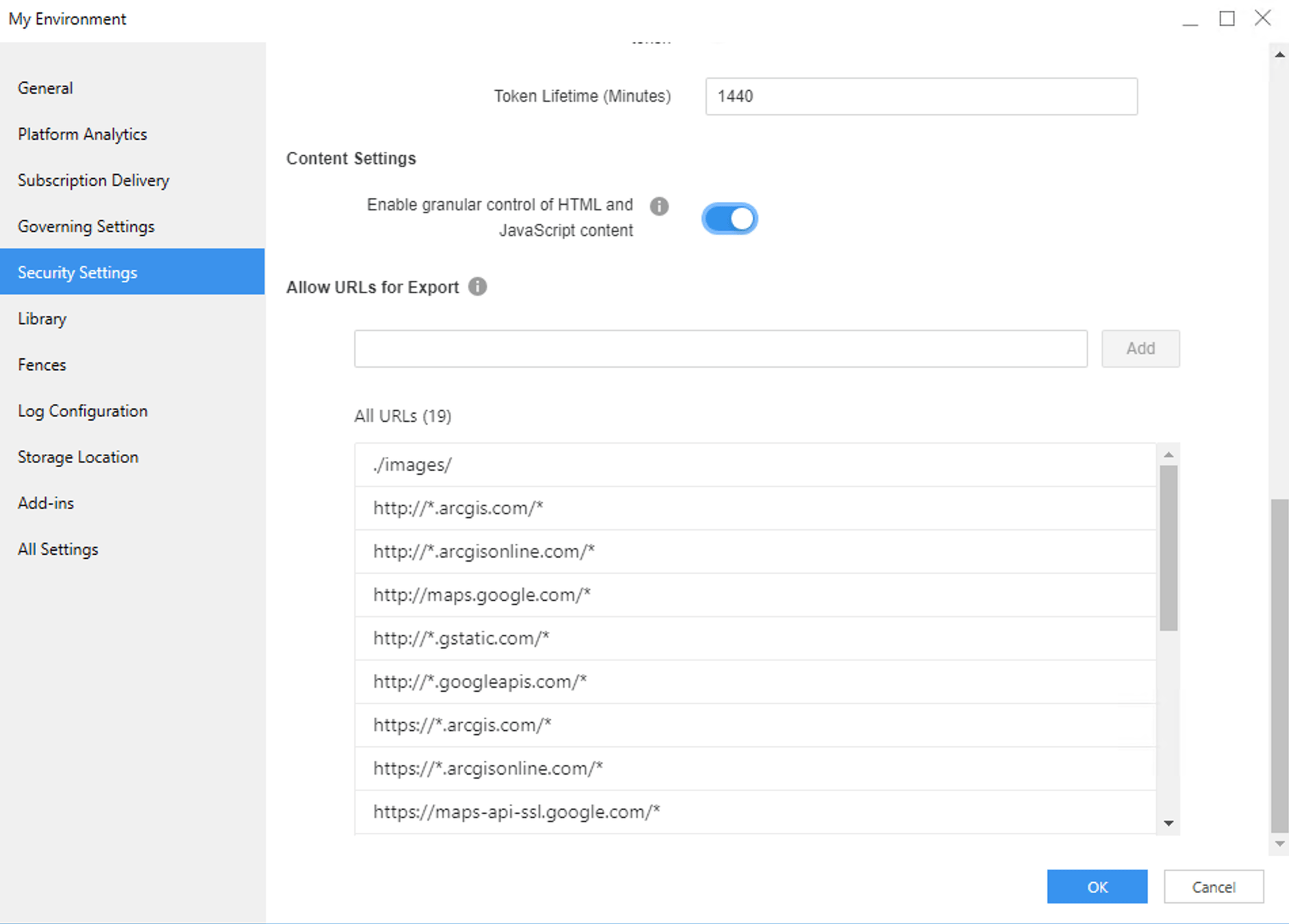
ka0PW0000002UV3YAM_0EMPW000004j2g6.jpeg

While this carries significant security advantages, it implies that all web content, such as attributes with the HTML attribute form, is disabled.

ka0PW0000002UV3YAM_0EMPW000004j5hB.jpeg

Recommended Post-Upgrade Actions


Strategy strongly suggests that an Administrator uses the Content Inspector to perform an audit of which custom web components should be enabled in your environment.
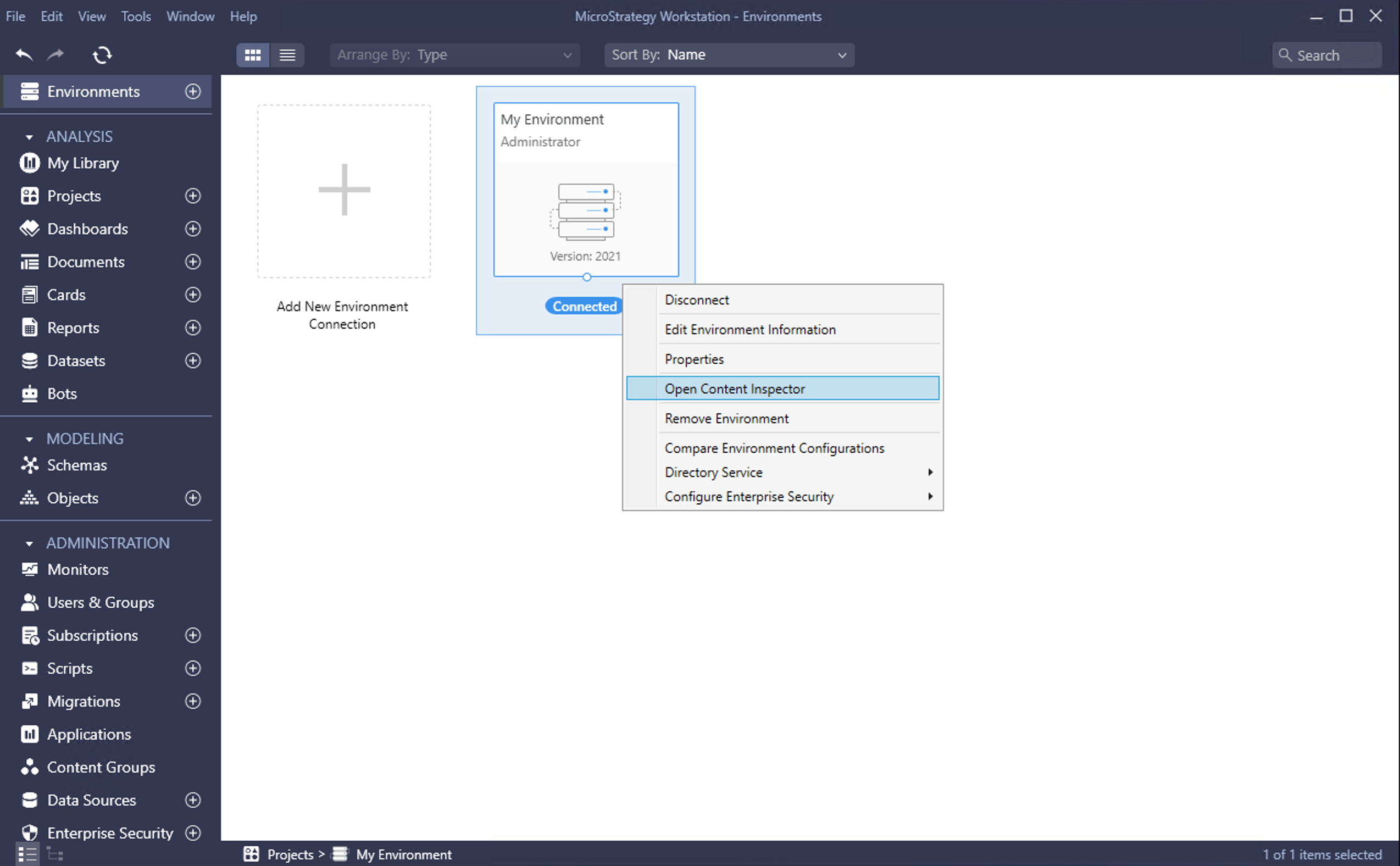
  • In Workstation, go to Environments.
  • Right-click an environment and choose Open Content Inspector.
ka0PW0000002UV3YAM_0EMPW000004j1Dn.jpeg
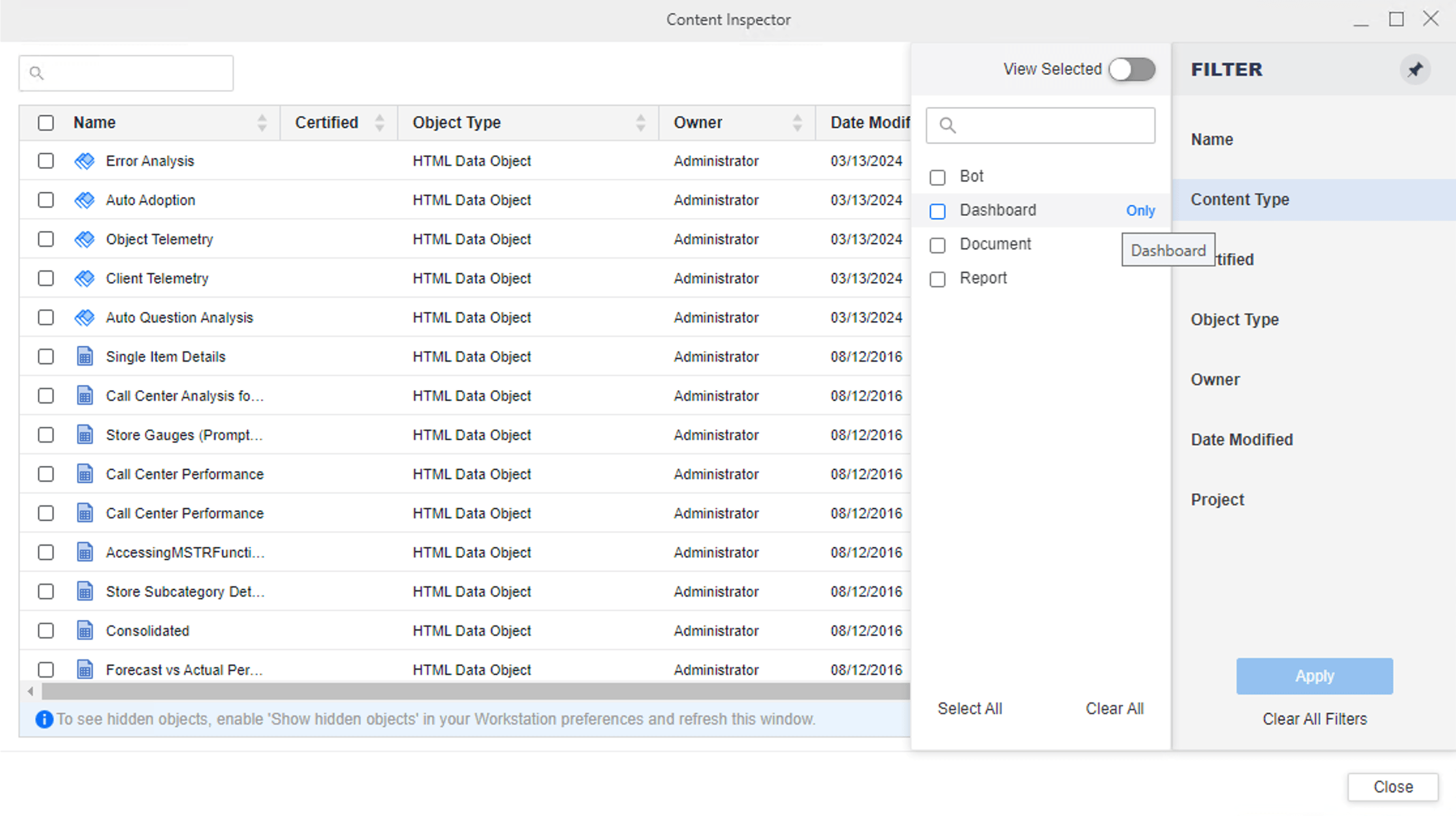
  • You can inspect the content from the current view. You can filter the objects by Content Type or other criteria in the Filter panel.
ka0PW0000002UV3YAM_0EMPW000004j8jt.jpeg
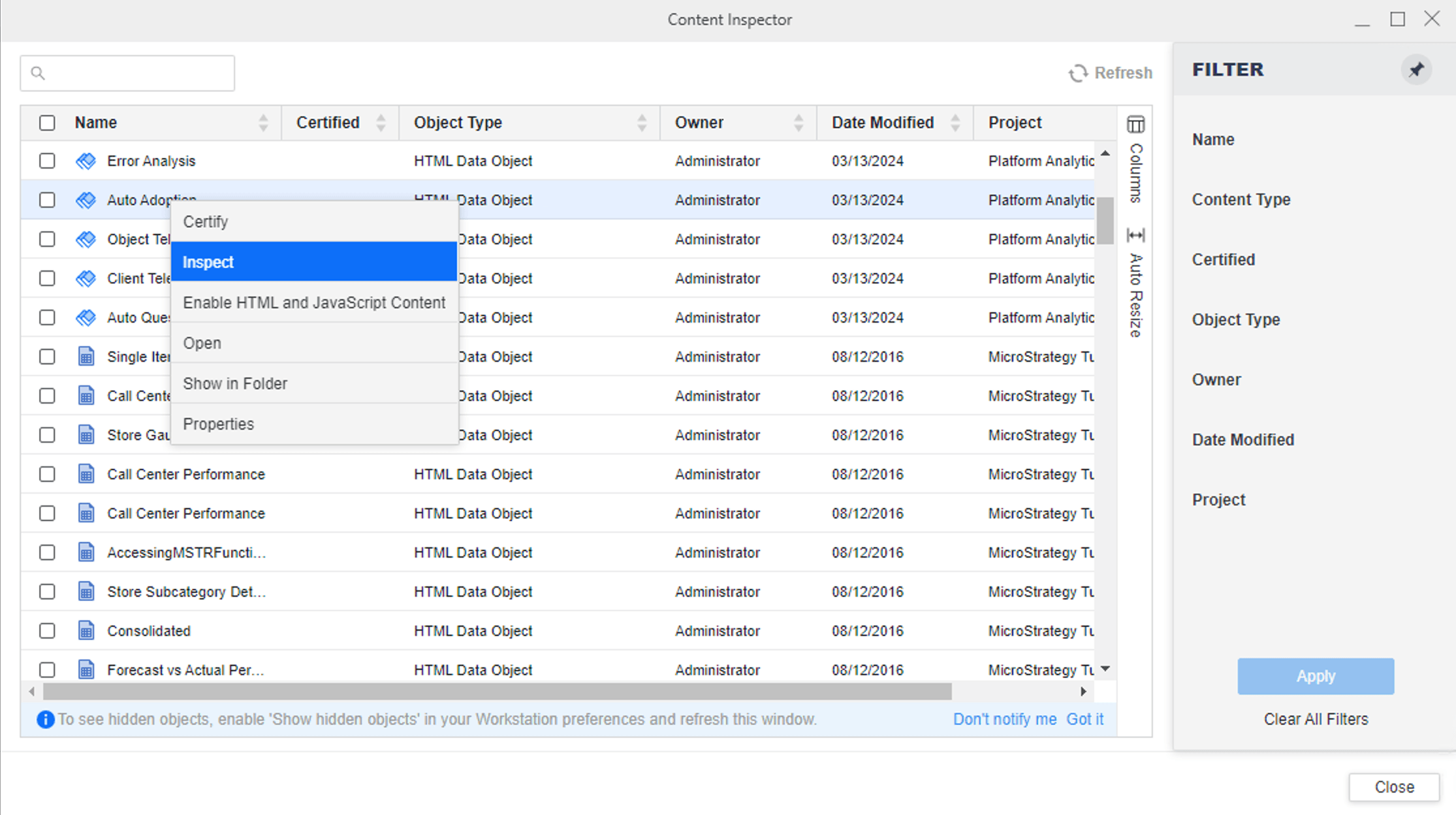
  • Right-click an object and choose Inspect.
ka0PW0000002UV3YAM_0EMPW000004j4Rn.jpeg
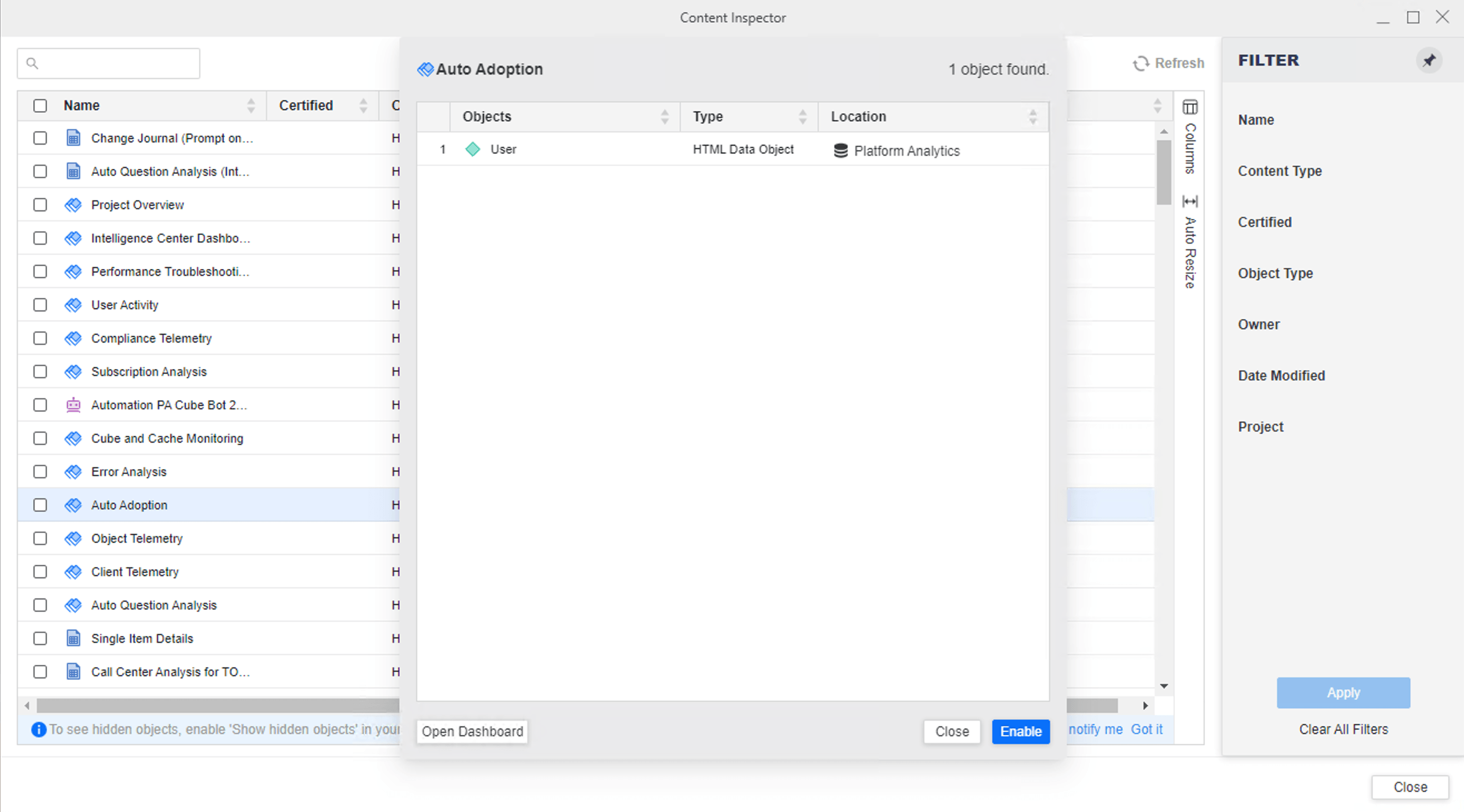
  • The detailed HTML content in the object appears.
  • Click Open Dashboard to open the object and check the HTML content.
ka0PW0000002UV3YAM_0EMPW000004j80k.jpeg
  • Click Enable or Disable to enable or disable the HTML content. If a green checkmark appears next to the object, the HTML content is enabled. If there is no checkmark next to the object, the HTML content is disabled.
ka0PW0000002UV3YAM_0EMPW000004j9cj.jpeg
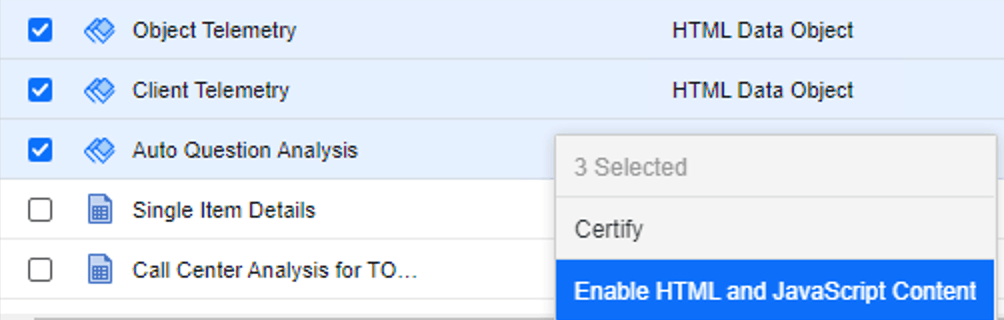
  • To bulk enable or disable HTML content for the object:
    • Click the checkbox next to each object.
    • Right-click a selected object.
ka0PW0000002UV3YAM_0EMPW000004j3x8.jpeg
    • Choose Enable HTML and JavaScript Content or Disable HTML JavaScript Content.

Trigger Content Inspector at the Object Level

  • In Workstation, go to Dashboards, Documents, Reports, or Bots.
  • Right-click a piece of content and choose Properties.
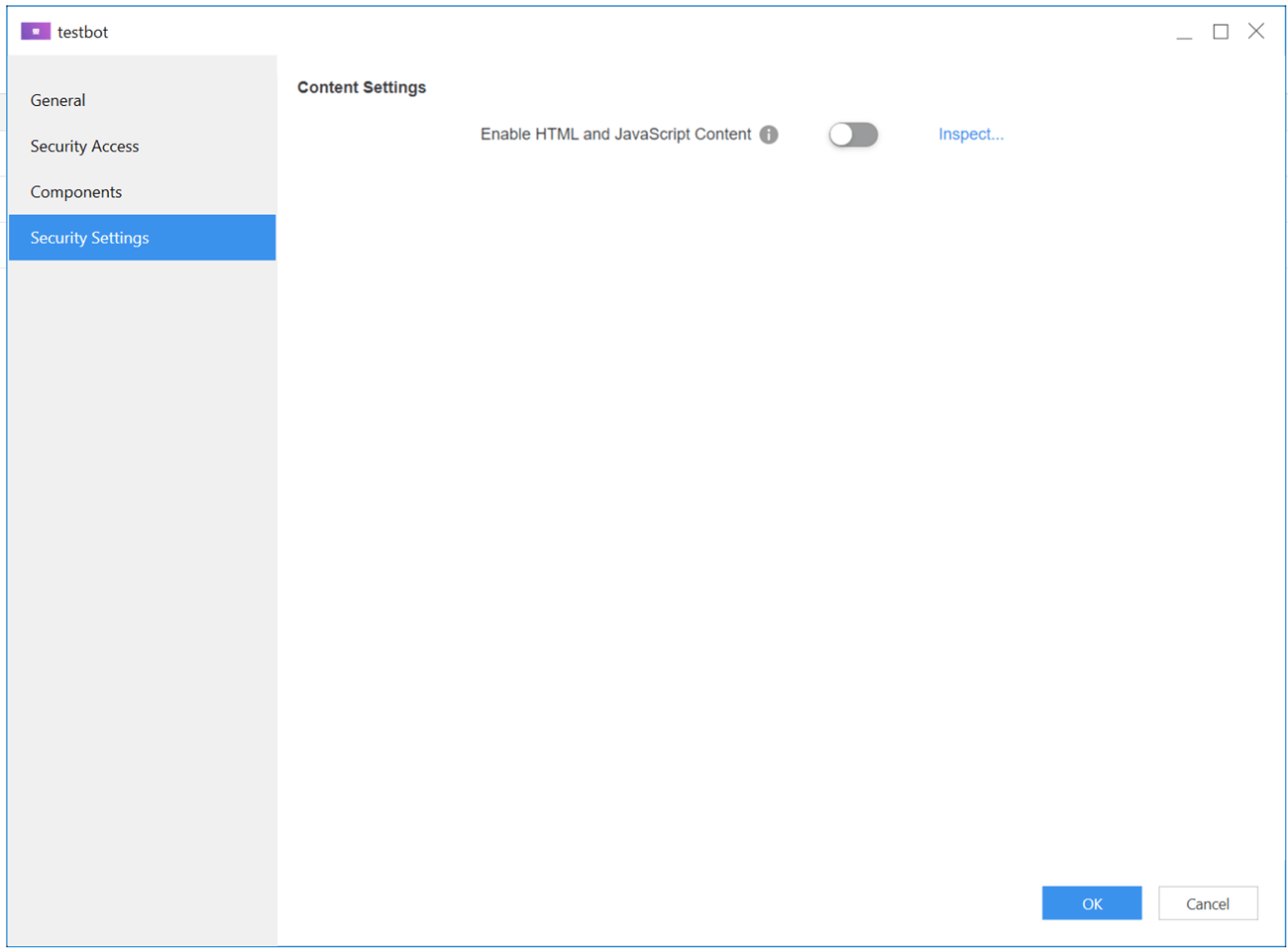
  • Click Security Settings in the left pane.
  • Click Inspect.. next to Enable HTML and JavaScript Content.
ka0PW0000002UV3YAM_0EMPW000004jAH3.jpeg
  • You can toggle on and off Enable HTML and JavaScript Content to enable or disable HTML and JavaScript content on a content level.
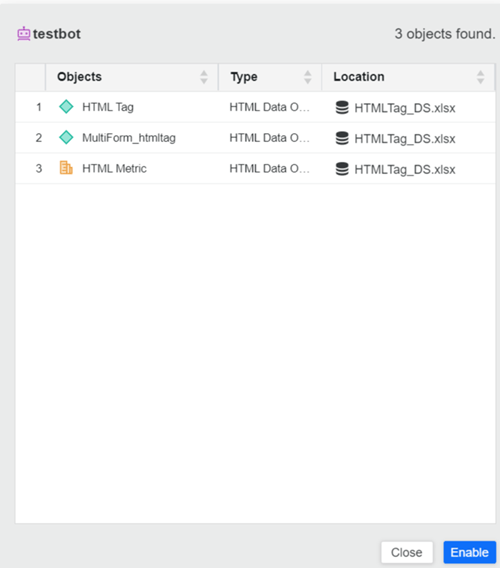
  • Content inspection appears.
  • Select an object and click Enable or Disable to enable or disable HTML JavaScript content.
ka0PW0000002UV3YAM_0EMPW000004jAaP.jpeg

Comment

0 comments

Details

Knowledge Article

Published:

March 14, 2024

Last Updated:

June 21, 2024