EducationSoftwareStrategy.com
StrategyCommunity

Knowledge Base

Product

Community

Knowledge Base

TopicsBrowse ArticlesDeveloper Zone

Product

Download SoftwareProduct DocumentationSecurity Hub

Education

Tutorial VideosSolution GalleryEducation courses

Community

GuidelinesGrandmastersEvents
x_social-icon_white.svglinkedin_social-icon_white.svg
Strategy logoCommunity

© Strategy Inc. All Rights Reserved.

LegalTerms of UsePrivacy Policy
  1. Home
  2. Topics

KB486708: Databricks Connector - Inconsistent Behavior When Creating DSN-Less Connectivity


Jinlei Cai

Quality Engineer, Senior • MicroStrategy


MicroStrategy currently offers two versions of the import data experience, the default new experience called "New DI" and an older version. When importing data using the older data import experience, there is a difference in fields when you select an import option. This article explain how to enter your username and password when you select Build a Query or Type a Query in the older data import experience.

Symptom


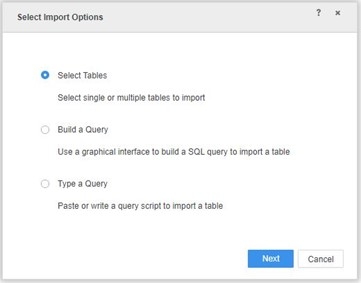
In the older data import, the process to input user credentials vary depending on the method you choose to import data:
ka0PW0000002UWfYAM_0EMPW000004yk45.jpeg

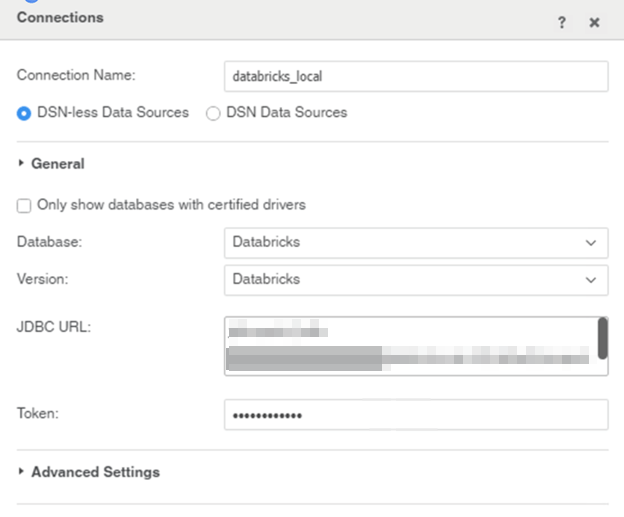
If you select Select Tables, you are prompted to input a token.
ka0PW0000002UWfYAM_0EMPW000004ylcr.jpeg

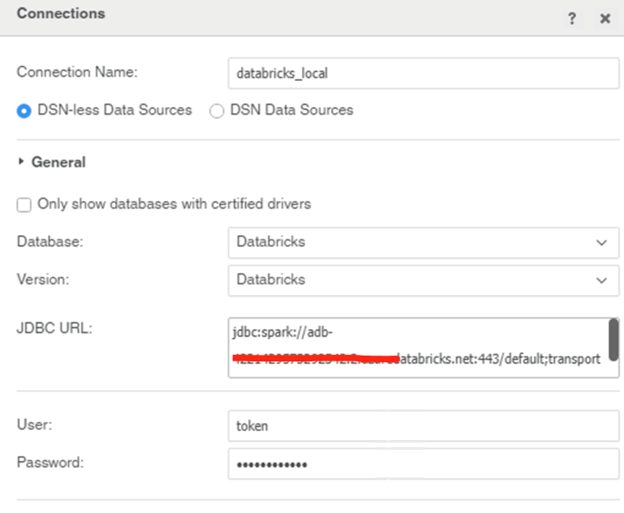
If you select Build a Query or Type a Query, you are prompted to input a username and password.
ka0PW0000002UWfYAM_0EMPW000004yepu.jpeg

Cause


Strategy used special handling for Databricks Select Tables but did not use the same special handling for Build a Query and Type a Query.

Solution


Since Strategy has enabled the New Data Import by default, and this issue is specific to the older data import experience. Strategy does not plan to add special handling for Build a Query and Type a Query. Instead, use the following steps to input your username and password:

  1. Follow the Generate a New Token section.
  2. Start to Connect in MicroStrategy and perform the following steps when you reach the Connections dialog.
  3. If you select Select Tables, paste the token that you copied from Databricks in Token.
  4. If you select Build a Query or Type a Query, enter the following fields:
    • User: Type
      token.
    • Password: Paste the token that you copied from Databricks.

Comment

0 comments

Details

Knowledge Article

Published:

March 25, 2024

Last Updated:

June 21, 2024