As a specific Strategy environment evolves, it becomes imperative to implement administration workflows to maintain optimal performance. Regular purging of obsolete elements, which accumulate over time, is essential to prevent potential slowdowns and ensure the system's efficiency.
The system naturally accumulates inactive and unused elements over time, including dormant accounts and inactive caches. These can potentially lead to inefficiencies within the system, necessitating regular maintenance to prevent slowdowns and optimize performance.
1. Connect to Your Environment: Initialize the connection to your Strategy environment.
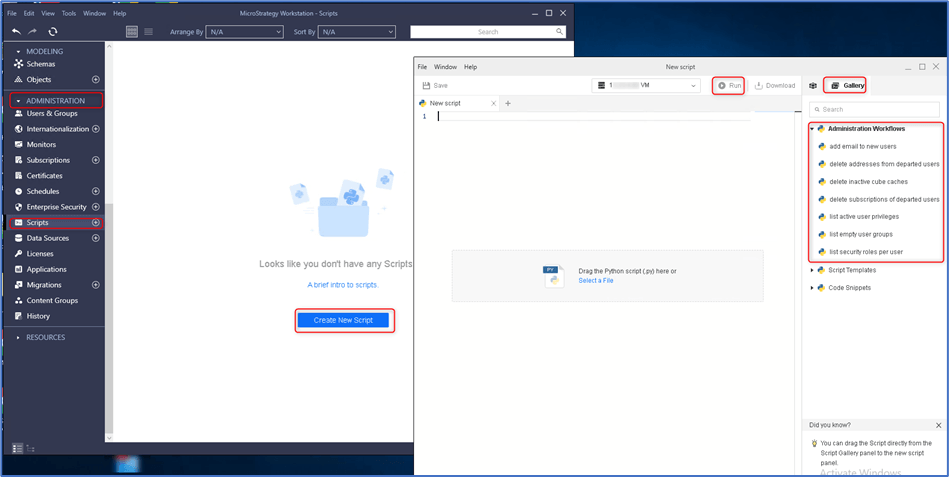
2. Navigate to Administration: Access the administration panel to manage scripts and workflows.
3. Access Scripts Section: Go to the scripts section where you can create or modify scripts.
4. Select Your Environment: Choose the appropriate environment where the script will be executed.
5. Open Gallery Tab: In the right section of the interface, select the Gallery tab to view available workflows and scripts.
6. Expand Administration Workflows: Find and expand the Administration Workflows section to access various administrative scripts.
7. Launch and 'Administration Workflow' Script: Double-click on a script from the following list to open and view its details:
• Add email to new users.
• Delete addresses from departed users.
• Delete inactive cube caches.
• Delete subscriptions of departed users
• List active user privileges
• List empty user groups
• List security roles per user
8. Execute the Script: Hit the run button to execute the selected script.
9. Script Review and Customization: Before finalizing, review the script to comprehend its structure and functionalities. Customize specific parameters if necessary to align with your administrative goals.
The scripts in the Script Gallery utilize the ‘mstrio-py’ package, which is a Python client designed for easy interaction with the Strategy REST API. It facilitates various operations, including connection management and project object manipulation. You can find more information about this package on the Strategy GitHub repository https://github.com/MicroStrategy/mstrio-py.
Python within Workstation https://www2.Strategy.com/producthelp/Current/Workstation/en-us/Content/intro_scripts.htm
Preview Python Scripts https://www2.Strategy.com/producthelp/Current/Workstation/en-us/Content/preview_scripts.htm
mstrio-py https://github.com/MicroStrategy/mstrio-py
https://www2.Strategy.com/producthelp/Current/Workstation/en-us/Content/intro_scripts.htm
Customization Warning:
This customization is provided as a convenience to Strategy users and is only directly applicable to the version stated. While this code may apply to other releases directly, Strategy Technical Support makes no guarantees that the code provided will apply to any future or previous builds. In the event of a code change in future builds, Strategy Technical Support makes no guarantee that an updated version of this particular customization will be provided. For enhancements to this customization or to incorporate similar functionality into other versions, contact your Account Executive to inquire about Strategy Consulting assistance.
