It is important to periodically reset your password to ensure the security of your RDP account on the Utility Box instance. This article will guide you through resetting your password, whether you are using the basic method or one of the alternative methods.
1. Check your email: MCE customers receive password expiration reminders via email 15 days, 7 days, and 1 day before the expiration date. This email provides username information, password requirements, and instructions on resetting your password.
2. RDP to Utility Box instance: Launch the Remote Desktop Connection to access the Utility Box instance.
3. Press Ctrl + Alt + Del: Once connected, press the Ctrl, Alt, and Del keys simultaneously. This will open a menu in the remote session.
If the key combination (Ctrl + Alt + Del) does not work, use the On-Screen keyboard:
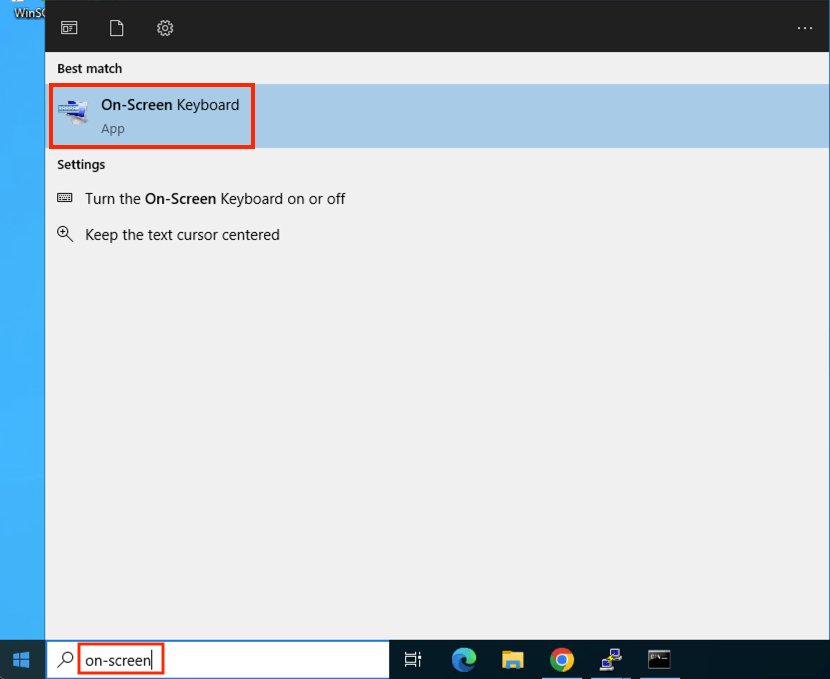
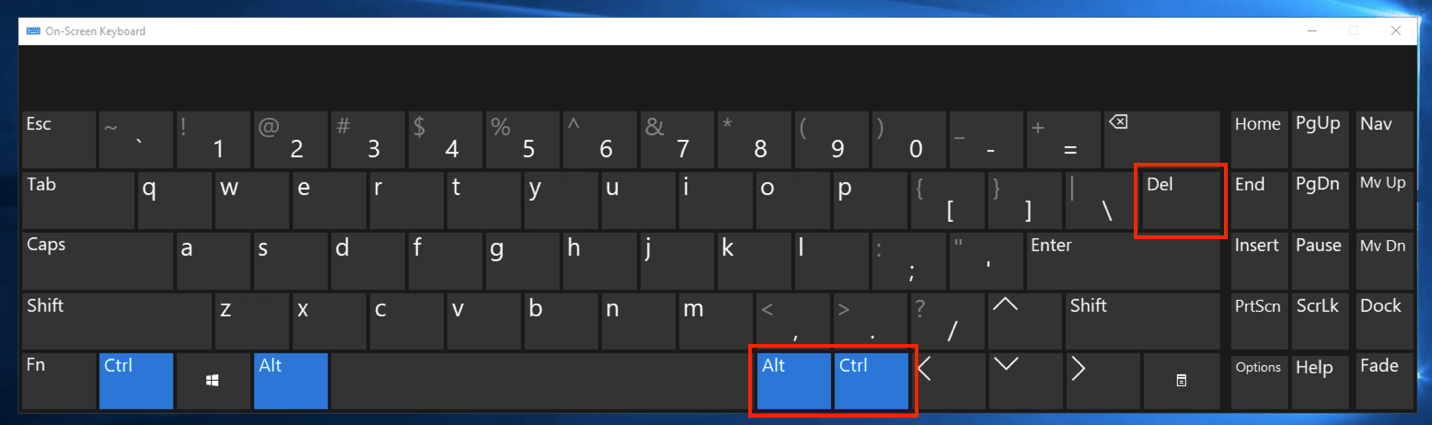
4. Click 'Change a password': Select the 'Change a password' option from the menu.
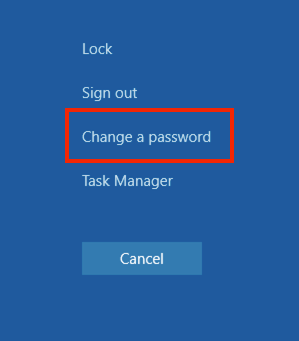
5. Follow the on-screen instructions:
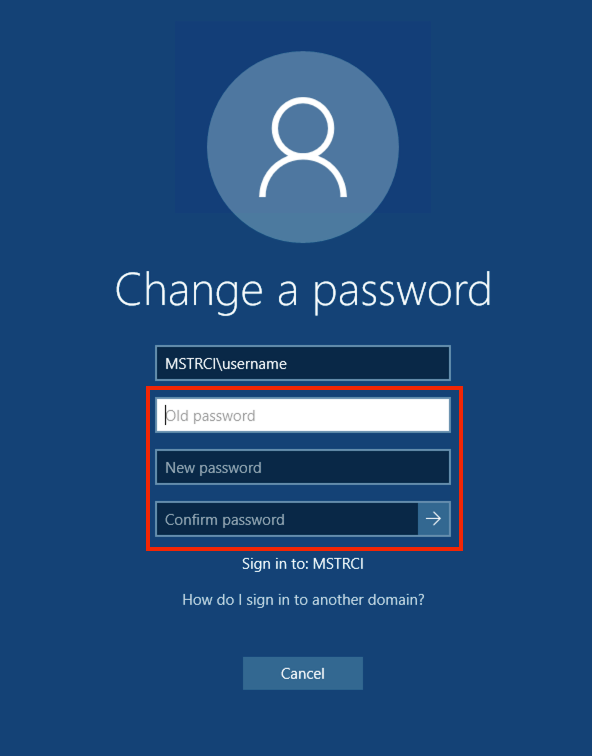
Your new password must meet the following requirements: 12 characters (minimum), at least 1 capital letter, at least 1 number, and at least 1 special character.
If you encounter any issues while resetting your password or cannot reset it yourself, please get in touch with your Support Liaison. The Support Liaison should open a case with the Cloud Support Team, including a detailed description of the problem and any error messages encountered.
Please include a screenshot of the error message. It is essential to mention the issue's impact, whether it affects a single user, multiple users, or all users.
Remember to keep your RDP account password secure and periodically reset it to protect your data and resources.
