EducationSoftwareStrategy.com
StrategyCommunity

Knowledge Base

Product

Community

Knowledge Base

TopicsBrowse ArticlesDeveloper Zone

Product

Download SoftwareProduct DocumentationSecurity Hub

Education

Tutorial VideosSolution GalleryEducation courses

Community

GuidelinesGrandmastersEvents
x_social-icon_white.svglinkedin_social-icon_white.svg
Strategy logoCommunity

© Strategy Inc. All Rights Reserved.

LegalTerms of UsePrivacy Policy
  1. Home
  2. Topics

KB486797: How to enable custom fonts for dossier exporting to PDF


Sheng (Randy) Wu

Senior Cloud Support Engineer III • MicroStrategy


This article is for how to enable custom fonts for exporting dossier to PDF, which is different from adding new custom fonts for MicroStrategy web/Library.

KB37127 for how to add new custom fonts for Strategy Web / Library and refer to KB441194 for how to install the custom fonts for Strategy Export. But sometimes, the custom fonts do not work for dossier export to PDF.

Please refer to

This is because for exporting to PDF, it is necessary to strictly specify required parameters like font-weight, font-style or font-stretch respectively except the correct font-family name for the custom fonts.

Instructions

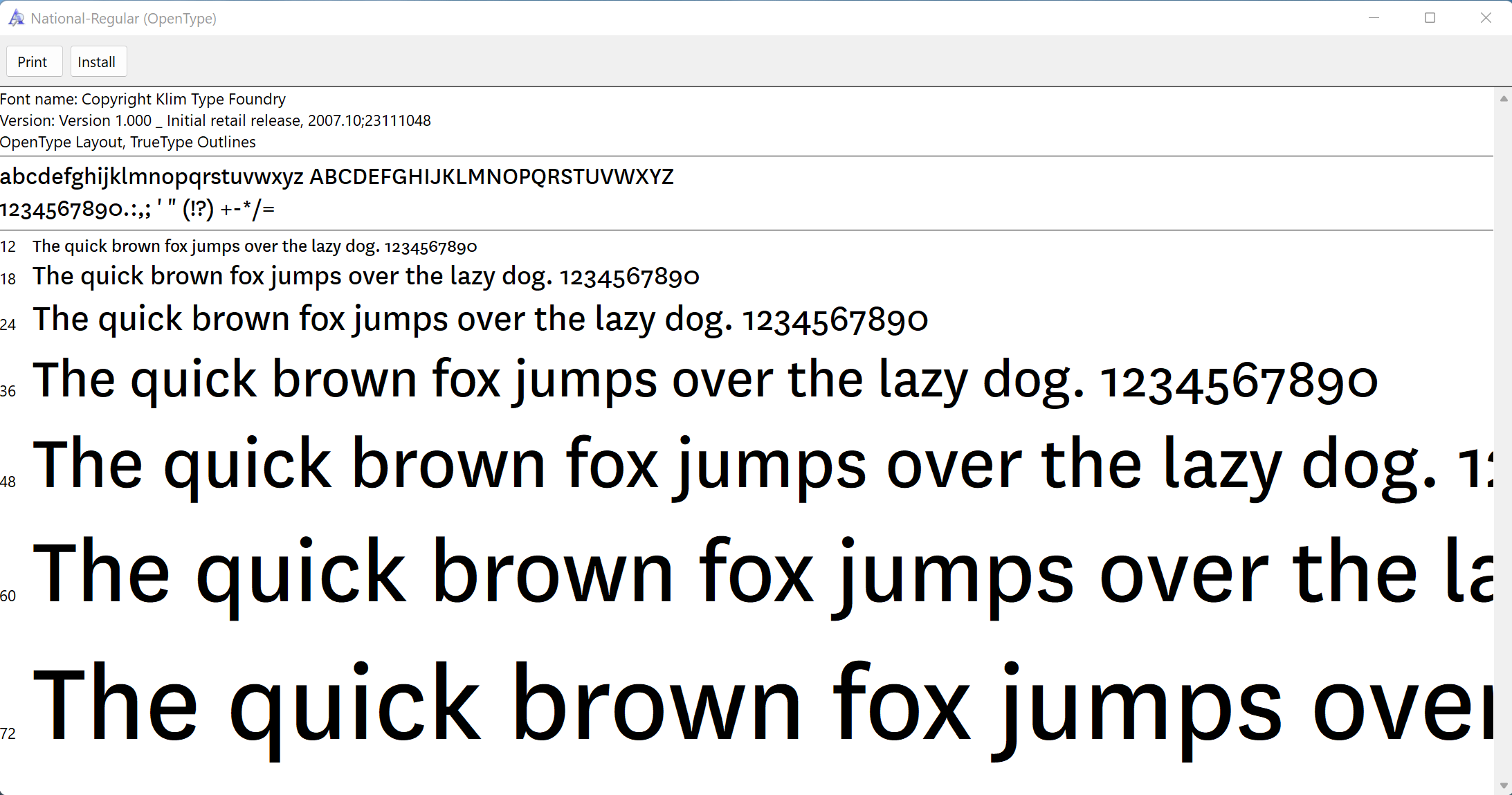
Take custom fonts “national” as example, the font family name is “Copyright Klim Type Foundry”.
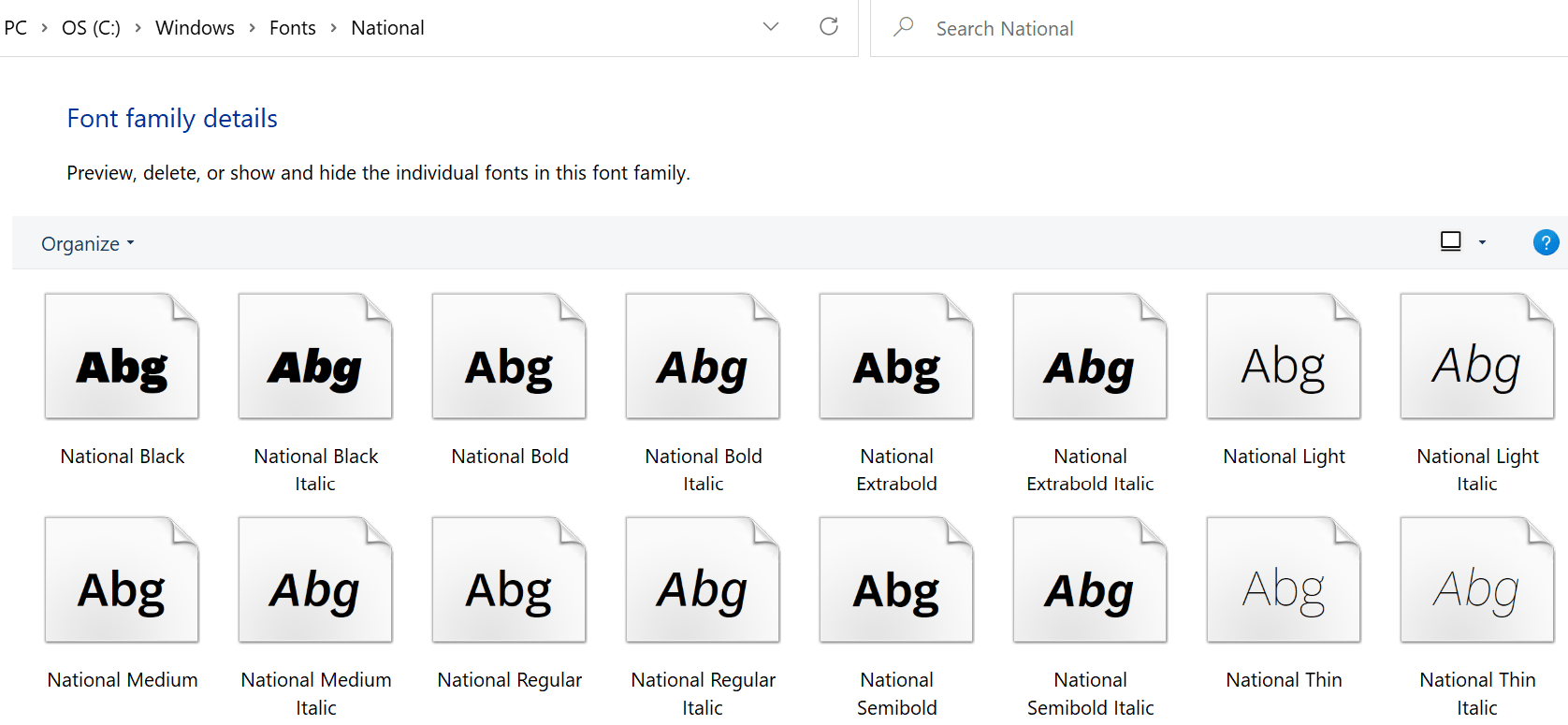
ka0PW0000002bWXYAY_0EMPW000007KkQs.png
ka0PW0000002bWXYAY_0EMPW000007KkQt.png

Following the KB37127, create and deploy the custom font plugin. Sample custom fontNamesPikcer.xml file as below.

ka0PW0000002bWXYAY_0EMPW000007KkQu.png

But with this KB, it does not include CSS rule. To utilize the new custom fonts in dossiers, users should select the corresponding font family and define its variants. For example, to use “National Bold”, users should choose “National” as font family, and then set Bold.
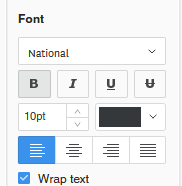
ka0PW0000002bWXYAY_0EMPW000007KkQv.png

In the Text Box, currently only Bold and Italic are supported, while Condensed or other font properties are not in the text box editor.
And if just with above setting, simply specify full name in font-family, don’t add properties, like font-with, font-style or font-stretch, such font face rules will only work in Strategy Web/Library. As for exporting dossier to PDF, it is necessary to strictly follow the standards.
To define the CSS rules as follow:
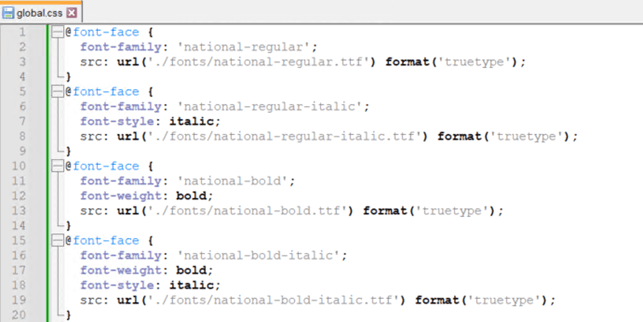
  1. Create fonts folder and global.css file under “plugins/CustomFonts/style”.
  2. Copy and save all your custom fonts to the fonts folder created above.
  3. Define these custom fonts’ CSS rules as follows.
ka0PW0000002bWXYAY_0EMPW000007KkYv.jpeg


Comment

0 comments

Details

Knowledge Article

Published:

June 28, 2024

Last Updated:

July 1, 2024