EducationSoftwareStrategy.com
StrategyCommunity

Knowledge Base

Product

Community

Knowledge Base

TopicsBrowse ArticlesDeveloper Zone

Product

Download SoftwareProduct DocumentationSecurity Hub

Education

Tutorial VideosSolution GalleryEducation courses

Community

GuidelinesGrandmastersEvents
x_social-icon_white.svglinkedin_social-icon_white.svg
Strategy logoCommunity

© Strategy Inc. All Rights Reserved.

LegalTerms of UsePrivacy Policy
  1. Home
  2. Topics

KB486818: Users get an error message "Object does not exist in the metadata" when trying to edit a python script in MicroStrategy Workstation.


Carlos Rodriguez

Senior Cloud Support Engineer III • MicroStrategy


The solution will remove from the Script all objects no longer in the metadata. The user will feel that they lost the object, but in reality, the user did lose the object when they refreshed the metadata, and the scripts are no longer in the current metadata.

Symptom:

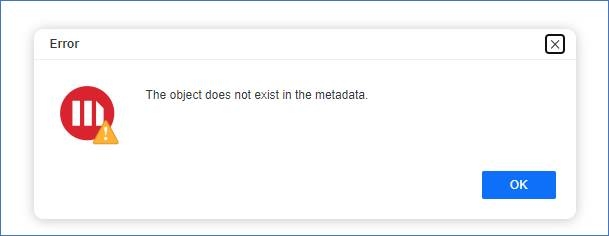
The user is getting an error message in Workstation when trying to edit a script listed in the Scripts session of Strategy Workstation.
 

  1. The user logs in to the Workstation environment and clicks Script from the navigation panel.
  2. The user sees a list of available scripts in the user environment.
  3. The user right-click on one of the scripts and click the Edit button.
  4. The user gets an error that says, " The object does not exist in the metadata.


ka0PW0000002Z6XYAU_0EMPW000007a44J.jpeg

Cause:

The problem is occurring because the project's quick search indices still contain outdated data. This happened because the customer updated the metadata database with new information that does not align with the previous scripts. Since the quick search has not been rebuilt, users can still see the old scripts in the Strategy Workstation, even though the metadata has been updated.
This issue arises from the Quick Search index displaying data that no longer exists in the metadata.
 

Solution:


The users need to manually the Quick Seach indices for the project as the scripts will be saved as a project object in the metadata.

  1. Login to the Development environment as an administrator using Workstation.
  2. Click on Monitor
  3. Click on Quick Search Index
  4. Select all projects
  5. Right-click on a project
  6. Click Rebuild Indices
  7. Once the indices have been rebuilt the scripts will no longer show in Workstation.


Reference: 

Monitor Quick Search Indices
https://www2.Strategy.com/producthelp/Current/SystemAdmin/WebHelp/Lang_1033/Content/monitoring_quick_search_indices.htm#:~:text=If%20the%20index%20folder%20is,a%20rebuild%20may%20be%20necessary.
KB482892: How to Rebuild the Index of the Quick Search
https://community.Strategy.com/s/article/KB482892-How-to-Rebuild-the-Index-of-Quick-Search?language=en_US


Comment

0 comments

Details

Knowledge Article

Published:

June 27, 2024

Last Updated:

June 27, 2024