/StrategyLibrary with /api-docs/index.html?visibility=allin your browser.
X-MSTR-AuthToken.
GET /api/v2/configurations/featureFlags.
X-MSTR-AuthTokenfrom step 5. You can also get this via inspecting the browser network XHR requests.
CubeIndexGoverningin the response body to find its status details.
PUT /api/configurations/featureFlags/{id}.X-MSTR-AuthTokenfrom step 5. You also can get this vis inspecting the browser network XHR requests.
idto
8A5F766F4CEA7EEC5DDD09A60E031894.
statusvalue to
2.
Starting in Strategy One (May 2025), this setting is deprecated. For more information on the latest behavior, see Avoid Server Shutdown When the Memory Contract Manager Limit is Exceeded.
Prior to Strategy One (May 2025), when system memory is low, such as when the available total system memory is under pressure (less than 20% of the machine/container's physical memory), the Intelligence Server automatically starts unloading cubes up to 10% of the total physical memory, using the following steps:
If the system does not recover from low memory and enters Memory Depletion status, the Intelligence Server will follow the same steps above to unload a larger number of cubes. For more information, see Governing Intelligence Server Memory Use with Memory Contract Manager.
The unload process will be skipped if cube memory usage is less than 30% of the total physical memory. Certified cubes will be skipped.
Note: If you incorrectly modify registry values, serious system-wide problems could occur that may require you to reinstall Microsoft Windows. Any edit you perform to the registry is at your own risk. These are user-initiated changes and are not covered by any Strategy warranty. If you are using Microsoft Windows, you should backup the registry and/or update an Emergency Repair Disk prior to making changes.
Windows
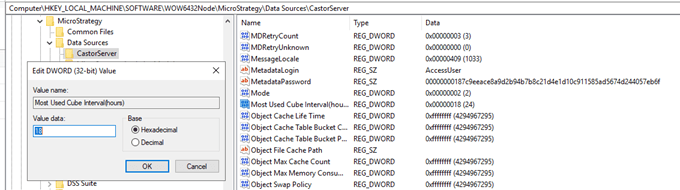
Computer\HKEY_LOCAL_MACHINE\SOFTWARE\MicroStrategy\Data Sources\CastorServerkey, add a new
dwordvalue. The value name is
Most Used Cube Interval(hours), and the value data represents the duration in hours. For example, the value below ("18") indicates that the Intelligence server will automatically start releasing the index of uncertified cubes that haven't been used in the past 24 hours. If it is not set, the default is 24 hours.
Linux
MSIReg.regfile under the install directory.
[HKEY_LOCAL_MACHINE\SOFTWARE\MicroStrategy\Data Sources\CastorServer] line, add a new line after it: "Most Used Cube Interval(hours)"=dword:000000018. The entry should look like the following:
[HKEY_LOCAL_MACHINE\SOFTWARE\MicroStrategy\Data Sources\CastorServer]
"Most Used Cube Interval(hours)"=dword:000000018
