One can apply a Number Formatting on a threshold created on an attribute or a metric in the Advanced Thresholds Editor for a Grid Visualization.
In a grid visualization, the Number Format in threshold refers to the formatting applied to metric values or attribute elements that meet a specific condition. For example, one can display revenue values less than 500,000 in red or highlight the names of regions with revenue values less than 500,000 and plan to set the Number Formatting as Fixed or Currency based on the Threshold applied to it.
1. Create a new Dashboard and add any grid visualization.
2. Add some of the attribute elements and metrics to the grid.
3. In the Editor panel, right-click an attribute or metric and choose Thresholds. If an attribute is selected, the Advanced Thresholds Editor opens. If a metric is selected, the Quick Thresholds Editor opens.
4. If the Quick Thresholds Editor is opened, select the Advanced Thresholds Editor link to open the Advanced Thresholds Editor.
5. Click New Threshold.
6. Select an Attribute from Based on List and provide Operator as well as Value to create a condition of the threshold.
7. Click More to the right of the threshold condition and choose Number Format.
8. Change the Number Format from Automatic to any other format, for example, Currency.
9. The client will notice that Formatting will be applied on the corresponding threshold condition.
Number Format option is unavailable when clicking on More option to the right of the threshold condition.
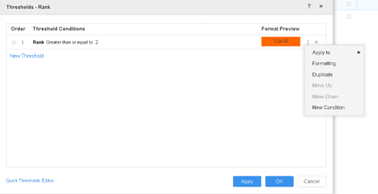
Number Formatting in a threshold cannot be adjusted if there are no values present in the grid visualization for the corresponding attributes or a metric.
1. Create a grid visualization in a Dashboard.
2. Add a dataset by uploading an excel file containing some blank values.
3. Apply a filter such that it will filter down only those rows which contains blank values.
4. Create a threshold on the corresponding attribute or a metric containing blank values.
5. In More Option to the right of the threshold condition, Number Format is not available.
6. Now, alter the filter condition such that it will include the rows containing the values.
7. Edit the Threshold condition now and go to More Option.
8. Able to see the Number Format option.
This is the Expected behavior while applying the Number Formatting in the Advanced Threshold Editor. If there are no values present in the grid, then the client won’t be able to add the Number Formatting for the same.
